Upgrade Revit Cloud Models
Project administrators can easily upgrade all Revit cloud models published from Revit to the Files tool to the latest major release of Revit. This is controlled from the Settings tool in Forma Data Management.
The upgrade process applies only to Revit models published using the Revit cloud worksharing or cloud models for Revit workflows. When a project contains more than 2,500 Revit cloud models, the cloud upgrade tool is not available. Shared and consumed models are not counted as cloud models. Revit models uploaded through Forma Data Management web or Desktop Connector are also not upgraded.
During the upgrade, project members can continue to access the project and view the models. However, any changes made to the project during this time are not saved because the project version itself is updated during this process.
The upgrade completion time can vary, depending on the number of models to be upgraded and the size of those models.
- Revit File Icons
- Upgrade Revit Cloud Models
- Test Upgrade Report
- Unable to Upgrade Revit Cloud Models
Revit File Icons
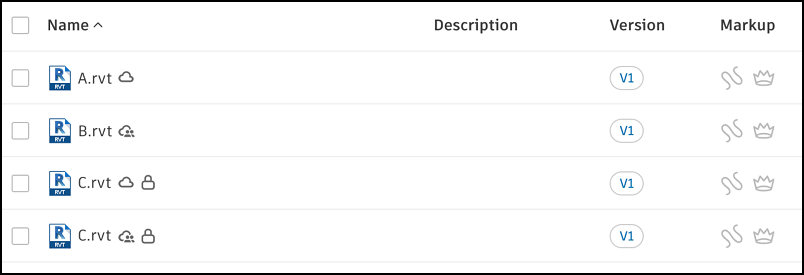
In the Files tool, different icons identify whether a Revit file is published as a Revit Workshared Cloud Model or a Revit Cloud Model. This can help identify which files will be upgraded.
 - Revit Workshared Cloud Model:
  - Revit Cloud Model
 No icon - The Revit file was uploaded directly to the Files tool in Forma Data Management and will not be upgraded.
Upgrade Revit Cloud Models
Select Data Management from the product picker.
Select the Settings tool on the left panel.
Select the Revit Cloud Model Upgrade tab.
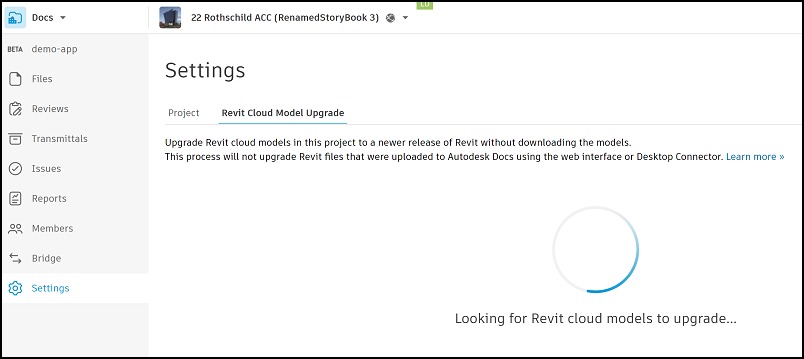
The system starts to check if you have models available to upgrade.
If you see the message Upgrade recommended, click Upgrade.
Note: If you see a message indicating that you need Revit Cloud Worksharing, contact your software or contract administrator to request access to Revit Cloud Worksharing which you will need to proceed to the next step.Read the confirmation message and click Upgrade Revit cloud models to confirm. You should now see a series of messages indicating the progress of the upgrade. You will also receive an email confirmation that the upgrade has started and may take some time.
You will receive another email once the upgrade is complete. Click Review in that email to view the latest models in Files.
Test Upgrade Report
The Test Upgrade Report shows only Revit cloud models that contain errors or warnings after being upgraded. If there are no errors or warnings associated with a model, the following message generates: Test upgrade complete - Cloud models in this project could be upgraded from Revit 20xx to Revit 20xx.
Unable to Upgrade Revit Cloud Models
If there is a problem with the upgrade process for one or more models, you may receive a notification reading Unable to upgrade Revit cloud models.
To resolve this issue:
Retry the upgrade later.
Download the individual models to your local machine and perform a local upgrade.
If the local upgrade is successful, contact support to inform them that the local upgrade succeeded but the upgrade process isn't working.
If the local upgrade is unsuccessful, refer to Revit help Guide Troubleshooting issues with upgrading Revit models.
Note: If a model fails to upgrade, all models in the project will remain in their Revit release until the upgrade is successful. You can continue to work in the previous versions of the models.If the upgrade has not been completed within 48 hours, contact support.