Add Files to Packages
You can add files to packages to group project information (for example, models, drawings, documents) for specific teams or milestones. You create packages which either contain fixed file versions or files which automatically update to the latest version. This prevents disruption from constant changes and ensures everyone uses approved versions. It also streamlines review and transmittal processes and centralizes deliverables for better collaboration and version control without duplicate files.
Permission Required to Add Files to Packages
Project administrators and package managers above can add files to unlocked packages.
Limitations
- You can't add files to locked packages.
- You can add files to a maximum 10 packages at once.
How to Add Files to Packages
Select one or more files from the files list and either:
- Right-click any of the selected files; or
- Click the More menu
 in the action bar above the files list.
Click Add to packages
Select one or more existing packages to add the files to.
Note: You can also create a package by clicking Create new. See Create Packages and Add Files help topic for more details.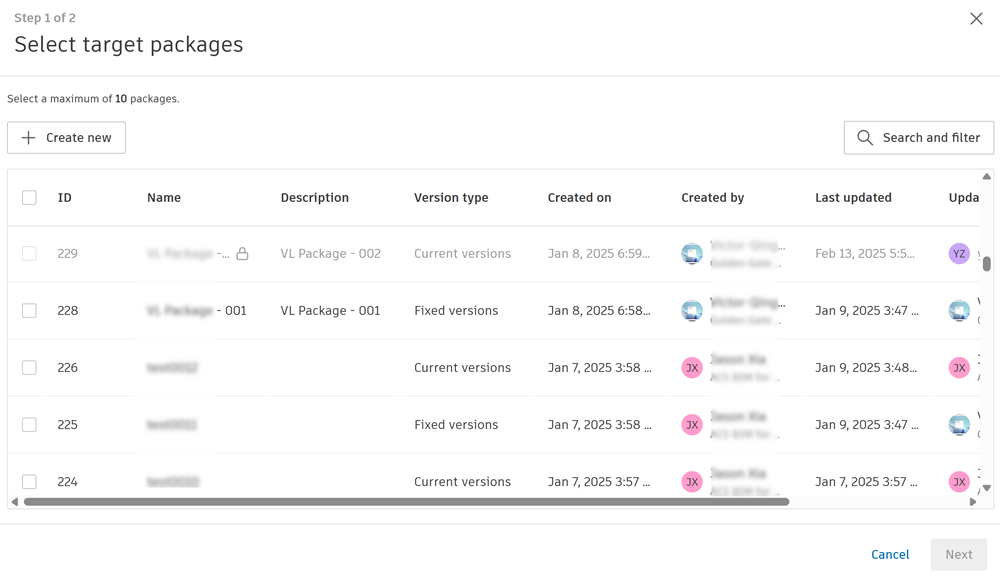
Click Next.
If you've selected one or more fixed versions packages, select the relevant version for each added file.
Current version packages will always display files as their latest current versions.
Click Select files if you want to add more files to the selected packages.
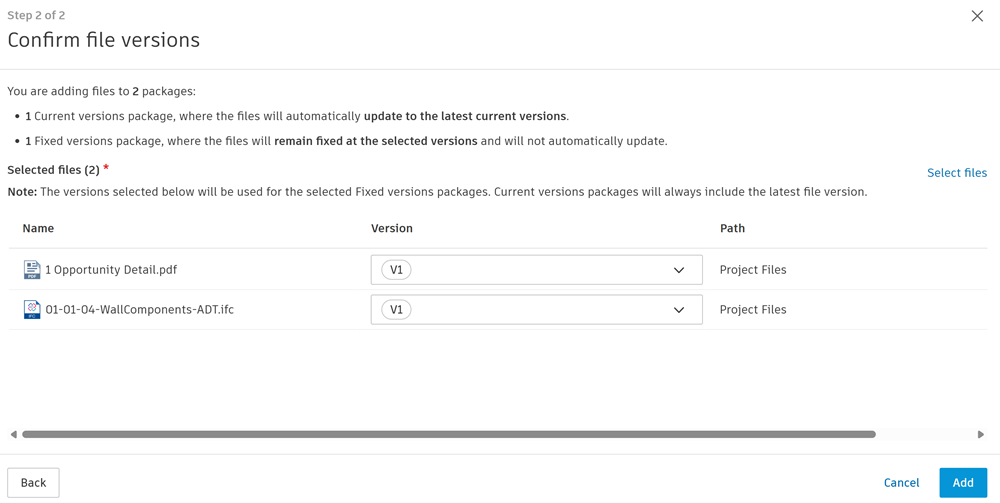
Click Add.
You can also add files by opening a package from the Packages tab and adding files directly to the package. See Create Packages and Add Files help topic for more details.