Copy Files
You can copy a current or previous file version and save the copy to a target folder. If a file with the same name and extension exists in the target folder, the target folder file will version up. All versions of the selected file in the source folder will remain unaffected.
- Permission Required to Copy Files
- Limitations
- How to Copy the Current File Version
- How to Copy a Previous File Version
- Other Considerations
Permission Required to Copy Files
You need:
- View + Download permission or above for the source folder.
- Create + Upload permission or above for the target folder.
Limitations
You can't copy:
How to Copy the Current File Version
Select one or more files from the files list and either:
- Right-click any of the selected files; or
- Click the More menu
 in the action bar above the files list.
Click Copy.
Select the target folder. This can't be the source folder.
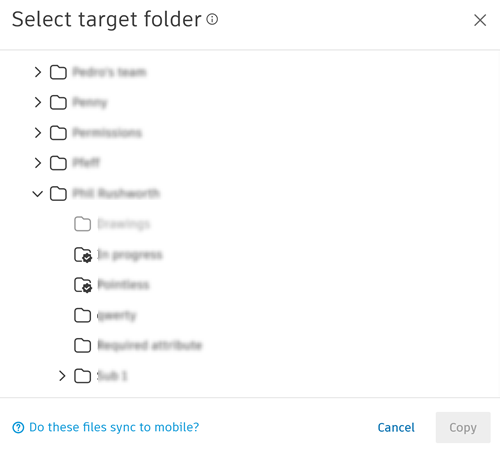
If the target folder is enforced by the naming standard or has required attributes, click Continue. The file names or relevant attributes will need validating. See Validate Files Names and Required Attribute Values to learn more.
- Click Copy.
How to Copy a Previous File Version
Either:
- Right-click a single file in the files list and click View version history; or
- Select a file and click More menu in the action bar above the files list and click View version history; or
- Click the version number badge in the Version column.
Click the More menu
of the relevant file version. Click Copy
Select the target folder. This can't be the source folder.
Click Copy.
See View version history for more details and options for working with file versions.
Other Considerations
Members who subscribe to the folder will receive a notification.
If you want to add all versions of an existing file to a folder, you can use Move. However, you can't move a file with the same name and file extension as another file in the target folder as Move does not generate a new file version. You will need to rename, delete, or move the existing file out of the folder to move the file. See Move Files for more information.