Create Transmittal
A transmittal is a formal means of sending files to another project member or team.
- Permission Required to Create a Transmittal
- Limitations
- How to Create a Transmittal
- Other Considerations
Permission Required to Create a Transmittal
You need Create + Upload folder permission or above for the relevant files to create a transmittal.
Limitations
You can't add Datasets to a transmittal.
You can add a maximum of 1,000 recipients to a transmittal.
How to Create a Transmittal
Select one or more folders and files to include in the transmittal and either:
Right-click any of the selected files; or
Click the More menu
 in the action bar above the files list.Note: When you select a folder, all files in its subfolders will be included as well.
Select Create transmittal
Complete the transmittal details.
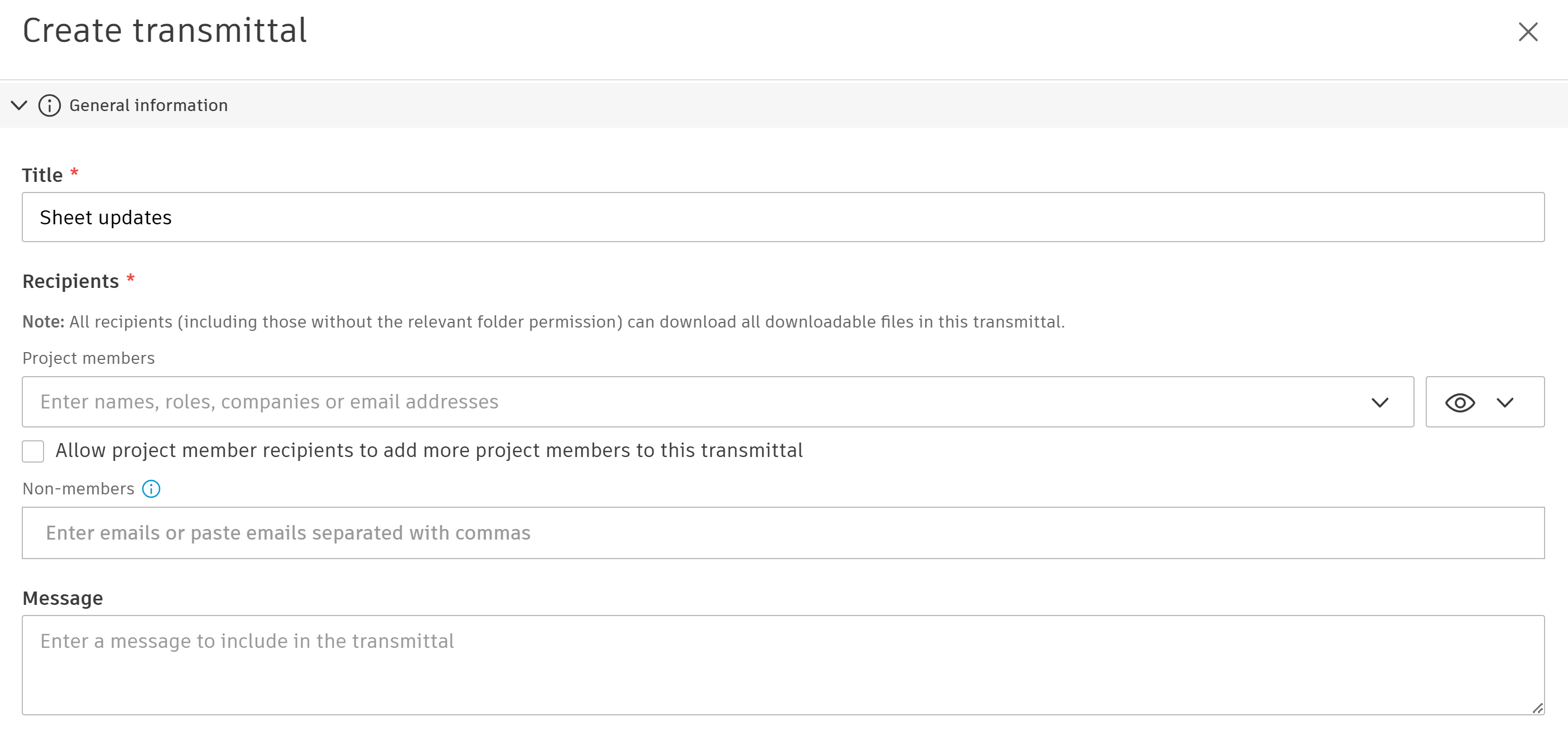
Title: Enter a name for the transmittal.
Recipients:
You can add a maximum of 1,000 recipients. All recipients (including those without the relevant folder permission) can download all downloadable files in this transmittal.
Project members
Click this field and add members, roles, and companies. Click Save.
Adjust the View permissions to choose whether recipients can see other recipients of the transmittal or not.
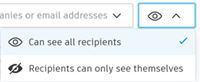
This setting only applies to project members. The sender and other project administrators can always see the full recipient list. After the transmittal is sent, you can adjust the view permissions for the recipient list again from the More menu
 for the transmittal.
Allow project member recipients to add more project members to this transmittal
Select this option if you want to allow project member recipients to add other project members to the transmittal after it's sent. See Add Recipients to Sent Transmittals for more details.
Non-members
To see this option and transmit files to non-members:
A project administrator needs to turn on the Transmit files to anyone in transmittal settings in Forma Data Management.
The transmittal sender needs Create + Upload folder permissions or above.
Click the Non-members field and enter the emails addresses of any non-members you want to share the transmitted files with.
Note: Recipients who are non-members won't be able to view any details of the other recipients.
Message
If necessary, add a Message to the transmittal recipients. The message can indicate what the transmittal is for and specify any required actions.
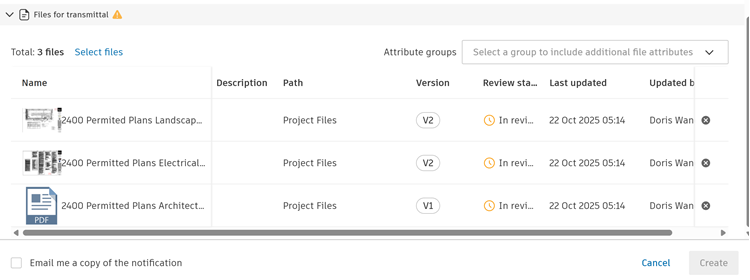
Files for transmittal
Check the list of files included in the transmittal. Click Select files to add more files or click
 next to a file to remove the file from the list.
Attribute groups: You can also add the attributes contained in an attribute group to the files in the transmittal. Select an existing transmittal group to preview and add the attributes. See Transmittals Settings for details on how project administrators can create attribute groups.
Note: Attribute values are captured at transmittal creation time and don't change if updated later.Select Email me a copy of the notification if you want to receive an email to confirm that the transmittal is created and sent successfully.
Click Create.
Recipients of the transmittal are notified by email when the transmittal is ready to view. See Transmittals Notifications for more details.
The transmittal will be visible in the Transmittals tool in Forma Data Management. See the View, Download, and Export Transmittals topic in the Forma Data Management help to learn more.
Other Considerations
You can also create transmittals from the Transmittals tool in Forma Data Management. This also lets you view, download, and export transmittals. See the Transmittals help to learn more about how to work with transmittals in Forma Data Management.