Edit Attribute Values
You can manually edit attribute values, and bulk edit using the Edit attribute values action.
Permission Required to Edit Attribute Values
- You need Edit permission or above to edit file attribute values.
- You only need Create + Upload folder permission to edit custom attribute values for the file versions you've uploaded if the enhanced permission setting is enabled in advanced settings.
Limitations
You can't edit attribute values for files which are locked by other members.
How to Edit Attribute Values
Select one or more files.
Select one or more files from the files list and either:
- Right-click any of the selected files; or
- Click the More menu
 in the action bar above the files list.
Click Edit attribute values.
Edit the values that you want to change.
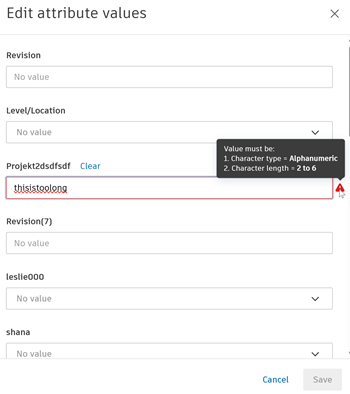
If a text field attribute has character setting constraints applied and your value doesn't comply with those restraints, guidance will display detailing the correct character length and type required.
If you are editing a text field with numeric character type, you can select the following:
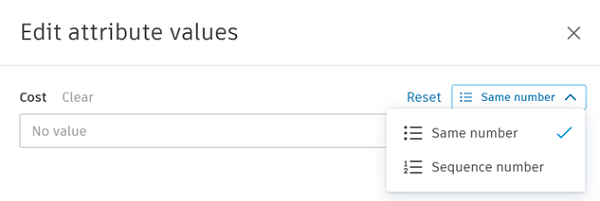
Same number: This will add the same attribute number value for all selected files.
Sequence number: This will sequence the attribute number values from a starting number and with incremental values according to the numbers you enter:
- Start number: Positive numbers only. Decimals are supported. For example, 1, 0.1.
- Incremental number: Positive and negative numbers. Decimals are supported. For example, 1, 0.1, -1.
For example if you might select 3 files and bulk edit their attribute values. If you sequence the numbers with start number 0.1 and incremental number 2, the files will have values 0.1, 2.1, 4.1 respectively.
Click Save.