Rename Files or Folders
You can rename files or folders to benefit organization, clarity, and adherence to project standards, which are crucial for effective project management and collaboration. You can rename files in folders with or without a naming standard applied.
- Permission Required to Rename Files and Folders
- Limitations
- How to Rename Files
- How to Rename Folders
- Other Considerations
Permission Required to Rename Files and Folders
Members with Edit permission or above can rename files and folders.
Limitations
Files
You can only rename one file at a time if the folder doesn't have a naming standard applied.
You can't rename files which are locked by other members.
Note: Members with Manage permission can unlock files locked by other members.The file name can't be more than 255 characters.
The file name can't contain any of the following symbols: <>:"? /|*`
The file name can't be the same as another file with the same extension in the same folder.
However, duplicate names are allowed if the files are stored in different folders. Project administrators can scan selected folders to identify duplicate file names and rename or delete the relevant files if necessary. See Scan for Duplicate Files for more information.
Folders
- The folder name can't be more than 255 characters.
- The folder name can't contain any of the following symbols: <>:"? /|*`
- The folder name can't be the same as another folder at the same level.
How to Rename Files
Rename files without a naming standard applied
If you want to rename a file in a folder without a naming standard applied, you can only rename a single file at a time.
Either:
- Right-click the relevant file and click Rename; or
- Hover the file name and click the pencil icon
 .
.
Edit the file name.
Click the check mark
 .
.
Rename files with a naming standard applied
If you want to rename a file in a folder with a naming standard applied, you can rename one or more files at once. The file names will need checking in the validator where you can edit the relevant attributes so they comply with the naming standard. See Validate Files Names and Required Attribute Values to learn more.
Single file
Choose one of the following options to access renaming:
- Right-click the relevant file in the files list and click Rename.
- Hover the file name and click the pencil icon .
Multiple files
Select the files that you want to rename and choose one of the following options.
Right-click one of the selected files and click Rename.
Click the More menu
 on the action bar above the files list and click Rename.
Hover the file name and click the pencil icon
.You'll see a dialog where you can Continue to the validator or Cancel.
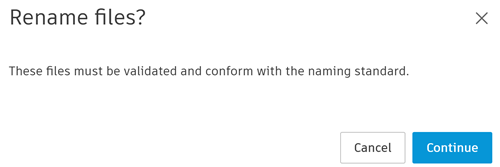
See Validate Files Names and Required Attribute Values to learn more about the validator and steps to take to rename files.
How to Rename Folders
You can rename one folder at a time.
Either:
- Right-click the relevant folder and click Rename; or
- Hover the folder name and click the pencil icon .
Edit the folder name.
Click the check mark
.
Other Considerations
DWG design files with Xrefs need to maintain their relationship within the Files tool. This means that neither the DWG design host files nor Xrefs can be renamed or moved within the Files tool. These operations will break the external reference relationships until the desktop application updates the correct reference graph. See Update DWG Xrefs in the Files Viewer help topic for more information.