View File Activities
You can view file activities which show all actions on or involving the file. The information is organized into activities over the last 7 days, last 30 days, last 3 months, and older. You can also export the file activities if needed.
- Permission Required to View File Activities
- How to View File Activities
- Export File Activities
- Other Considerations
Permission Required to View File Activities
Members with Edit permission or above can view file activities.
How to View File Activities
Right-click the relevant file.
Click View file activities.
The File activities panel opens.
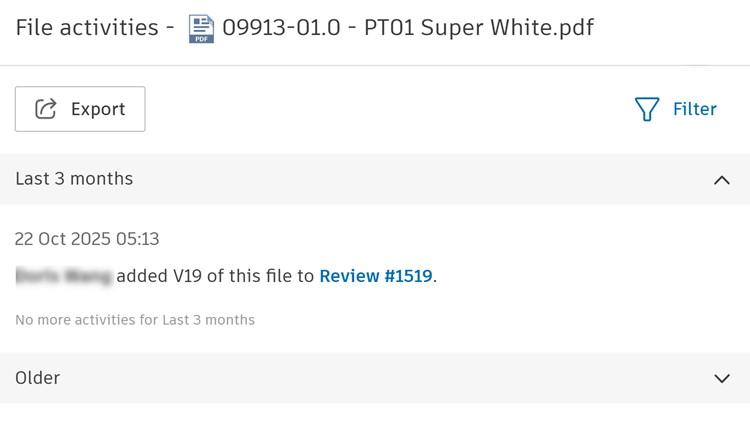
Review the activities.
You can click Filter and narrow the activity results by:
Filter Description Action by Select the member or members who completed an activity on this file. Activity Select the activities that you want to filter by. These actions all use the same verb as the file action. You can choose to scroll through the activity action filters by Category or Alphabetical. Time period Select a date range for when the activities occurred. When you've selected your filters, you can click:
- Apply to view any activities relevant to the filters.
- Clear all to clear all the filters.
- Filter to close the filter panel without applying or clearing the filters.
Export File Activities
Click Export to export the file activities.
Select Send activity log file by email if you want to receive a download link by email instead of exporting the file to your local computer immediately.
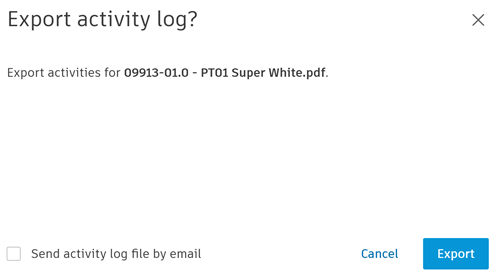
Click Export. Depending on your choices, the exported CSV file will start downloading to your local computer, or a download link will be emailed to you.
File activity log format
The name format of the exported file is the name of the project, file activity, the date starting with year, month, day, time of the download.
For example: 22 Rothschild Project_file activity_20260113_11.56.06
WHen you open the file, there is one tab which is headed with:
- Project name: Details the name of the project
- File name: Details the name of the file.
- Action by: Details the name of the users if they are selected in this filter. If no filter is selected, this will say All.
- Action type: Details the name of the actions selected in this filter. If no filter is selected, this will say All.
- Time period: Details the date range selected for this filter. If no filter is selected, the date range will be from when the file was added to the Files tool until the date you exported the activity log.
The activities are detailed under the following headings:
- Date
- Activity
- User name
- Action
- Action type
- Object name
- Folder name
- Target name
Other Considerations
Spreadsheet software tools like Excel will automatically convert and remove the leading zeros, for example from 0022045 to 22045. If you want to retain the leading zeros, set the cell format cell in Excel or open the exported CSV file with a text editor such as Windows Notepad or Apple TextEdit.app.