Create Packages and Add Files
Project administrators and package managers can create packages and add files. Once a package is created on web, it will also be available to view on mobile.
Create a Package
Project administrators and package managers can create packages:
Click the Files tool.
Click the Packages tab.
Click Create package.

This opens the Create package dialog.
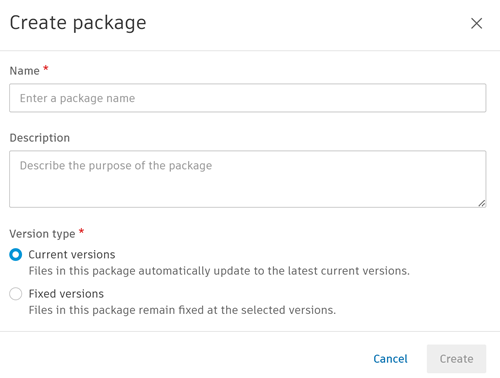
Name: Enter a name for the package.
Description: Enter a description of the package as necessary.
Version type:
- Current versions: Select this option if you want all the files in the package to update to their current versions.
- Fixed versions: Select this option if you want all the files in the package to remain fixed at their selected versions.
Watchers: You can add members as watchers to keep them informed about package updates. For example, for changes such as package attributes edits, file updates, lock status updates. Click the Watchers field and add individual members, companies, and roles as watchers.
Note: You can add a maximum of 2,500 watchers to a package.
Click Create.
Your package will display in the packages list with an automatically added ID number.
Add Files to a Package
Project administrators and package managers can add files to a package:
Click the relevant package from the packages list to open it.
Click Add files.
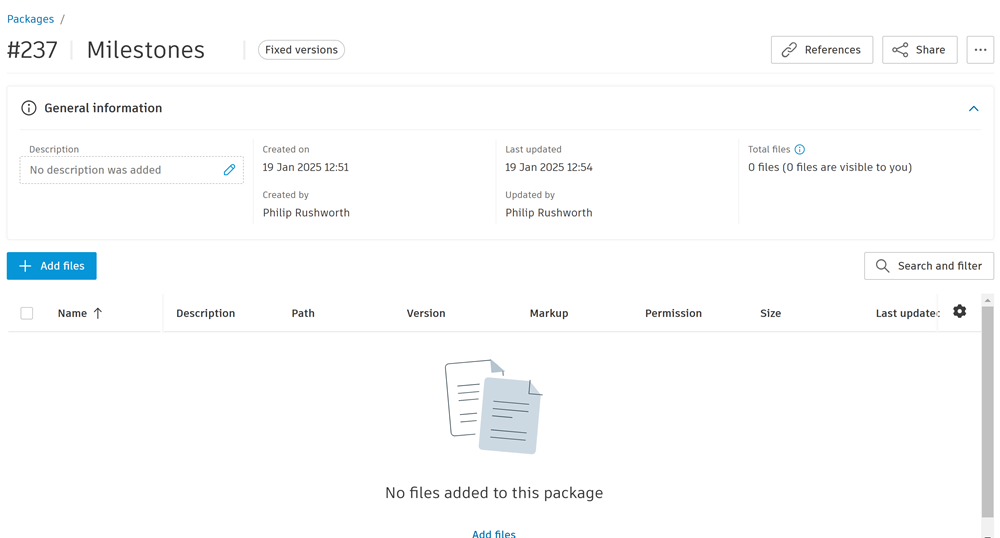 Note: The Add files button will be disabled if:
- The package already has the maximum 10,000 files.
- You are trying to add more than 1,000 files at once.
- The package is locked.
Select files from the file picker. You can also search for files if necessary.
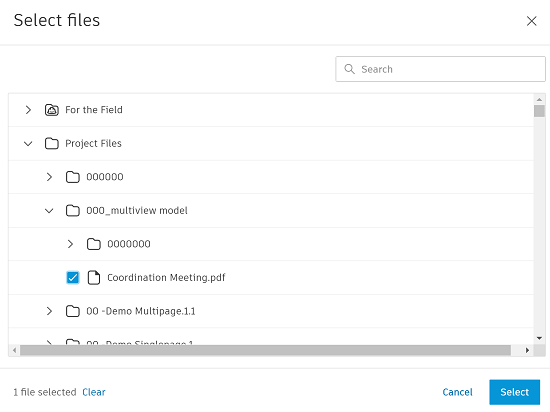
Click Select.
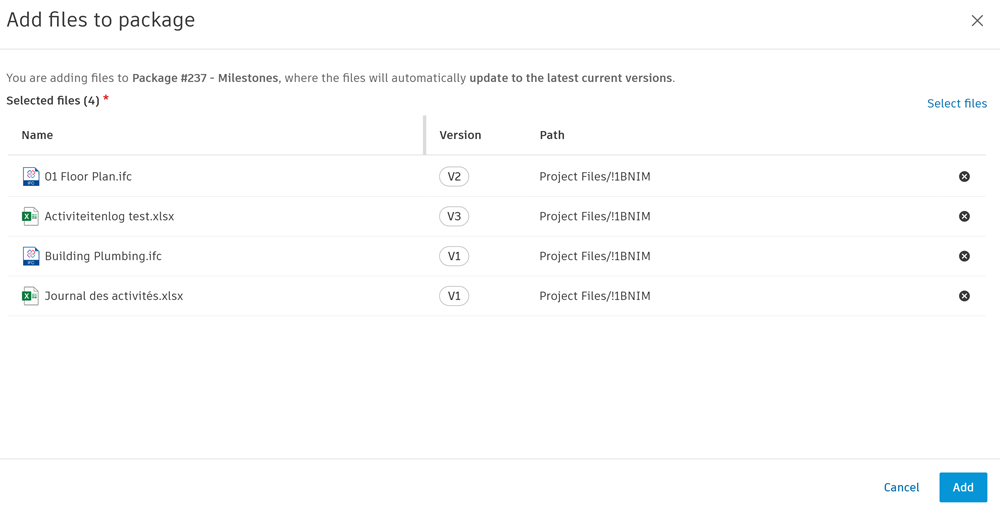
This opens the Add files to package dialog. There is a different workflow depending on whether you are adding files to a Current versions or Fixed versions package:
Current versions package
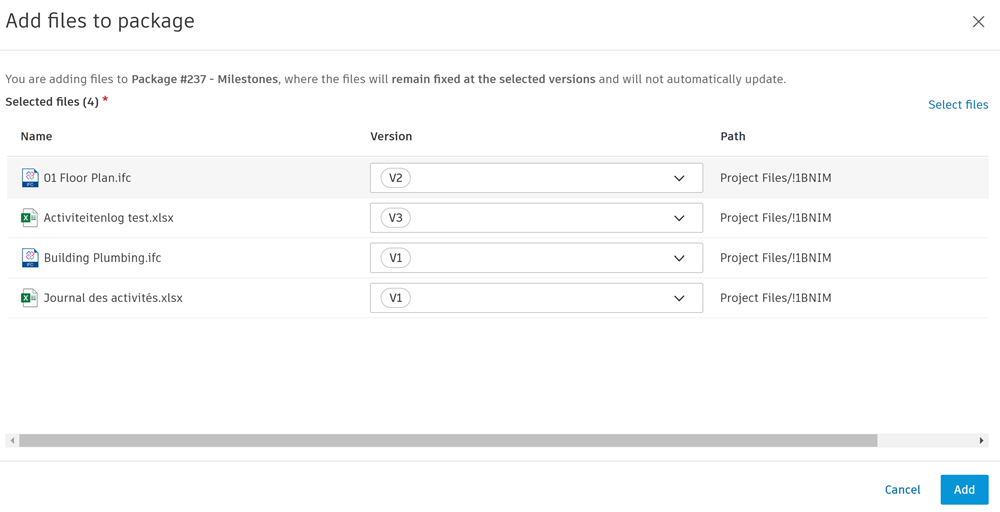
The files you've selected will display with the current version number at the time of selection. You can't change the file version you are adding as a current version package always shows the latest current version of each file.
Fixed versions package
The files you've selected will initially display with the current version number at the time of selection. Click a drop-down in the version field to switch to a different file version. This fixes the version to the package which means that the file won't automatically update in the package when a new version is added to the Files tool. You can change the version of a file in a fixed versions package again later.
 Note: If you've selected a different version of a file which already exists in the fixed versions package, you need to select which version you're keeping.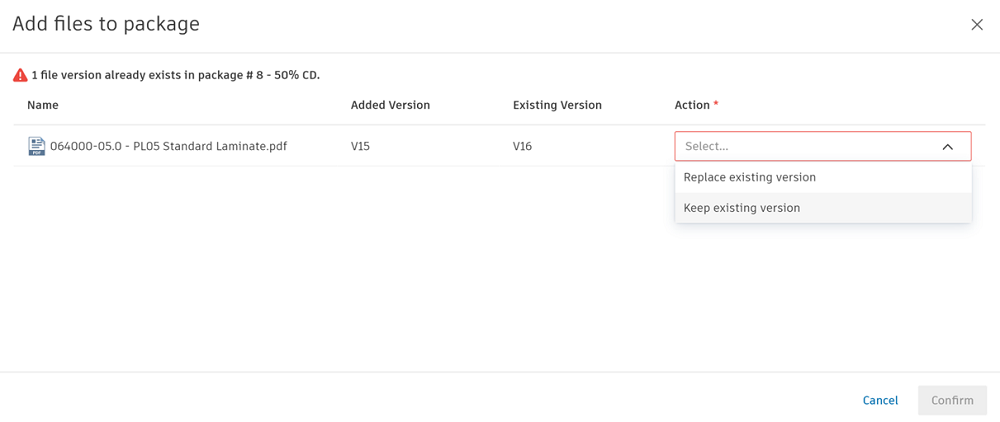
Click Select files if you want to add more files to the package.
Click Add when you've finished.
The files will be displayed in the package. If you view the file from the folder tree instead, an icon will display in the Indicators attribute to show that the file is added to a package.
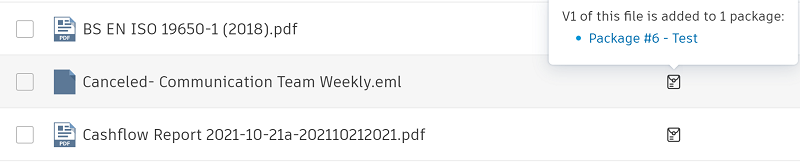
Hover the icon for details about which package the file is added to and access a link which opens the package.