View and Manage Packages
The Packages tab in the Files tool lists all created packages along with details including the assigned package ID, the package version type, and total files in the package.
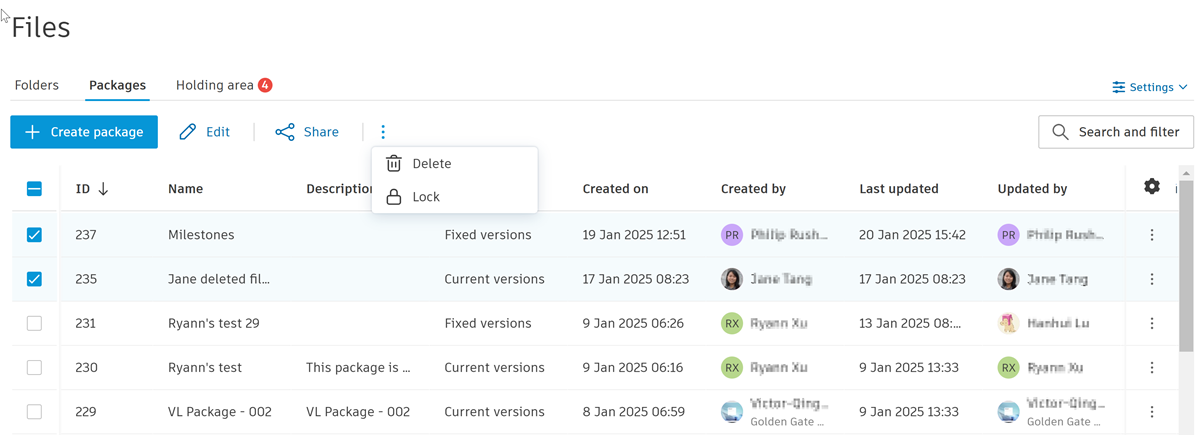
You can search and filter these packages to refine the packages list.
You can edit, share, delete, lock, watch, stop watching, and manage watchers for one or more selected packages subject to your permissions. For a single package, click the More menu to access these options.

If you select multiple packages, either click Edit, Share, Watch, Stop watching above the packages list, or click the More menu above the packages list for Delete, Lock, and Manage watchers options.
- Delete Packages
- Lock and Unlock Packages
- Share Packages
- Edit Packages
- Manage Watchers
- Watch or Stop Watching Packages
- Change Package Version Type
- Open and Manage a Package
Delete Packages
Project administrators can delete any unlocked package. Package managers can only delete a package which they've created and which is unlocked.
Select one or more packages.
Click Delete.
Note: The Delete button will be disabled if you are trying to delete over 1,000 packages, or if the package is locked.
Lock and Unlock Packages
Lock Packages
Project administrators can lock unlocked packages. Package managers can only lock a package which they've created and which is unlocked.
Select one or more unlocked packages.
Click the More menu
 above the package list.
 Click Lock.
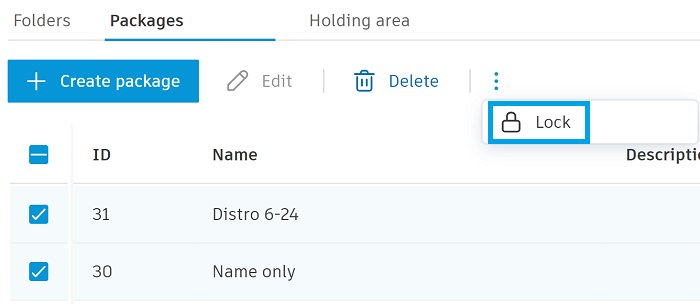 Note: The Lock button is disabled if you select over 1,000 packages.
Click Lock when the message displays.
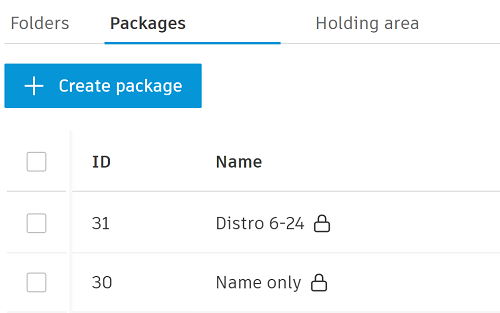
Lock icons will display next to the relevant files. Hover the lock icon to see who locked the package along with the date and time.
Unlock Packages
Project administrators can unlock any package. Package managers can only unlock a package which they've created and which is locked. When a package is unlocked, project administrators and package managers can then add files, remove files, edit, and delete packages.
Select the relevant locked packages. Locked packages display a lock icon in the Name column.
Click the More menu
above the package list.Click Unlock.
Note: The Unlock option will be disabled if you are trying to unlock over 1,000 packages.Click Unlock in the message.
Share Packages
All members can share the packages they can access with other project members.
Select the packages that you want to share.
Click Share.
You can share the selected packages with project members by email, or copy and share links.
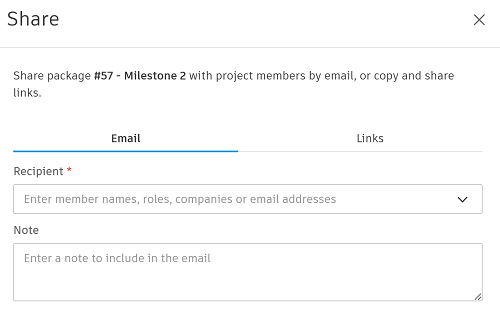
- Email: Click Recipients and select members, roles, or companies and click Save. Enter a note if necessary. Click Send.
- Links: Copy all or selected links and share them as necessary.
When the recipient accesses the copied link or link in the email, they will be redirected to the relevant package in the Packages tab in the Files tool.
Edit Packages
Project administrators can edit the Name, Description, and package Version type of any unlocked package. Package managers can only edit a package which they've created and which is unlocked.
Click Edit.
The details you can edit depend on whether you've select a single or multiple packages.
Single package
You can edit the Name, Description, and package Version type as required.
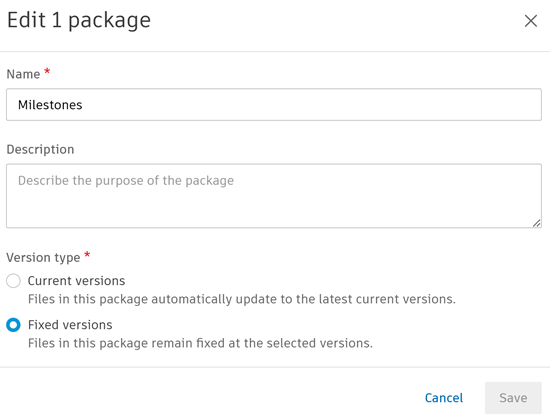 Note: You can also open a single package from the list to edit its name and change the package version type from the package.
Multiple packages
You can only edit the package Version type.
See Change Package Version Type for more details on changing version types.
Click Save.
Manage Watchers
Project administrators and package managers can add or remove watchers for a package after it's created. Members added as watchers will receive an email when packages are updated.
Select the packages whose watchers you want to manage.
Note: A maximum 200 packages can be selected to manage watchers.Click Manage watchers.
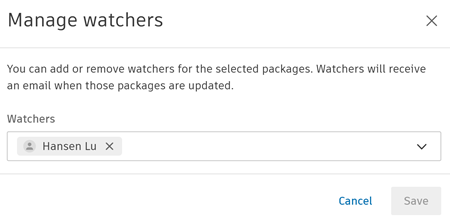
Remove any existing watchers who you no longer want to receive package updates. Click the Watchers field and add any members, roles, and companies as watchers as necessary.
Watch or Stop Watching Packages
Project members can add or remove themselves as watchers.
Select one or more packages you want to watch.
Note: A maximum 200 packages can be selected to manage watchers.Click Watch.
If you've been added, or added yourself as a watcher, you can select the relevant packages and click Stop watching to remove yourself as a watcher for those packages.
Change Package Version Type
You can change the version type of a package after it's created.
If you change a current version package to a fixed version package, the existing files will stay fixed at those current versions. Specific file versions need to be selected for files added after this change. Files will not automatically update to the latest current versions. You can manually update file versions later if necessary.
If you change a fixed versions package to a current version package, the files will automatically update to their current versions.
There are two ways to change the package version type:
- Edit a package to change the package version type. See Edit Packages for details.
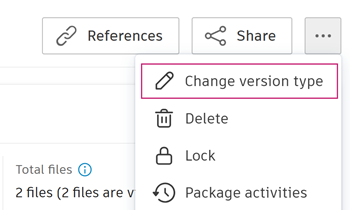
- Open a package > click the More menu > click Change version type.
Open and Manage a Package
When you click a package in the packages list, the package will open and display any added files, details about the package, and many options including the options available from the packages list.
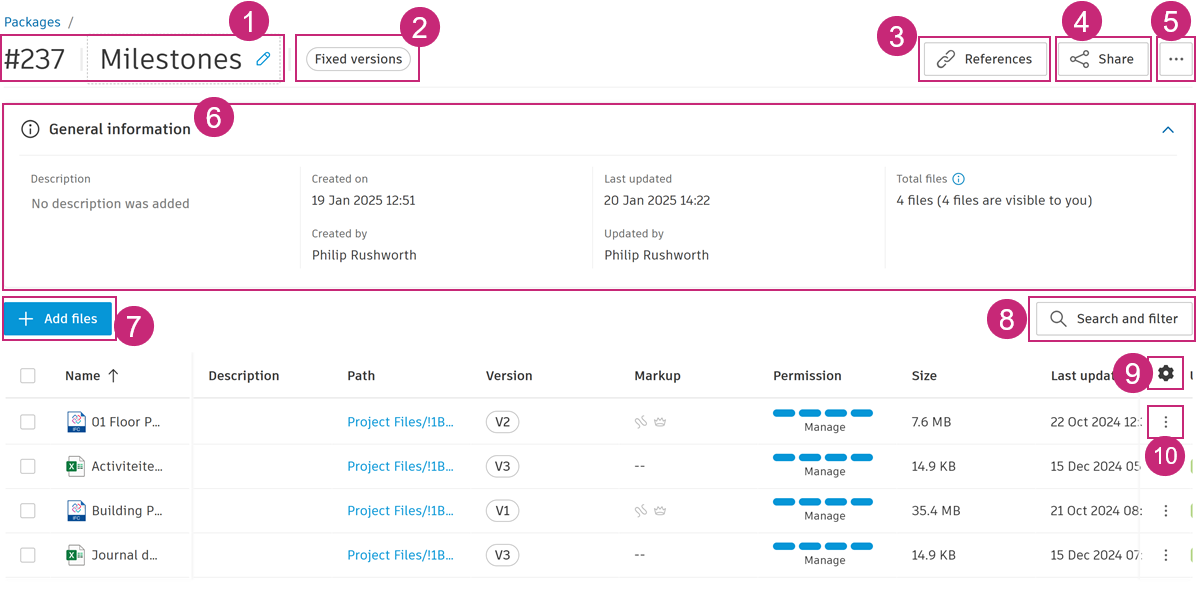
The following numbers correspond to the numbers in the preceding image:
Package ID and name: Each package is assigned a unique ID. You can click the package name to edit it.
Package version type: This will show either as Fixed versions or Current version as relevant.
References: This displays any items which have added this package as a reference.
Share: Click to share the package with other project members. See Share Packages for more details.
Package More menu: Click
 to view the following options:
- Change version type: This will change the package version type, for example from a fixed versions package to a current versions package.
- Delete: This deletes the package and the package files will no longer be associated with the package.
- Lock or Unlock: This locks or unlocks the package. See the Lock and Unlock Packages section below for more details.
- Package activities: This lists the activities for this package.
General information: This contains summary information including Total files. A package may contain more files than you can actually view. This is due to members requiring View folder permission or above for each file in the package. Total files details the actual number of files in a package and the number of files visible to you.
Add files: Click to add more files to the package.
Search and filter: Click to search for specific files in the package. See Search and Filter Packages for more information.
Attributes: Click to reorder, show and hide attributes, and access attributes settings. See the Package File Attributes section of the help
File More menu: See Manage and Consume Files in Packages for more information.