Send Notifications or Create Transmittals from Closed Reviews
- Send Notifications for Closed Reviews
- Create Transmittals from Closed Reviews
- Select Review Files
- Create Transmittal
Send Notifications for Closed Reviews
If a project member doesn’t have access to a Closed review, project administrators and approvers can give them access by notifying them of the review. This helps teams share approved project information with stakeholders who were not originally part of the review.
Click the Reviews tool.
Click the relevant review with Closed status to open the review.
Click Email notification at the bottom of the PROGRESS tab.
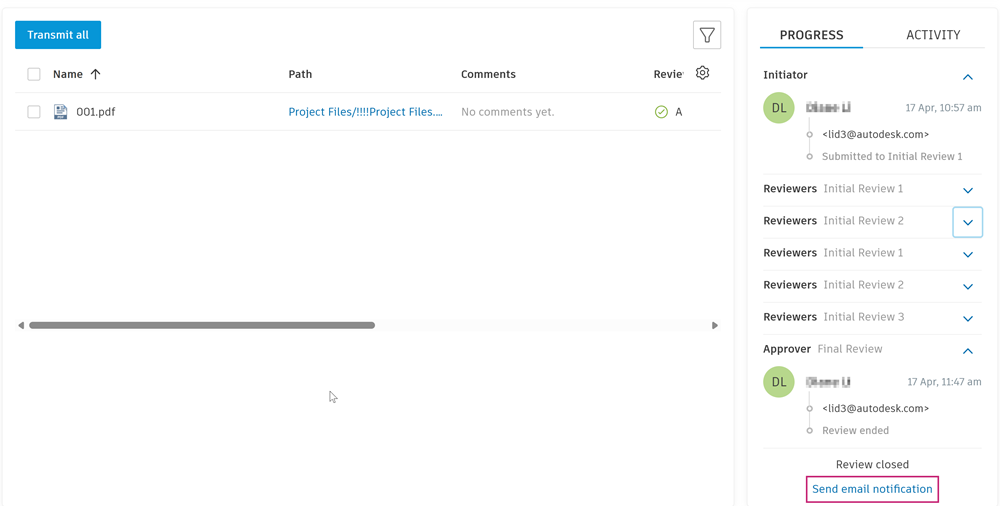
Complete the Send email notification dialog.
Click Send.
Create Transmittals from Closed Reviews
When a review is closed, members with Create + Upload permissions or higher, and project administrators, can create a transmittal directly from the review.
- Click the Reviews tool.
- Click the relevant review with Closed status to open the review.
Select Review Files
Select all
When you open a closed review, the Transmit all button will display by default. Click Transmit all to select all the files in the review for transmittal.

Select individual files
If you don't want to transmit all files, you can select individual files by clicking the file checkboxes then Transmit (X).
Filter and select
You can also click  to filter the listed files by review status:

Once you've selected one or more review statuses, click Apply then Transmit (x) filtered.
Create Transmittal
Once you've selected the files you want to transmit and clicked the Transmit button, you need to complete the Create transmittal form.

Title: Enter a name for your transmittal
Recipients: Select who receives the transmittal. You can choose project members, roles, and companies.
View permissions: Choose whether recipients can see other recipients of the transmittal or not. This setting only applies to non-administrative members. The sender and other project administrators can always see the full recipient list. After the transmittal is sent, you'll have the option to adjust the view permissions for the recipient list again from the More menu
 for the transmittal.
Files for transmittal: When a review is closed, the action after completion may include copying approved files to a target folder along with attributes added during the review.
You can select to transmit approved files from either the target folder with updated attributes, or source folder with original attributes.
Note: Rejected files, or approved files that don't copy successfully can only be transmitted from the source folder.- Target folders where approved files are copied to: Select this option to transmit files including any attributes added or updated during the review.
Important: This target folder option is not supported if the review is closed before 28 January 2023.- Source folders where approved files are originally from: Select this option to transmit files including only the pre-review original attributes.
When you switch between the target or source folder option, you may not have the relevant folder permission or the files may be deleted. These filenames will turn red and be grouped under Invalid files.
Hover over the
 icon and click Remove all as you won't be able to create a transmittal which contains invalid files.

Click Create.
Transmittal activities for each review will display in the ACTIVITY tab.
