Create a Review
Submit selected project files for review and approval using approval workflows. The number of steps in a review, and the designated reviewers and approvers, are pre-defined by your project administrator when they create the approval workflow.
Ensure your project administrator has created a suitable approval workflow and added you as an initiator.
In the Reviews tool, click Create review.
Note: You should check with your project administrator that the reviewers have the appropriate permissions for the folder containing the files you are sending for review.Browse to locate the files you want to send using the Add files dialog box.
Select the relevant files and click Create.
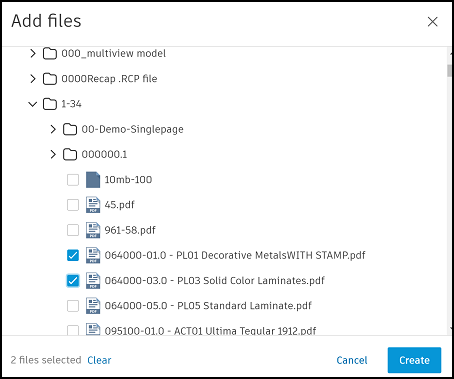 Tip: You can select multiple files that are located in the same or different folder. There's a limit of 1000 files per review.
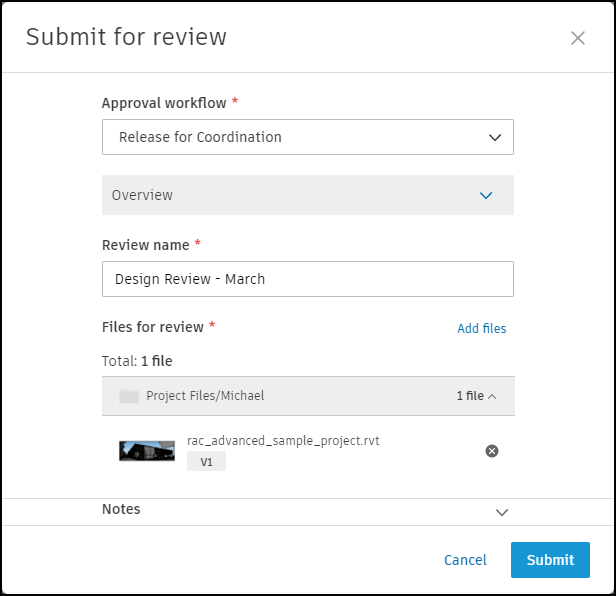
Choose the Approval workflow you want to use. If no workflows are available, click Create new workflow if you are a project administrator and create one in Settings.
Overview: Preview the details. You can edit the key reviewers, optional reviewers in the upcoming review step and approvers subject to the conditions in the following table.
Role Can edit reviewers Can edit approvers Conditions Project administrators Yes Yes — Key reviewers Yes No Enable key reviewers to edit the review is enabled in the relevant workflow Initiators Yes No Allow Initiators to edit the review is enabled in the relevant workflow for reviews created after 19 March 2024. Initiators No Yes Allow Initiators to edit the approvers is enabled in the relevant workflow. 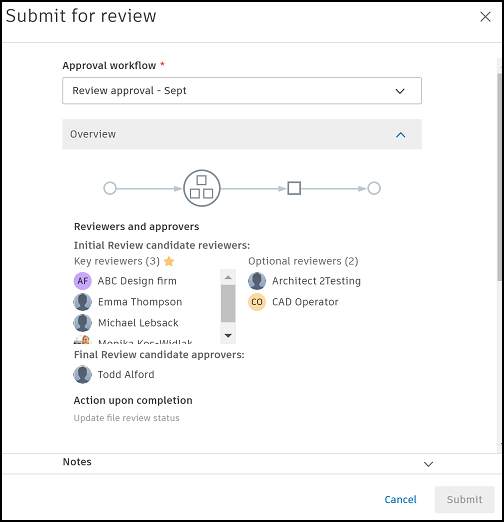
Click the Overview drop-down to collapse the section.
Enter a Review name.
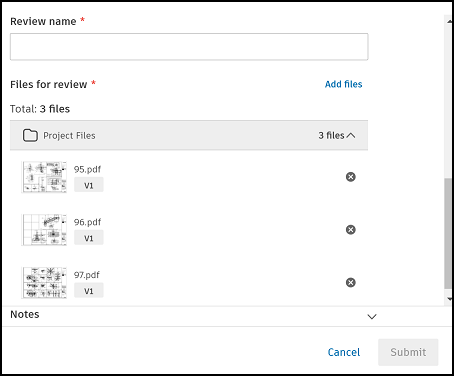
Click Add files to add more files and enter any notes you want to include if necessary.
Note: Files which copy to a naming standard enforced folder on review completion will need to have their names validated. Click Batch rename to validate all files.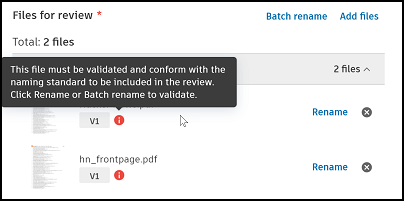
Click Submit to initiate the review.
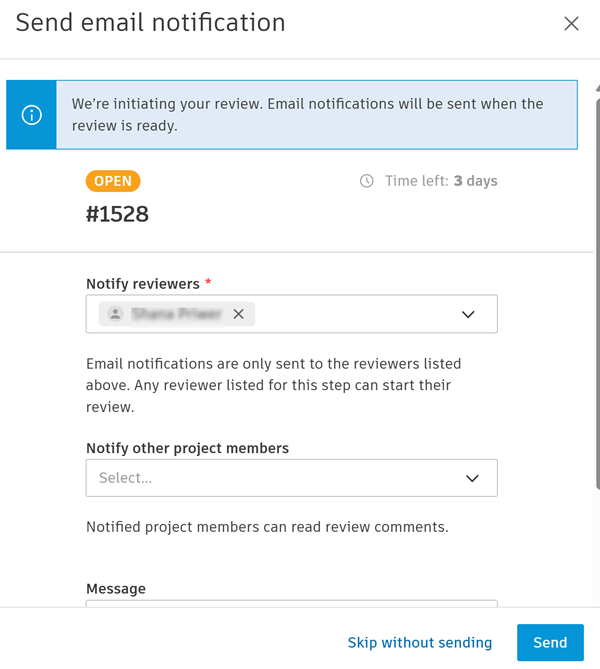
Optionally, send an email notification to the reviewers, approvers (where relevant) and other project members to let them know the review is ready. You can edit the reviewers who are sent an email, add project members and include a message.
Click Skip without sending if you don't want to send an email.
The review will display in the Reviews tool, awaiting action by the reviewer or approver.
To monitor a review you have initiated, go to the Reviews tool and click your review to open it. Use the Progress panel to check the review status. From here you can also send email notifications to remind the assigned reviewers and approvers to take action.