Transmittals Settings
Access Transmittal Settings
Click the Transmittal tool.
Click Settings.

You can now choose to select:
- Attribute groups: Create attribute groups to include multiple attributes with transmittals.
- Advanced settings: Choose to allow members to send transmittals to non-members.
Attribute Groups
Project administrators can create groups of attributes for transmittals. When a member creates a transmittal, they can select an attribute group to easily add attributes to the transmittal in addition to attributes added by default (Name, Description, Path, Version, Review status, Last updated, and Updated by). The creator can also preview the selected attribute values when creating the transmittal. These attributes also appear in the transmittal detail view and reports.
- Only project administrator can create attribute groups, edit attribute groups, delete attribute groups.
- All project members can view and select attribute groups when creating transmittals.
Attribute group limitations
- Maximum 50 attribute groups per project
- Maximum 10 attributes per group (excluding default attributes)
- Maximum 255 characters per attribute group name
- Special characters are not allowed in group names: `< > : " / \ | ? * ``
- Duplicate group names are not permitted
How to Create an Attribute Group
Click Transmittals
Click Settings
Click Attribute groups
No attribute groups will be listed if there aren't any created yet.
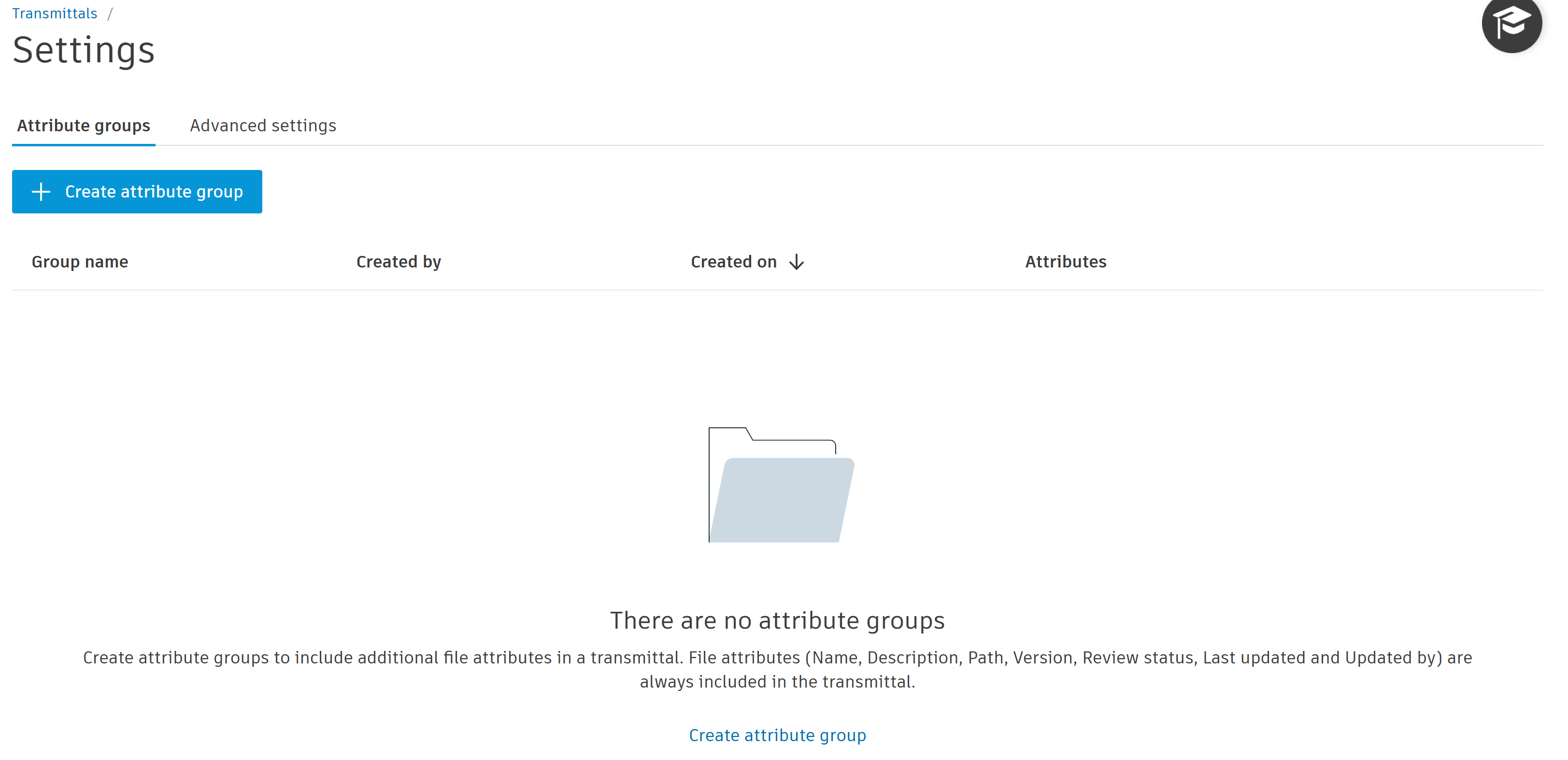
Click Create attribute group
This opens the Create attribute group panel.
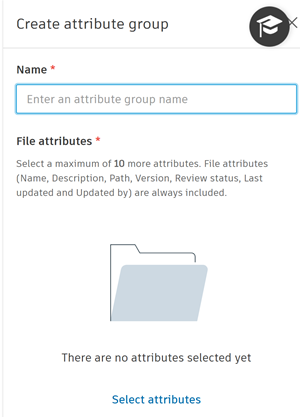
Name: Enter a unique name for your attribute group
File attributes: Click Select attributes and choose a maximum of 10 system and custom attributes in the select attribute dialog.
Click Select.
Review your selected attributes in the preview area
Click Create.
Edit or Delete an Attribute Group
Edit an attribute group
Click the more menu
 of the relevant attribute group.
 Select Edit.
Make your changes:
Update the group name if necessary.
Add or remove attributes using Select attributes.
Note: If an attribute is deleted from Files Settings, it appears grayed out with a warning icon. Remove deleted attributes before saving.
Click Save.
Delete an attribute group
Click the more menu
of the relevant attribute group. Select Delete.
Note: Deleting an attribute group does not affect the individual attributes themselves.
Recipients viewing attributes
- Member recipients: View all attributes (including Path, Last updated, Updated by)
- Non-member recipients: View all attributes except Path, Last updated, and Updated by Recipients can control column visibility using the gear icon Attribute values are captured at transmittal creation time and don't change if updated later
Advanced settings
Transmit files to anyone
By default, members can only create and send transmittals to other project members.
Project administrators can choose to allow project members with Create + Upload permission or above to also transmit files to anyone who isn't a project member.
Click the toggle to turn on Transmit files to anyone.

The option to send transmittals to non-members will now be available when members create transmittals.