Work with versions in the History dialog
Versioning is very different depending on whether or not you're using a collaborative editing hub. If you are not using collaborative editing, Fusion tracks iterations as milestones and versions. If you are using collaborative editing, Fusion tracks iterations as versions and changes, and you should skip to Work with versions in the History dialog (collaborative editing). Check for this icon  next to the hub name to confirm collaborative editing is available. Learn about collaborative editing.
Work with milestones and versions in History
Use the history dialog to access old versions of items and create and manage milestones. This applies when you are not working with collaborative editing.
Open the History dialog in Fusion
- Right-click the component in the Browser.
- Select
 History in the context menu that opens.
The component History dialog displays.
Open the History dialog in the Fusion web client
In the Fusion web client, navigate to the Overview tab on the design details page.
Click the version control drop-down.

Work with versions and milestones in the History dialog
The History dialog contains a list of versions and milestones of a component.
Select a version you want to work with.
In the upper right corner of the dialog, click
 More.
More.Select an option to create, edit, or navigate to a milestone.
Fusion options include:
 Go to: Takes you to the details page of that version of the design.
 Create Milestone: Makes this version a milestone.
 Edit Milestone: Allows you to edit a milestone that has already been created.
options include:
- Open: Opens that version of the design.
- Create Milestone: Makes this version a milestone.
- Edit Milestone: Allows you to edit a milestone that has already been created.

Work with versions in the History dialog (collaborative editing)
Use the History dialog to access versions and changes to components.
Open the History dialog in Fusion
- Right-click the component in the Browser.
- In the context menu that opens, select
 History.
Work with versions and changes in the History dialog
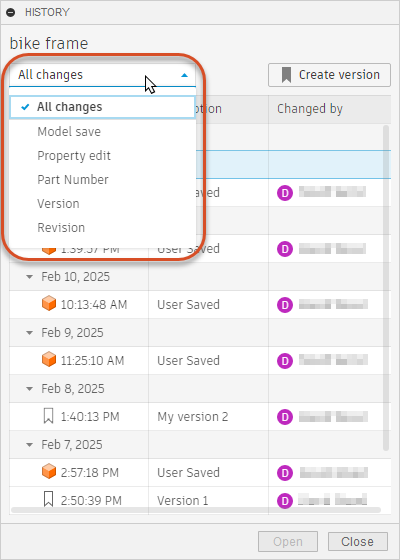
(Optional) In the History dialog, select which types of changes you want to see.
Place the pointer over the timestamp that corresponds to the change or version you want to open.
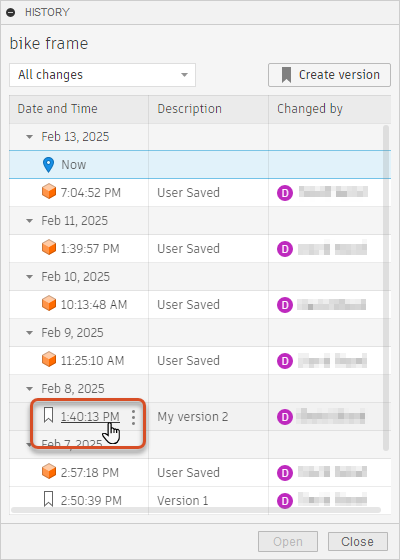
Click the timestamp to open that version or change.