Select geometry with the Selection Bar
Use the Selection Bar to select faces or pockets for a toolpath operation.
(Optional) Choose how the hiding tools work. In the Preferences dialog, on the General page, set Hide behaviour (Selection Bar) to:
Immediate hide (default) to hide surfaces when you click them with Hide Objects on.
Selection-based hide to select surfaces first, then hide them with Hide Selected or Hide Unselected.
The hiding tools on the Selection Bar change to match.
Open the Selection Bar:
If you do not have an operation dialog open, on the Manufacture workspace toolbar, on any tab, click Select > Selection Bar.
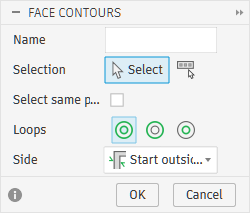
If you do have an operation dialog open, on the Geometry tab, from the Geometry selection drop-down menu, select Face Contours or Pockets.
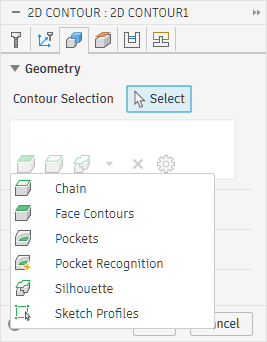
Then, in the selection dialog, click Selection Bar
 .
.
The Selection Bar appears. If you opened it from an operation dialog, the dialog minimizes to free up the canvas.
Use the selection tools on the toolbar to select surfaces:
Click
 Window Selection (or press 1), then drag a rectangle on the canvas.
Drag from left to right to select only surfaces entirely inside the rectangle. Drag from right to left to select all surfaces the rectangle touches.
Click
 Freeform Selection (or press 2), then draw a shape on the canvas.
Draw clockwise to select surfaces inside the boundary. Draw counterclockwise to select all surfaces the boundary crosses.
Click
 Paint Selection (or press 3), then press and hold the left mouse button and move across surfaces to select them.
(Optional) Hide surfaces to make complex selections easier:
With Immediate hide, click
 Hide Objects to turn on the tool, then select the surfaces you want to hide. Click Hide Objects again to turn off the tool and return to selecting surfaces.Tip: Hold Alt (Windows) or Option (macOS) to turn Hide Objects on or off.
With Selection-based hide, select surfaces, then click
 Hide Selected to hide them, or
  Hide Unselected to hide all the others.
With either setting, you can also click:
 Hide Unselectable to hide surfaces that you can't select.
 Invert Hidden to show hidden surfaces and hide visible surfaces.
 Show Hidden to show all hidden surfaces.
(Optional) Use the selection management tools. Click:
 Invert Selection to deselect selected surfaces and select unselected surfaces.
 Selection Filters to control which object types you can select and set options that affect selection behavior.
 Undo or
  Redo to undo or redo selection actions.
 Clear Selection to remove all selections.
When you finish selecting surfaces, click Apply
 .
.The Selection Bar closes. If you opened it from an operation dialog, the dialog appears again.