Copy a design or folder
Copy a design or folder to another location in the current hub. You can optionally include drawings associated with the design. You can do this in both Fusion and the Fusion web client. You must be a viewer or higher to use copy.
Navigate to the design or folder you want to copy and select it.
You can select multiple items to copy; for example, using Ctrl-click.
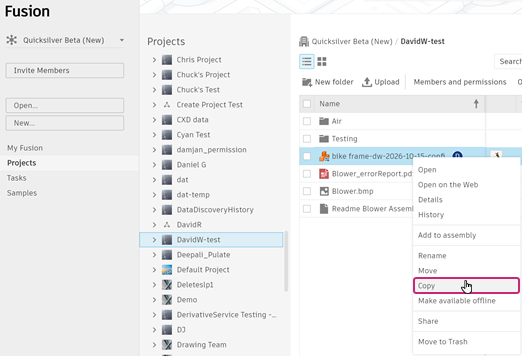
Open a context menu for the selection; for example:
In the Projects page of Fusion Home, right-click the selection.
In the Projects page of the Fusion web client, right-click the selection.
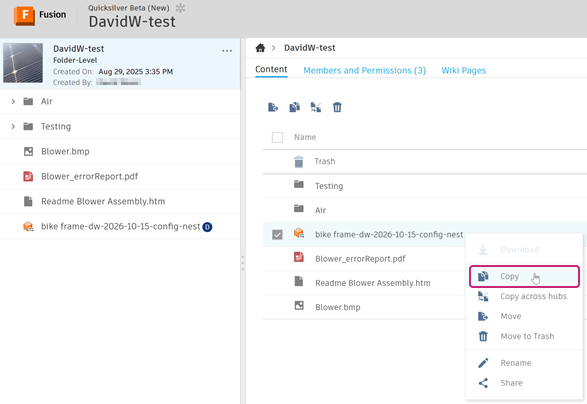
In the context menu, click Copy.
The Copy dialog opens.
In the Copy dialog, under Part Number, select a part number type.
- Shared Part Number: Adds this design (or designs, if you're copying a folder) to a part number currently in use by one or more components. See Shared part numbers.
- New Part Number: Generates a unique part number for your design.
Select the project or folder to copy to.
Optional: Click New Folder or New Project to create and select a new folder or project as the location.
Optional: Select Include Drawings to copy related drawings along with the design.
Messages in the Notification Center  let you know when the copy starts and finishes.
A copy of the design or folder (including contents) is saved in the new location. If duplicate names exist in the location you chose, the word Copy is appended to the names.
When a design is copied, references to components that were also copied are updated to point to the new copies. References to components that were not copied remain unchanged.