Modeling modes in Fusion
In Fusion, you can choose between two modeling modes, based on your design needs at any given time during the design process.
- Parametric Modeling Mode: Captures parametric features and relationships in a timeline.
- Direct Modeling Mode: Does not capture any parametric features and relationships.
Parametric Modeling Mode
When a design is in Parametric Modeling Mode, Fusion tracks each Feature parametrically in the Timeline as you evolve the design.
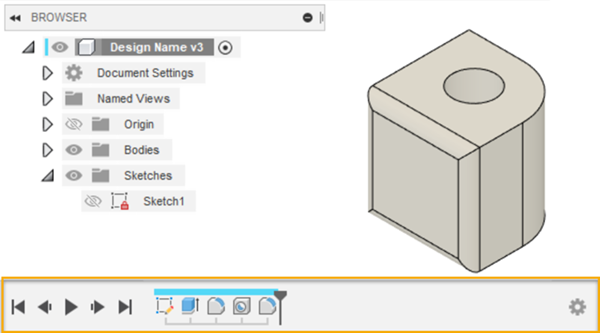
You can build your design intent through a robust set of parametrically linked features like:
- Sketches
- Construction geometry
- 3D modeling operations for solid, surface, and mesh bodies
- Assembly relationships
- Named parameters
- Standard and sheet metal components
Each parametric feature adds parameters for its settings to the design. You can reference these parameters associatively in other parametric features.
You can use the Modify > Change Parameters tool to edit all the parameters in the design. When you change the value of a parameter, the Timeline recomputes and any features that reference the parameter will update to reflect the change.
Timeline

- Move to Beginning: Moves the Timeline Marker to the beginning of the Timeline.
- Previous Step: Moves the Timeline Marker one Feature back.
- Play: Moves the Timeline Marker step by step through each Feature in the Timeline.
- Next Step: Moves the Timeline Marker one Feature forward.
- End of Timeline: Moves the Timeline Marker to the end of the Timeline.
- Feature: Moments in the Timeline that capture parametric edits and modifications to the design.
- Timeline Marker: The marker that moves in the timeline and shows the design
- Settings: Controls timeline settings.
Features
Features are the foundation of your design. They capture the creation of every object and modifications to the design. Examples of when a feature is created:
- You create a new object like a Component, Body, or Sketch.
- You modify an object. For example, when you add a fillet to a body.
- You move, pattern, or mirror an object.
- You create a Relationship between two components.
Organize features
To organize features, you can:
- Rename features
- Group features
- Create selection sets
Feature parameters
When you create a Feature, you specify Parameters to define the feature.
There are a few ways to edit feature parameters:
- In the timeline, right-click a Feature and select Edit.
- On the toolbar, click Modify > Change Parameters. Then expand the list of Model Parameters, locate the relevant component, and expand the list of Feature parameters.
Suppress features
You can Suppress Features in the timeline to turn off the edit without deleting it. If the feature has any downstream dependent features, those are also suppressed.
To turn the feature back on, right-click and select Unsuppress Features to reenable the feature and any downstream dependent features that were also suppressed.
Move features in the timeline
You can drag features forward or backward in time. If a feature is depending on another feature earlier in the timeline, you can't move it before the upstream feature.
For example, if you create a box and then add a fillet to it, you can't move the fillet feature before the box creation feature in the timeline.
Components and Features
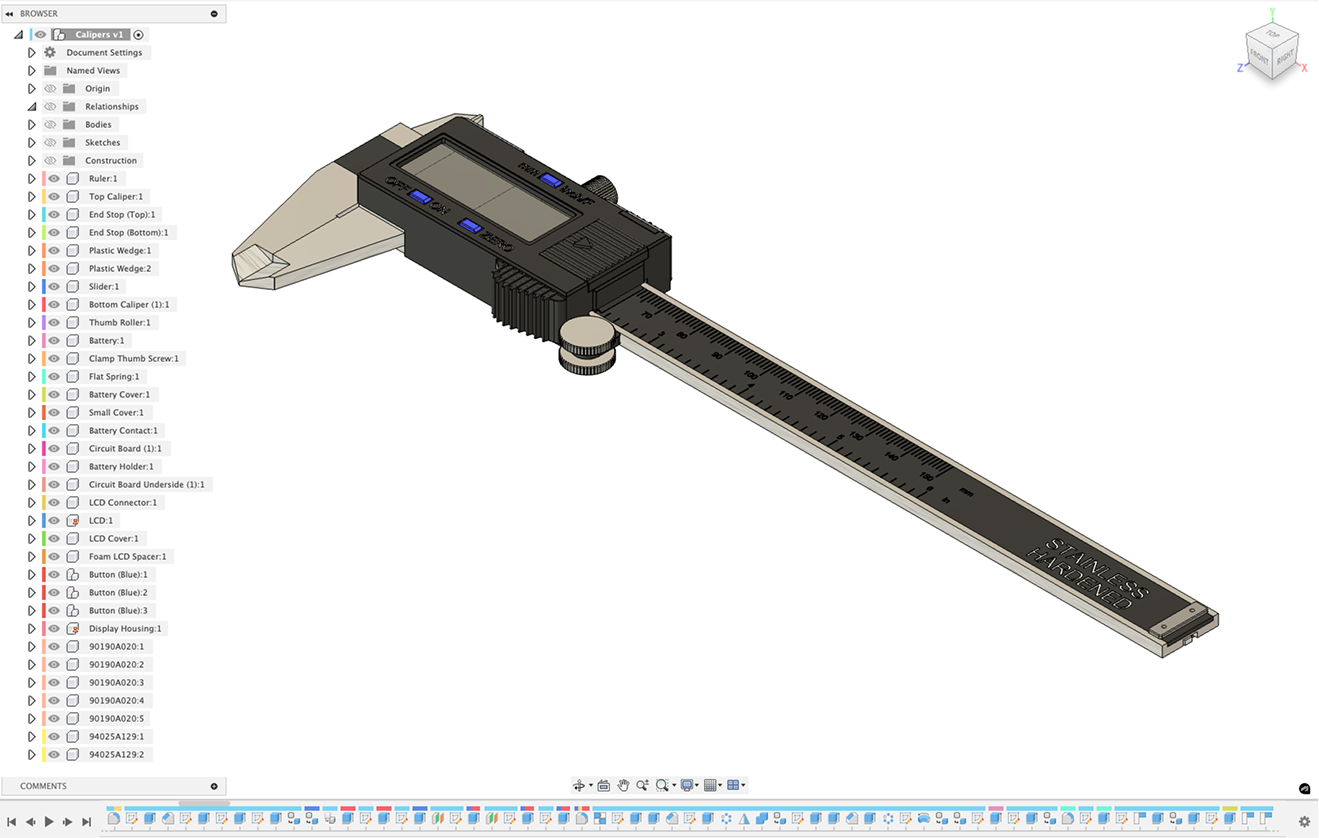
Use Timeline Settings > Component Color Swatch to color code components in the Browser and their corresponding Features in the Timeline.
When you activate a Component in the Browser, the Timeline filters to show Features that are created and modify geometry in that Component.
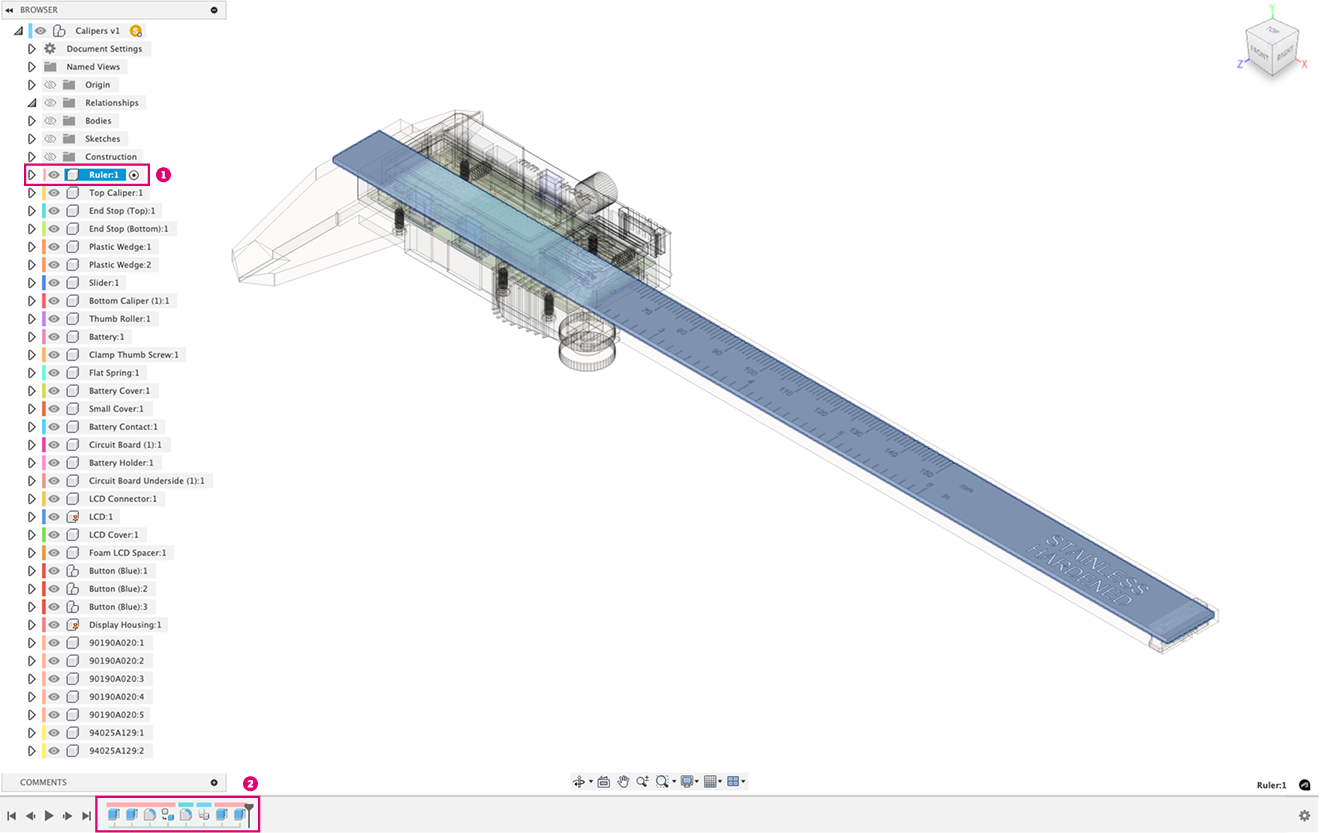
- Active component in the Browser.
- Timeline filtered to show relevant Features.
Timeline Marker
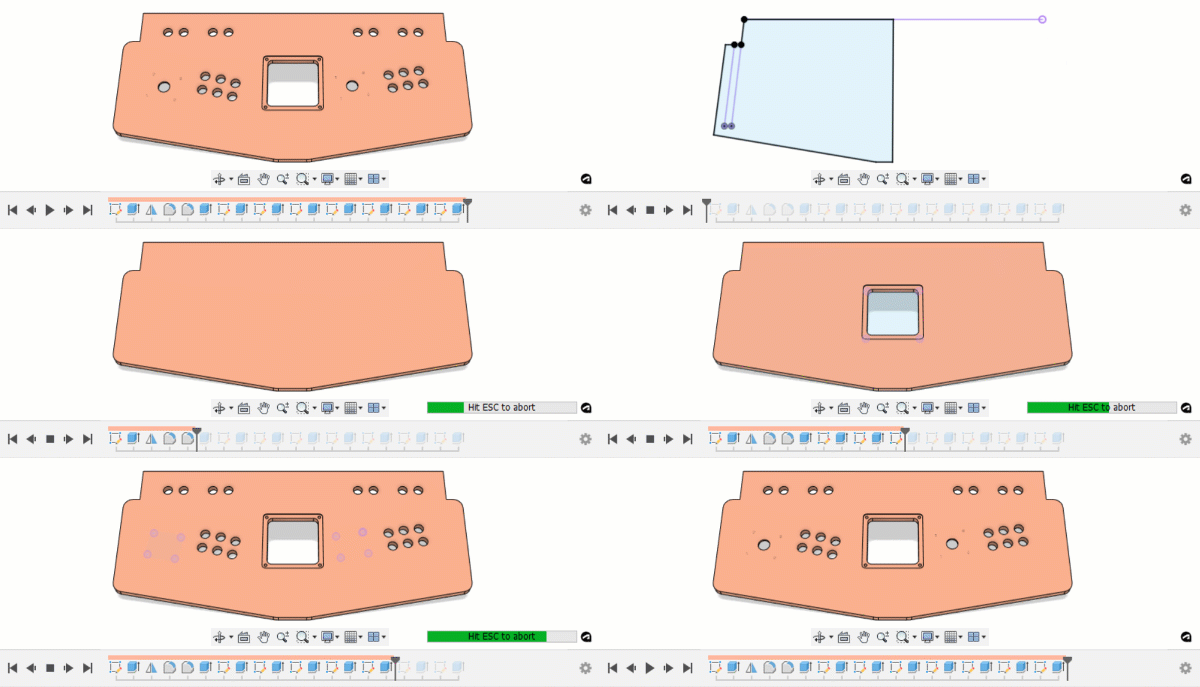
You can drag the timeline Marker around in the the timeline to view the design at that point.
Use the buttons to the left to move the Timeline Marker to the beginning or the end, play through all features in the Timeline, or step through the individual features.
Compatible CAD formats
You can also capture parametric history with these imported non-native CAD formats:
- step
- stl
- sldprt
- ipt
- x_t
- iges
- sldasm
- cadpart
- iam
Generate a timeline
When a supported solid body has no parametric Timeline, use AutoTimeline in the Fusion Design Extension to create parametric history for that body in a new design. This is different from switching the current design to Parametric Modeling Mode, which adds a Timeline in the open design and captures existing geometry as a Base Feature.
See Generate a timeline.
Direct Modeling Mode
When a design is in Direct Modeling Mode, Fusion does not track features parametrically.
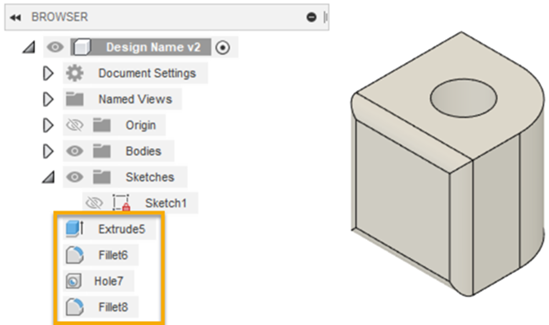
Direct Modeling Mode lets you explore form and function quickly without committing to specific parametric relationships or assembly structure. However, you cannot convert geometry that you create in Direct Modeling Mode to individual parametric features and relationships later on.
Recognizable features are tracked in the Browser, where you can do the following:
| Action | Example |
|---|---|
| Edit | 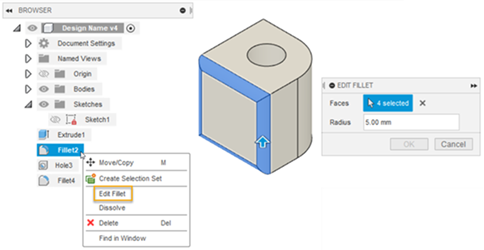 |
| Dissolve | 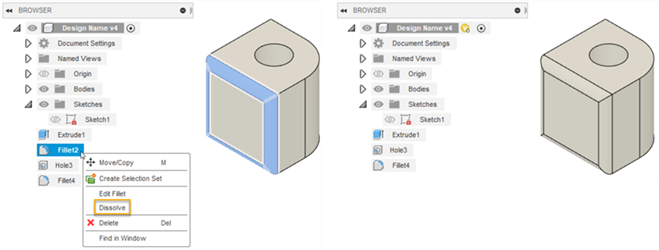 |
| Delete | 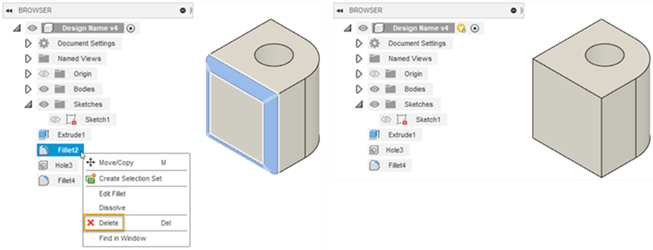 |
Base Features
In Parametric Modeling Mode, a Base Feature is a a feature in the parametric Timeline where you can create and edit geometry in Direct Modeling Mode without switching the entire design to Direct Modeling Mode and dissolving the timeline's parametric history.
- A Base Feature is automatically created as the first feature in the Timeline when you switch from Direct Modeling Mode to Parametric Modeling Mode.
- You can use the Solid > Create > Create Base Feature tool to create additional Base Features as needed.
- This works well when you need to bring standard components or reference components into an assembly, to design around them or redesign them in Fusion. They may not require full parametric intelligence, but you can still edit their Base Features directly to make minor adjustments to the starting shape.
- When you edit a Base Feature, you enter the Base Feature contextual environment, which is a Direct Modeling session within the parametric design.
Switching modes
You can right-click the Default Component in the Browser to switch the design from one modeling mode to the other.
Use the Change to Direct Modeling Mode tool to switch from Parametric Modeling Mode to Direct Modeling Mode.
- The Timeline and any features that were created in Parametric Modeling Mode are removed from the design.
- Recognizable features like Extrude, Fillet, and Hole are added to the Browser.
- All new features you create are not tracked parametrically.
Use the Change to Parametric Modeling Mode tool to switch from Direct Modeling Mode to Parametric Modeling Mode.
- The Timeline is added to the design.
- The geometry you created in Direct Modeling Mode is captured as a single Base Feature in the Timeline.
- You can edit the Base Feature, which acts as a contained Direct Modeling environment within the parametric design.
- Changes you make to the Base Feature are not tracked parametrically.
- As you create and modify geometry in Parametric Modeling Mode, new features are added to the Timeline.