Open older versions of designs
If you're using Fusion for education, this feature will work differently for you. Scroll down to Open older versions of designs (Fusion for education) to find out how.
Open a historical change of an existing design in Fusion.
From the Data Panel
In the Fusion Data Panel, navigate to the design.
In the lower-right corner of the design, click the arrow
 to expand more details.
Click the History button
 .
.The History dialog opens.
In the History dialog, hover over the change you want to view and click More
 .
.Click Open.
The historical change of the design opens in the canvas.
The Out-of-Date icon  displays in the Application bar and the Warning icon
  displays on the default component in the Browser, indicating there are newer changes to the design available.
From the Browser
In the Browser, right-click the component whose history you'd like to view.
Select History from the list.
The History dialog opens in the canvas.
In the History dialog, hover over the change you want to view and click More
.Click Open.
The historical change of the design opens in the canvas.
The Out-of-Date icon displays in the Application bar and the Warning icon displays on the default component in the Browser, indicating there are newer changes to the design available.
Open older versions of designs (Fusion for education)
Open an older version of an existing design in Fusion for education.
In the Fusion Data Panel, navigate to the design.
In the lower-right corner, click the version
vXdropdown, whereXis the version number.Click the version you want to open.
Click More
.Click Open.
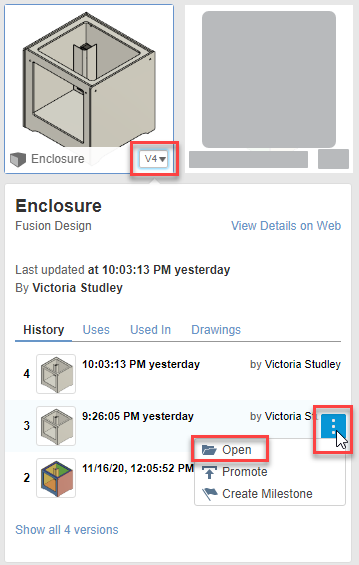
The version of the design opens in the canvas.
The Out-Of-Date icon displays in the Application bar and the Warning icon displays on the default component in the Browser, indicating that there is a newer version of the design available.