Save a design as a new design
Save the current design with a new name, in a new location, or as an independent copy. Related drawings can be included with any of these operations.
Save As
Use Save As to save the current design with a new name or in a new location. The original design remains unchanged.
The copy still references the components found in the original design; in other words, a copy of the parent is created, but the components it contains are not copied.
In the Fusion Application bar, click File
 > Save As.
The Save As dialog opens.
In the Name box, enter a name for the design.
Under Part Number, select a part number type.
- Shared Part Number: Adds this design (or designs, if you're copying a folder) to a part number currently in use by one or more components. See Shared part numbers.
- New Part Number: Generates a unique part number for your design.
Navigate to the Location where you want to save the design.
Optional: Click New Folder or New Project to create and select a new folder or project as the location.
Optional: Select Include Drawings to copy related drawings along with the design.
Click Save As.
A separate copy of the design is saved in the new location. External references are unchanged.
Save As and Replace
From an assembly, use Save As and Replace to save and replace components with copies of themselves. Related drawings can be included.
Inside an assembly, in the Browser, select one or more external components
 that you want to replace.
Right-click the selection and select Save As and Replace.
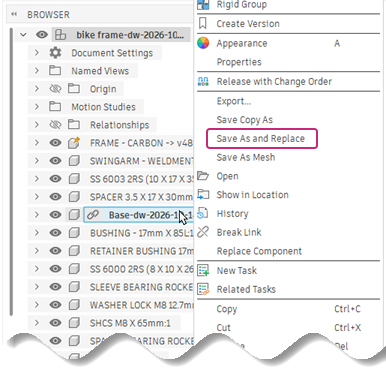
The Save As and Replace dialog opens.
If your selection includes only one component:
- You can enter a new name for the component.
- You can select Replace All Instances to replace all instances of that component that are being referenced in the assembly, if applicable.
If your selection includes multiple components:
- They inherit their existing names by default. If the same name exists in the location you chose, the word
Copyis appended to the existing name.
- They inherit their existing names by default. If the same name exists in the location you chose, the word
Adjust remaining settings in the dialog as you would with Save As, then click Save As and Replace.
Fusion saves the design with the new name and updates all references in the hub to point to the new design. A progress notification displays while the update is in progress.
Save Copy As
Use Save Copy As to save the current design or a component as an independent copy. The copy has no shared references with the original.
In the Fusion browser, right-click a component (this can be the main parent component or a subcomponent) and select Save Copy As.
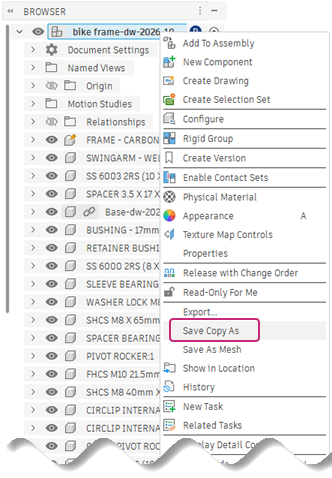
The Save Copy As dialog opens.
Adjust settings in the dialog as you would with Save As, then click Save. (Drawings are not included in Save Copy As.)
An independent copy of the design is saved in the selected location.