Create versions
If you're using Fusion for education, you create milestones instead of versions. Scroll down to Create milestones and versions (Fusion for education) to find out how.
Fusion tracks iterations as versions and changes. Create versions using either Fusion or the Fusion web client.
Create a version in Fusion
In Fusion, create a version from the File menu or a context menu in the Browser.
Create a version from the File menu
- With a design open, click File > Create version.
- In the Create Version dialog that opens, enter a description for the version.
- Click Create Version.
Create a version from the context menu
With a design open, right-click a component in the Browser.
In the context menu that opens, click Create version.
In the Create Version dialog that opens, enter a description for the version.
Click Create Version.
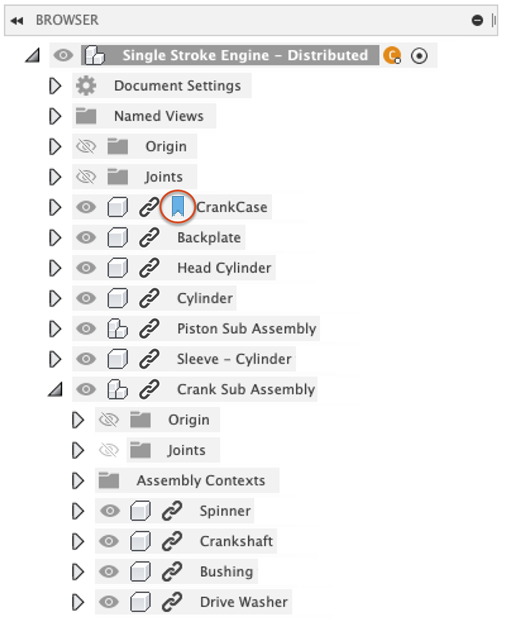
The new version icon is added to the component in the Browser.
Create a version from the History dialog
With a design open, right-click a component in the Browser.
In the context menu that opens, click History.
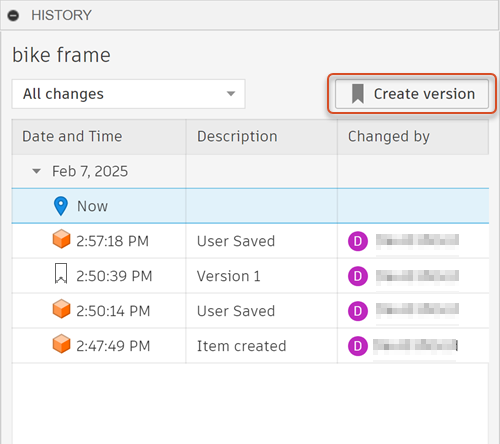
In the History dialog that opens, click Create version.
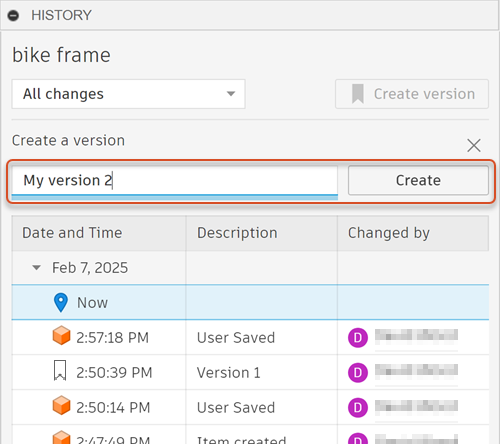
Enter a name for the version and click Create.
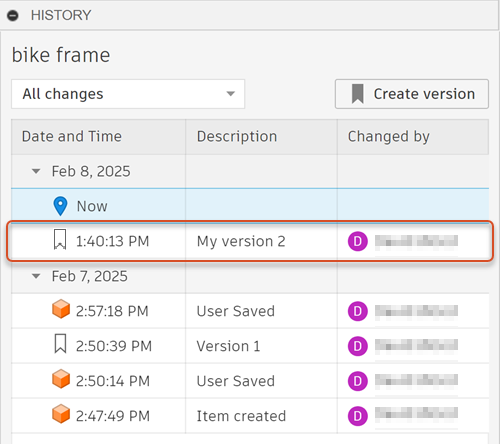
The version is added to the table with the new version icon
 .
.
Create a version in the Fusion web client
Navigate to a design or component in the Fusion web client.
At the top right of the window, click ....
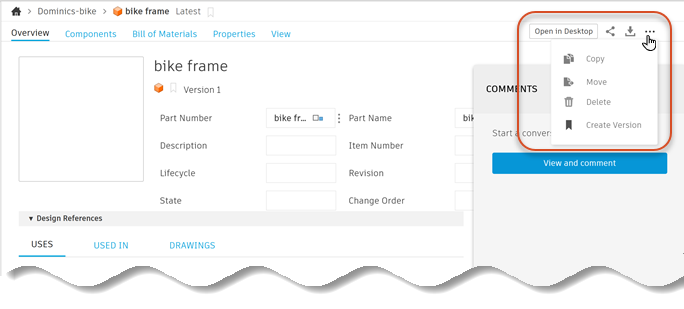
Select Create Version.
In the dialog, enter a description for the version.
Click Create Version.
Create milestones and versions (Fusion for education)
Create milestones in Fusion
There are two ways to create milestones in Fusion. You can create a milestone while saving your design or later using the Data Panel.
Create milestones while saving your design
Milestones are not available during the first save of the design. For all subsequent saves, you can create the version as a  Milestone.
Click Save
 .
.In the save dialog, check the Milestone check box.
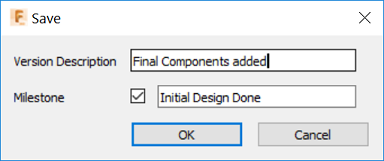
Enter a version description and milestone name. Changing the description and milestone name are optional but recommended.
Click OK.
Notice the milestone icon appears in the Data Panel in the upper right corner of the design's thumbnail and in the version view list.
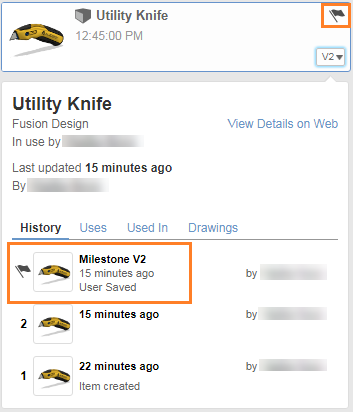
Create milestones using the Data Panel – design's version drop-down
Milestones can be also created inside the Data Panel. This is especially helpful when you'd like to make a version of the design a milestone later on.
In the Data Panel, click the version drop-down in the lower right corner of the design's thumbnail.
Hover over the version you want to milestone and click More
 .
.Click
Create Milestone.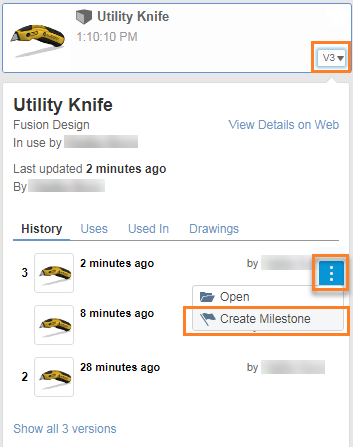
Enter a version description and milestone name. Changing the description and milestone name are optional but recommended.
Click Create Milestone.
Create milestones using the Data Panel – design's right-click menu
In the Data Panel, right-click the design's thumbnail.
Click
Create Milestone.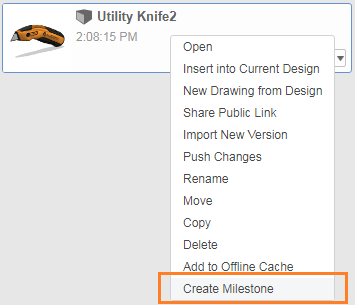
Enter a version description and milestone name. Changing the description and milestone name are optional but recommended.
Click Create Milestone.
Create milestones in the Fusion web client
There are three ways you can create a milestone in the Fusion web client.
Create milestones by highlighting the design
Navigate to the project containing the file that requires a milestone.
Place the pointer over the line containing the design.
Right-click and select
Create Milestone.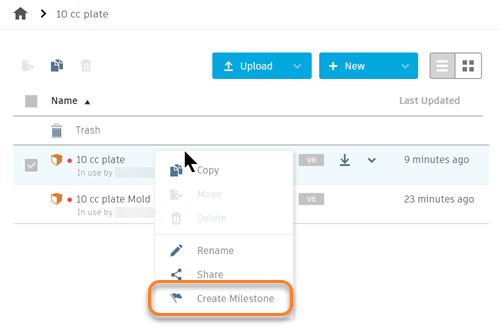
Enter a version description and milestone name. Changing the description and milestone name are optional but recommended.
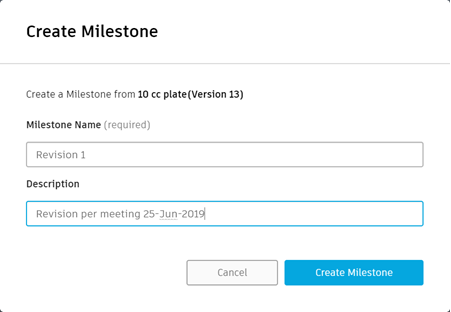
Click Create Milestone.
Create milestones from the design pull-down list
Navigate to the project containing the file that requires a milestone.
Click on the pull-down list for the file that requires a milestone and select
Create Milestone.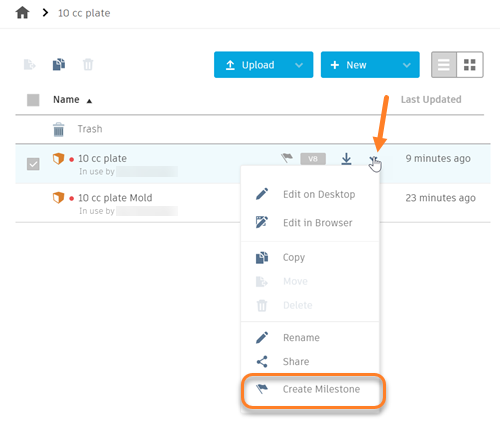
Enter a version description and milestone name. Changing the description and milestone name are optional but recommended.
Click Create Milestone.
Create milestones from the Overview page
Navigate to the project containing the file that requires a milestone.
Click on a design that requires a milestone to open the Overview page.
Click the version selection drop-down.

Select the version of the design you would like to create a milestone for.
Click
More in the upper right and select Create Milestone.Enter a version description and milestone name. Changing the description and milestone name are optional but recommended.
Click Create Milestone.