Adjust bus port mapping
When you connect a bus to a module bus port, Fusion maps Module Nets to Connected Nets on the parent sheet. Use the Inspector to review and adjust this mapping.
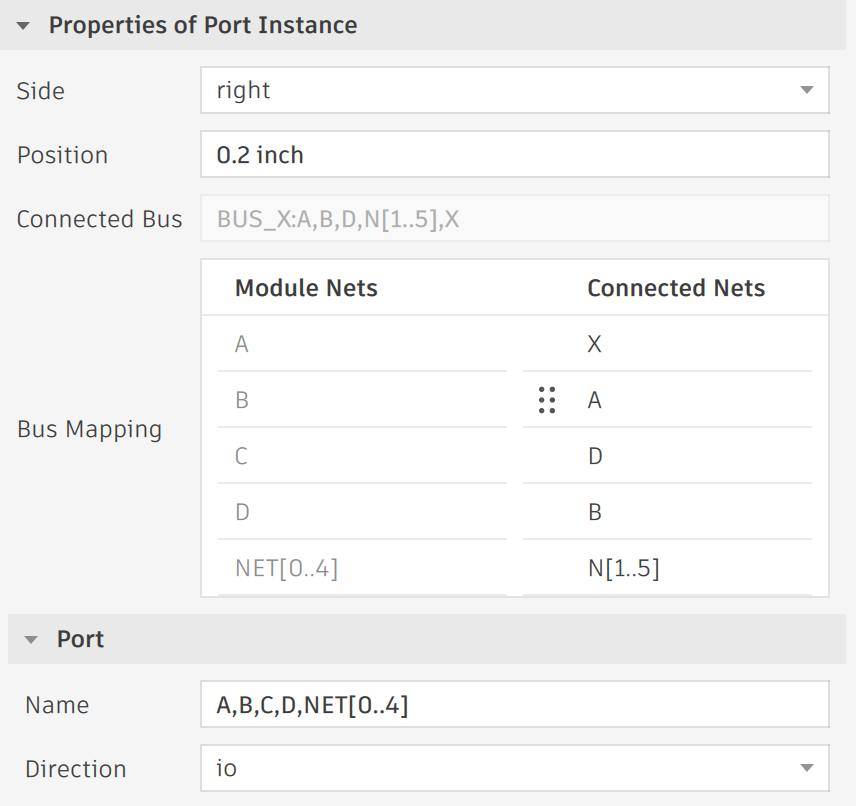
When to review bus mapping
Review the bus mapping after you connect any bus to a bus port. Also review mapping when:
- ERC reports bus mapping errors
- Net connections on the parent sheet do not match your design
- You connected buses with different names (for example, I2C in a module to CAN on the parent sheet)
Adjust the mapping in the Inspector
On the schematic sheet that contains a module, click the Port Instance to select it.
Select the circular port symbol on the module boundary. Do not select the bus wire.
In the Inspector panel, expand the Port Instance properties section.
In the Bus Mapping section, review the mapping table:
- Module Nets column: nets inside the module
- Connected Nets column: nets on the parent sheet bus
- Connected Bus field: the bus connected to the port
Drag net names in the mapping table to reorder connections.
Changes apply right away and update the PCB. The O/X indicator on the port tip also updates to reflect whether the current bus mapping is compatible.
(Optional) Run ERC to verify the mapping.
ERC reports incompatible bus mappings as errors.
Troubleshooting
The Bus Mapping section does not appear
- Confirm you selected the port instance, not the bus wire or module instance.
- Confirm a bus is connected to the port. The mapping table appears only after a compatible bus connection.
The mapping looks wrong after connecting buses with different names
- Fusion pairs nets by sorting each bus alphabetically, not by matching names. Different bus names can produce a pairing that does not match your design intent, even though the connection is valid. For example, connecting an I2C module bus (
SCL,SDA) to a CAN parent bus (CANH,CANL) pairsSCLwithCANHandSDAwithCANL, since both sort in the same order. Drag nets in the mapping table to set the pairing you want.
Advanced: PORTMAP command
- Use the PORTMAP schematic command to reorder mappings from the command line or in scripts. See PORTMAP for syntax and examples.