Activity 2: Clone a change template
Fusion Manage requires a separate license and can be used with Fusion or independently. Learn more.
In this activity, you'll clone the change template created in Activity 1. You may do this to create multiple change templates with minor variations. Since change templates are mandatory when creating change requests and change orders, having multiple variations through cloning ensures your team has appropriate templates for different scenarios while maintaining process standardization.
- It is assumed that you are performing these tutorials in your production environment. Therefore, we recommend that you read through the relevant help pages and activities so that you know what the result will be before modifying anything.
- A change template is mandatory when creating a change request and change order. Therefore, in order for your team to complete their tutorials, they must either be given access to create their own change templates or use one that someone else has created.
- When it comes time for your team to begin generating production data, you should consider changing the change coordinator to the correct person, or archive this change template once it is no longer needed.
Prerequisites
Before you can complete this activity, you must have completed Activity 1 so that you have a change template to clone.
Steps
Open the menu and select Workspaces > Change Management > Change Approval Templates.
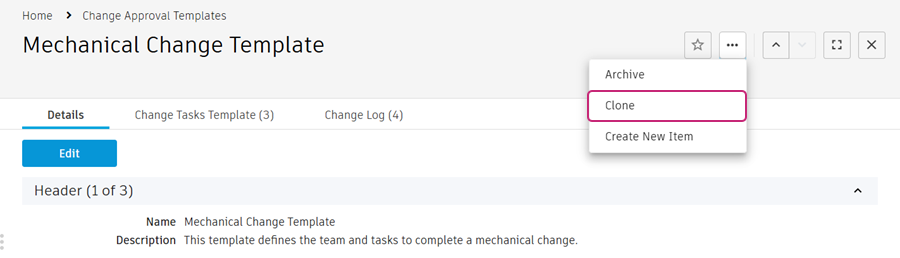
Select the existing Mechanical Change Template that was created in Activity 1.
Click the three dot menu and select Clone.
Rename the template to include your initials as a prefix.
In the Change Requests section, select yourself as the CR Coordinator and CR Approver.
In the Change Orders section, select yourself as the CO Coordinator and CO Approver.
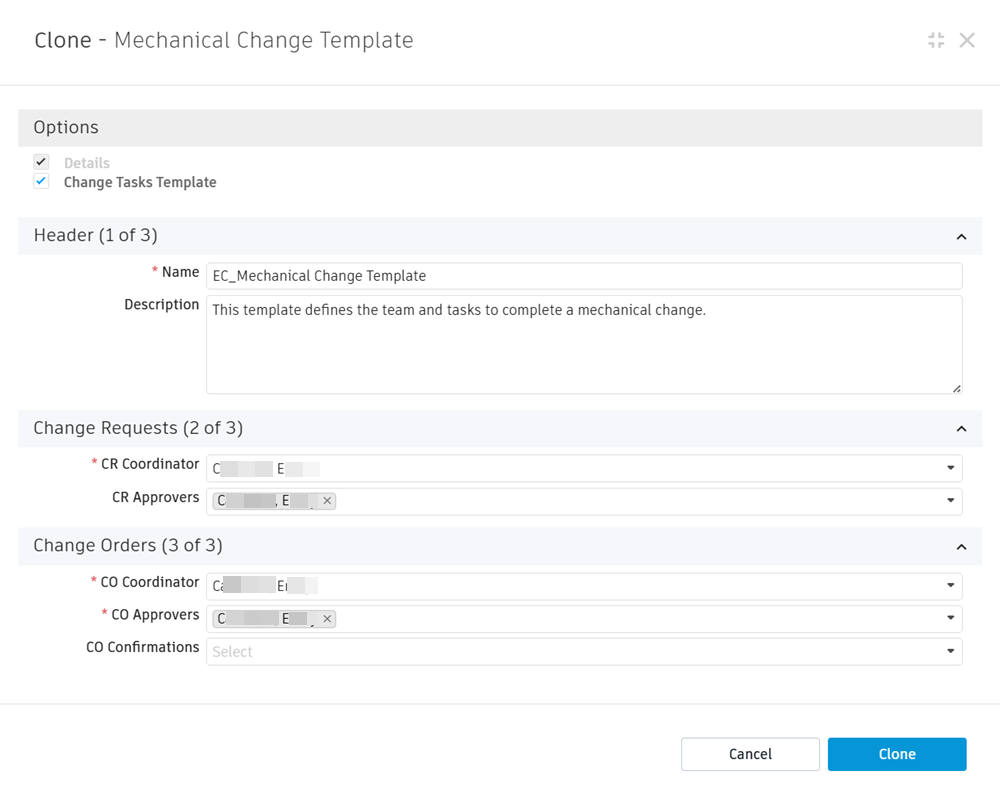
Click Clone.
Activity 2 Summary
In this activity, you cloned a change template.