Activity 2: Configure an item numbering scheme
Fusion Manage requires a separate license and can be used with Fusion or independently. Learn more.
In this activity, you’ll configure several item numbering schemes for components and drawings.
Prerequisites
Before you can complete these activities, you must complete Tutorial 1.
Steps
Access the hub administration.
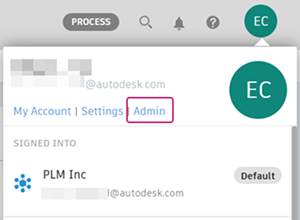
Option 1: In the top-right corner of the Fusion web client, click your profile and select Admin.
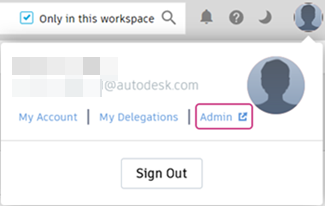
Option 2: In the top-right corner of the Fusion Manage site, click your profile and select Admin.
Create an item numbering scheme for assemblies.
Open the Numbering tab.
Notice the default system numbering schemes:
Component (System) - item numbering scheme for components.
Drawing (System) - item numbering scheme for drawings.
Mapped (System) - item numbering scheme that uses the Part Number property as the item number.
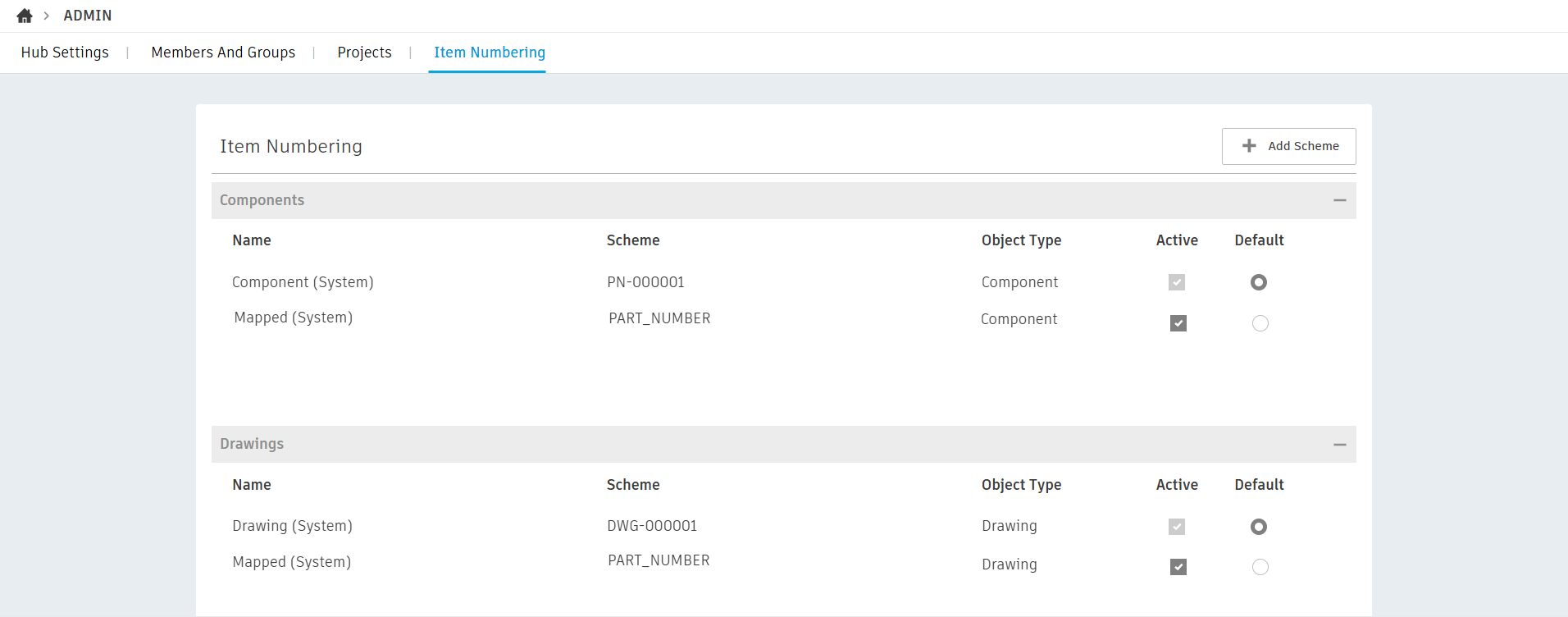
So that your team can complete their tutorials, do not deactivate these schemes.
Click Add Scheme.
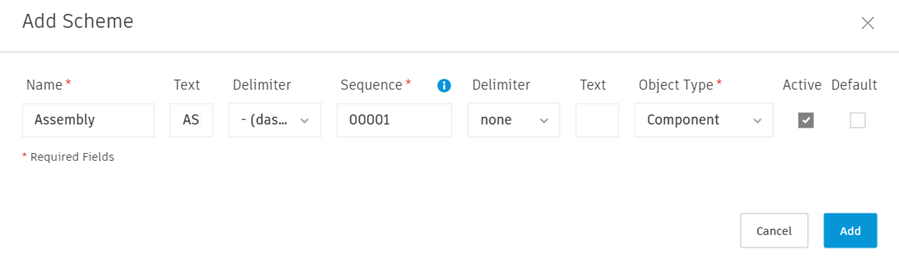
In the Add Scheme dialog, enter the following information for the new scheme. Required fields are highlighted with a red asterisk.
Name: The name people see when choosing an item numbering scheme to use. Enter
Assembly.Text: Use these two boxes to enter a prefix and suffix for the scheme. Enter a prefix as
ASM. We will not use a suffix in this example.Delimiter: Use these two boxes to select a character for separating segments of the scheme. Click the first Delimiter drop-down and select - (dash).
Sequence: Numerical starting point for the scheme. The value you enter is the value applied to the first item created with this scheme. For subsequent items, the value increments by one. Enter
00001.Object Type: Select the type of object this scheme will be used for. Click the dropdown and select Component.
Active: Makes the scheme available when generating item numbers. Click to make this scheme active.
Note: Since schemes cannot be edited or deleted, you can deactivate them to hide them from your team.Default: Makes this the default scheme when generating item numbers. Leave this unselected for this scheme.
Click Add.
Create a default item numbering scheme for parts.
Click Add Scheme.
In the Add Scheme dialog, enter the following information for the new scheme. Required fields are highlighted with a red asterisk.
Name: Enter
Part.Text: Enter a prefix as
PRT. We will not use a suffix in this example.Delimiter: Click the first Delimiter drop-down and select - (dash).
Sequence: Enter
00001.Object Type: Select Component.
Active: Select to make this scheme active.
Default: Select to make this scheme the default.
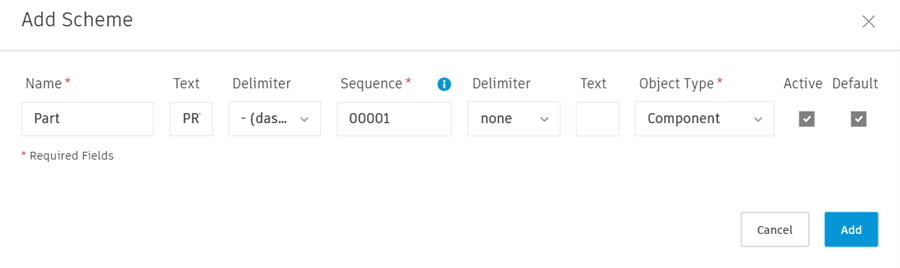
Click Add.
Create an item numbering scheme for purchased/off-the shelf parts.
Click Add Scheme.
In the Add Scheme dialog, enter the following information for the new scheme. Required fields are highlighted with a red asterisk.
Name: Enter
Purchased.Text: Enter a prefix as
PUR. We will not use a suffix in this example.Delimiter: Click the first Delimiter drop-down and select - (dash).
Sequence: Enter
00001.Object Type: Select Component.
Active: Select to make this scheme active.
Default: Leave this unselected.
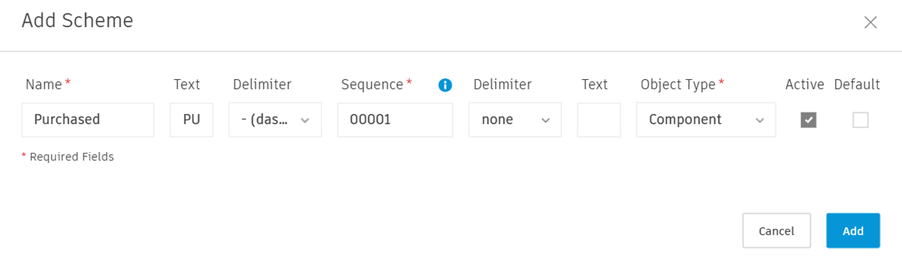
Click Add.
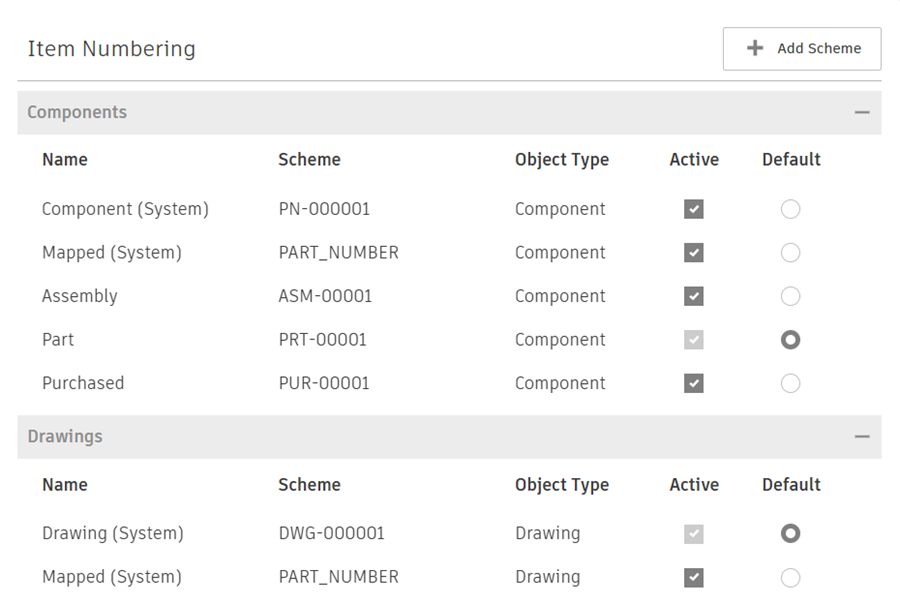
Activity 2 Summary
In this activity, you configured several item numbering schemes for components and drawings.
Additional Learning