Activity 1: Explore system workspaces
Fusion Manage requires a separate license and can be used with Fusion or independently. Learn more.
In this activity, you’ll discover the difference between a regular workspace and a system workspace.
Prerequisites
Before you can complete these activities, you must complete Tutorial 1.
Steps
Open your Fusion Manage site to the main dashboard.
Note: See Tutorial 1 Activity 2 if you are unsure how to do this.View the list of existing workspaces in your site.
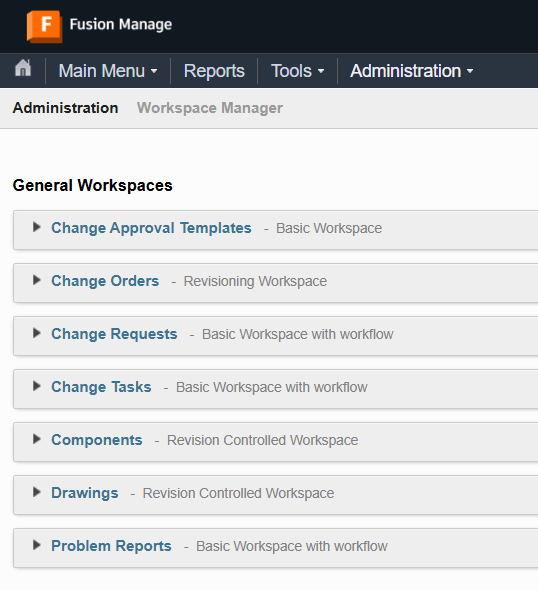
Click the main Navigation menu, then select PLM Settings > Workspace Manager.
Observe the list of existing workspaces: Change Approval Templates, Change Orders, Change Requests, Change Tasks, Components, Drawings, and Problem Reports.
Explore the list of available settings under each workspace.
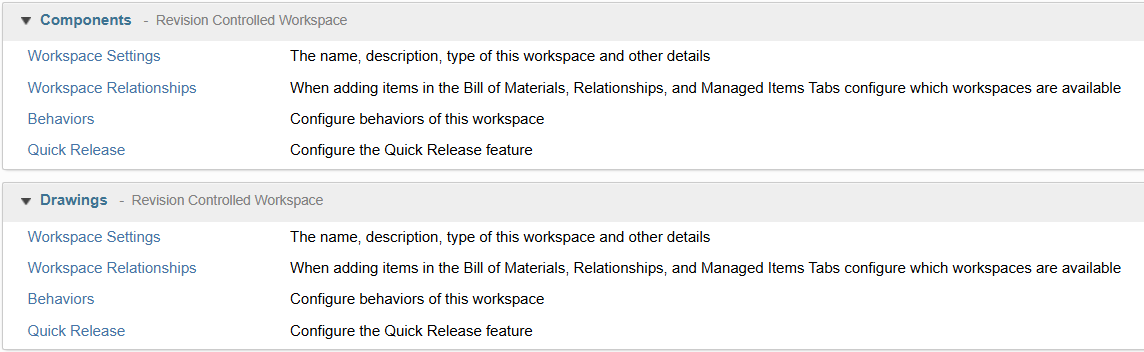
Expand the list under each workspace.
Notice the reduced administration capabilities available for the Components and Drawings workspace versus the other workspaces. This is because they are ‘System Workspaces’. These workspaces must retain certain settings so that they maintain communication with the Fusion desktop client.
Explore the workspace settings for the Components workspace.
Under Components, click Workspace Settings.
Explore the Workspace Settings for the Components workspace.
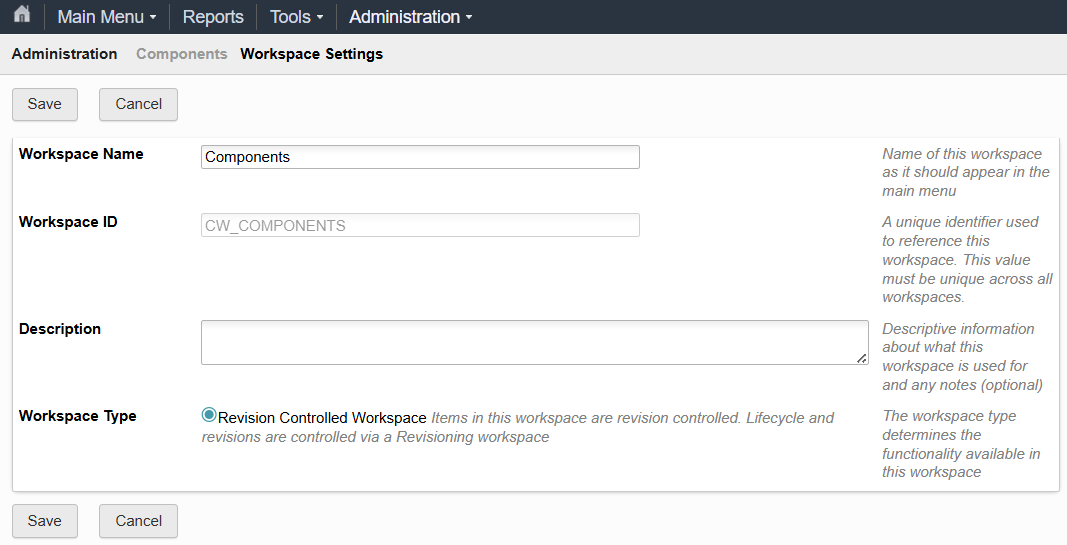
Notice two things:
- The Workspace ID is
CW_COMPONENTSto indicate this is a System Workspace (controlled by the system). - The Workspace Type is Revision Controlled Workspace. This means that items in this workspace can undergo revisions.
- The Workspace ID is
Click Cancel to exit the page.
Configure workspace relationships for the Components workspace.
Under Components, click Workspace Relationships.
From the first drop-down, select Relationships Tab.
From the second drop-down, select Drawings.
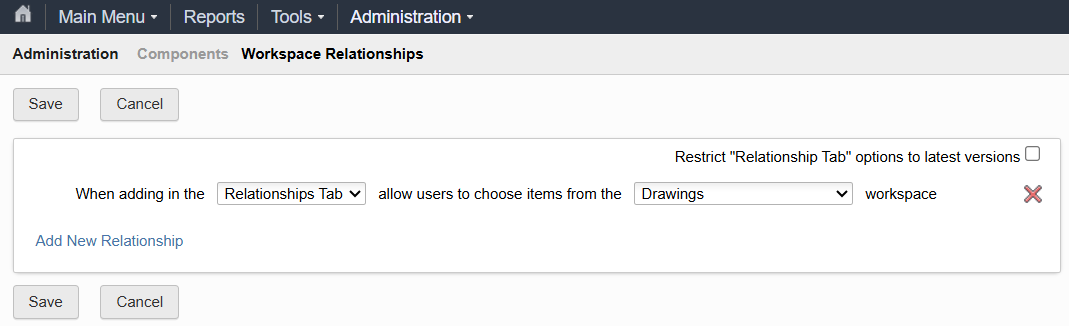
Click Save to save your changes and close the page.
Note: You'll configure the necessary permissions to view the Relationships tab in Tutorial 3 Activity 3.
Explore the workspace settings for the Drawings workspace.
Under Drawings, click Workspace Settings.
Explore the Workspace Settings for the Drawings workspace.
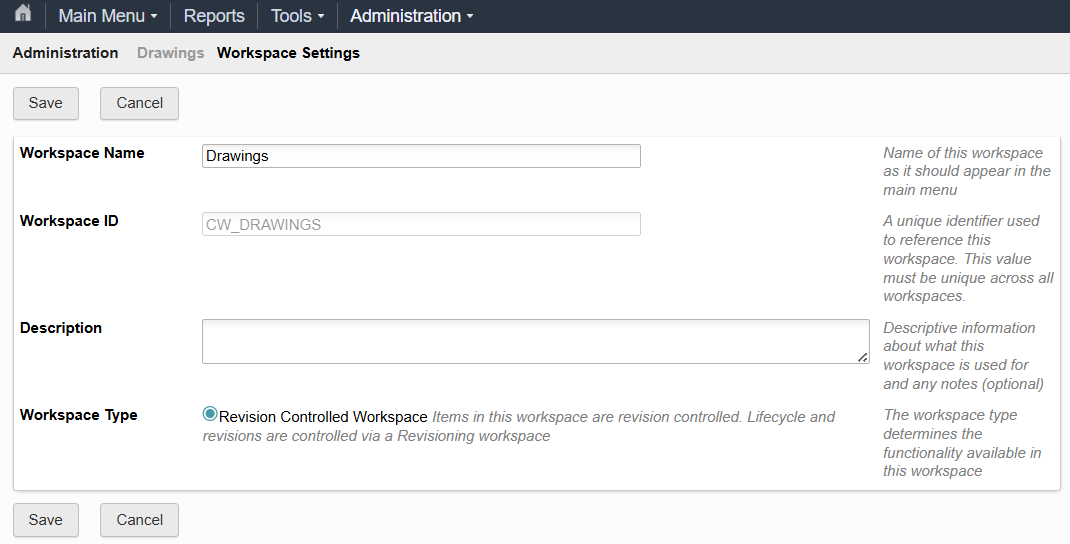
Notice two things:
- The Workspace ID is
CW_DRAWINGSto indicate this is a System Workspace (controlled by the system). - The Workspace Type is Revision Controlled Workspace. This means that items in this workspace can undergo revisions.
- The Workspace ID is
Click Cancel to exit the page.
Add a relationship to the Drawings workspace.
Under Drawings, click Workspace Relationships.
From the first drop-down, select Relationships Tab.
From the second drop-down, select Components.
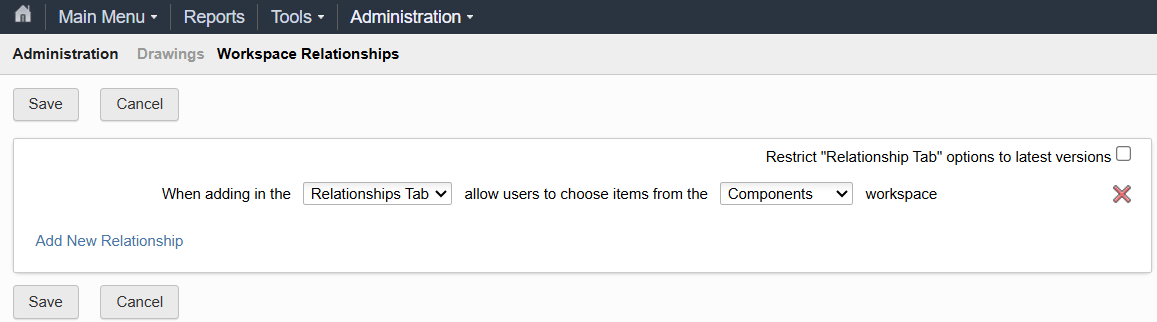
Click Save to save your changes and close the page.
Note: You'll configure the necessary permissions to view the Relationships tab in Tutorial 3 Activity 3.
Activity 1 summary
In this activity, you explored the available settings in system workspaces.