Activity 3: Approve a change request and generate a change order
Fusion Manage requires a separate license and can be used with Fusion or independently. Learn more.
In this activity, you'll play the part of an approver on the change control board who will review a change request and determine that a change order is required. You'll then generate a change order from an approved change request.
- It is assumed that you are performing these tutorials in your production environment. Therefore, we recommend that you read through the relevant help pages and activities so that you know what the result will be before creating or modifying anything.
- A change template is mandatory when creating a change request and change order. Therefore, in order for you to complete this and subsequent tutorials, you must either be given access to create your own change template or use one that someone else has created. The change coordinator must then assist you in completing your tutorials. Speak to your team and administrator to determine the best approach for you.
- The activities in this tutorial assume the chosen change template matches the one created in Admin Tutorial 4.
Prerequisites
Before you can complete this activity, you must complete Activity 2 so that your change request is in the Change Control Board Review state.
Steps
Review the change request.
Locate the change request in your My Outstanding Work list.

Review the information entered in the change request. In particular, pay attention to:
- The description entered in the Header section.
- The affected items and root cause outlined in the Details section.
- The financial impact of the change outlined in the Financial Impact Assessment section.
- The effort involved in the change outlined in the Efforts Assessment section.
Approve the change request and generate a change order.
Option 1: From the Workflow tab, click the Initiate CO transition.
Option 2: From the Workflow Actions drop-down, select Initiate CO.
Add a comment, then click Confirm.
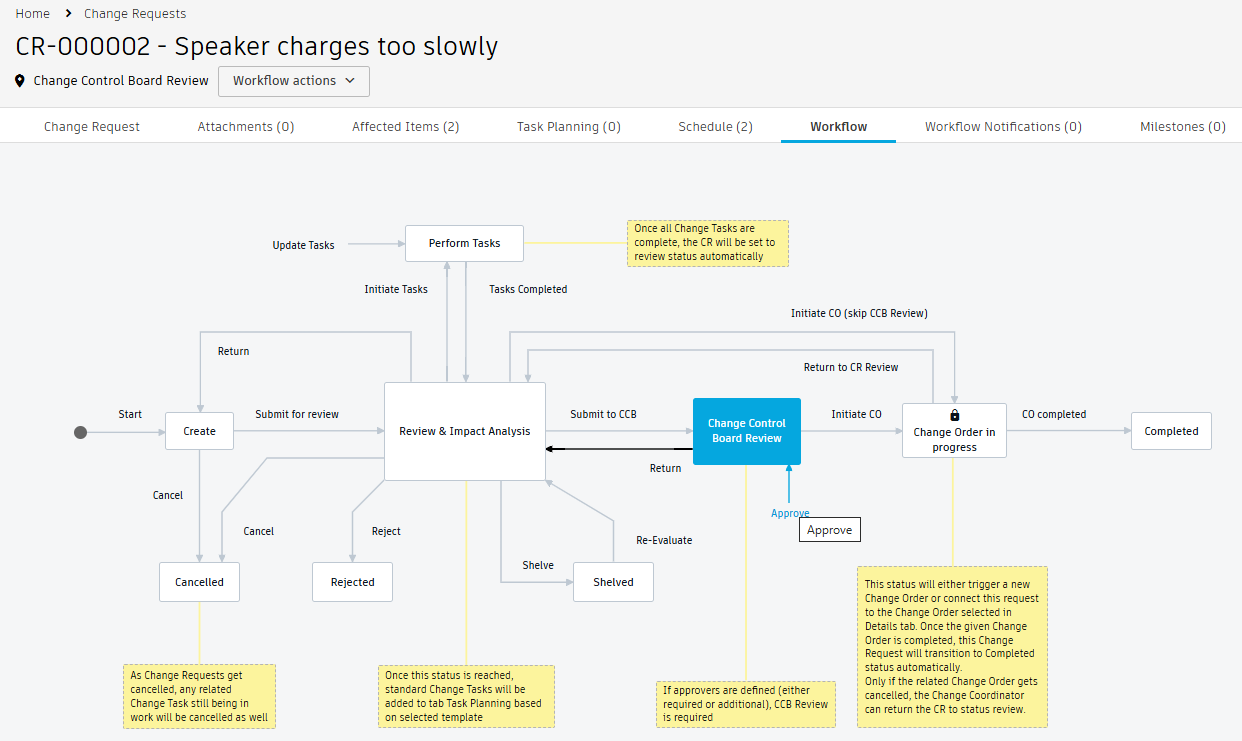
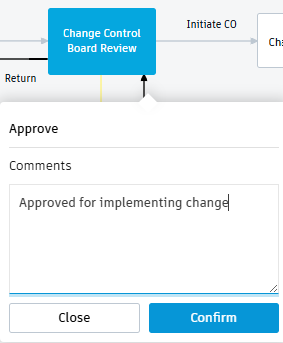
A change order is generated and a link to it is placed in the Related Processes section and Schedule tab. The change request is moved to the Change Order in progress state. It will remain in this state until the change order is approved.
The system also copies the details from the change request to the change order, including the selected change template, affected items, and attachments.
On the change request, your name is added to the Approved By field in the Change Control Board Review section.
The change request remains locked in the Change Order in progress state until the related change order is completed, which you will do in the next tutorial. Once the change order is complete, the system automatically completes the change request and if applicable, the related problem report.
Activity 3 summary
In this activity, you reviewed and approved a change request and generated a change order.