Activity 3: Release a drawing to Pre-Production
Fusion Manage requires a separate license and can be used with Fusion or independently. Learn more.
In this activity, you'll release a drawing to Pre-Production, then view the updated Manage properties that you added to the drawing in a previous tutorial.
Prerequisites
Before you can complete this activity, you must have completed Activities 1 and 2, as well as Tutorial 2.
Steps
Observe the current Manage properties of the Wireless Speaker drawing.
Open the Fusion desktop client.
Open the Wireless Speaker drawing for which you have assigned an item number in the previous tutorial.
View the Wireless Speaker drawing Manage properties in the drawing title block. You may need to click Refresh to see the latest information.
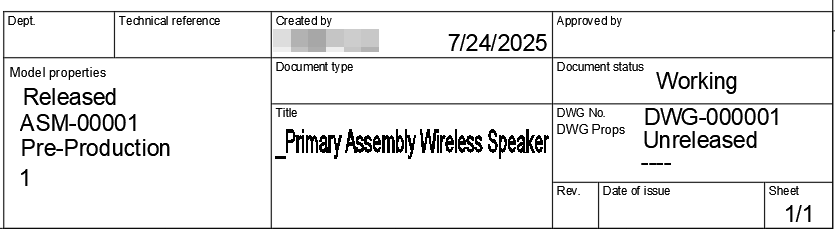
- The properties for the model should be Lifecycle = Pre-Production, Revision = 1, and State = Released.
- The properties for the drawing should be Lifecycle = Unreleased, Revision = blank, and State = Working.
Send the Wireless Speaker drawing through a quick release.
From the Browser, highlight the drawing.
From the Manage tab, click Quick Release.
In the Quick Release window, click Submit.
Wait for the process to complete, then close the window.
Note: You could have used a change order to release the drawing to pre-production as well.
Observe the updated Manage properties in the drawing.
With the Wireless Speaker drawing open, open the Data Panel, expand the Wireless Speaker drawing, and click the History icon.
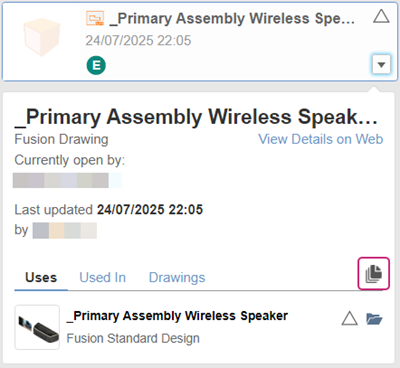
Beside the row that shows the blue revision triangle, click the three-dot menu icon and select Open.
Note: This step is necessary because in the Fusion desktop client, a working version of the drawing is always available as the latest version and this would show incorrect lifecycle information.From the Manage tab, click Refresh.
Notice that its Lifecycle is Pre-Production, Revision is 1, and State is Released.
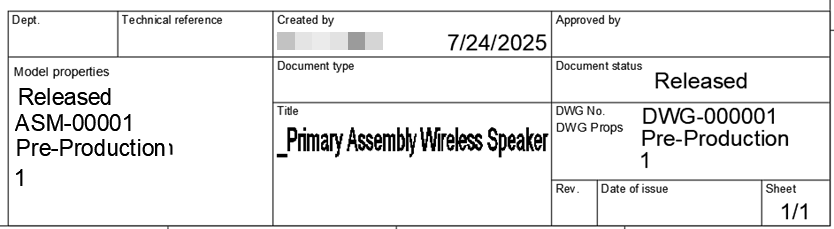
Activity 3 summary
In this activity you sent a drawing through a quick release for pre-production and viewed its Manage properties in the title block.