Activity 2: Review and approve a change order in the web
Fusion Manage requires a separate license and can be used with Fusion or independently. Learn more.
In this activity, you'll review and approve a change order (CO). You'll do this in the way that someone who doesn't use Fusion would perform these steps.
- It is assumed that you are performing these tutorials in your production environment. Therefore, we recommend that you read through the relevant help pages and activities so that you know what the result will be before creating or modifying anything.
- A change template is mandatory when creating a change request and change order. Therefore, in order for you to complete this and subsequent tutorials, you must either be given access to create your own change template or use one that someone else has created. The change coordinator must then assist you in completing your tutorials. Speak to your team and administrator to determine the best approach for you.
- The activities in this tutorial assume the chosen change template matches the one created in Admin Tutorial 4.
Prerequisites
Before you can complete this activity, you must:
- Complete Activity 1.
- For the purposes of this activity, your administrator should ensure it is possible for you to approve your own change order. If this is not possible, you'll need to work with someone who can approve change orders.
Steps
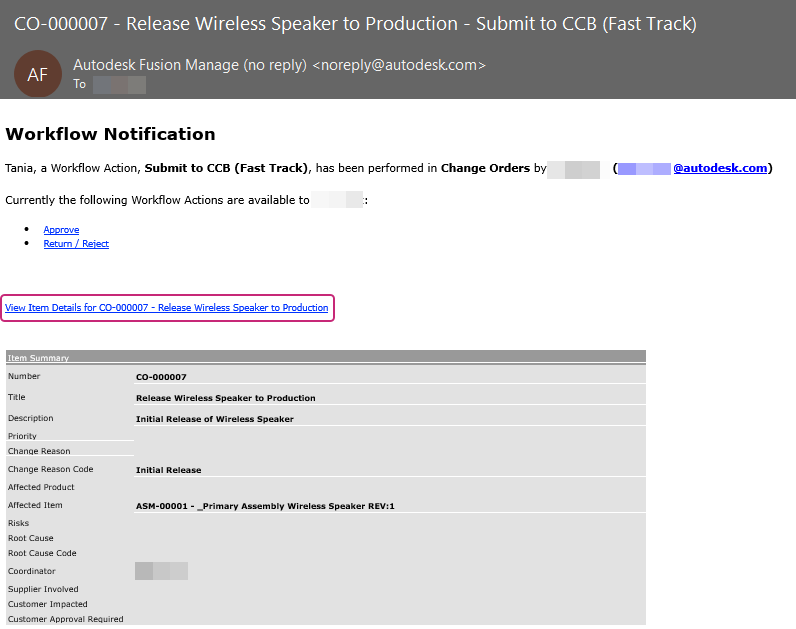
Open the change order from your email.
Locate the email from Autodesk Fusion Manage with a title that matches the name of the CO created in Activity 1.
Click the link entitled View Item Details for <CO number – CO name>.
Review the change order.
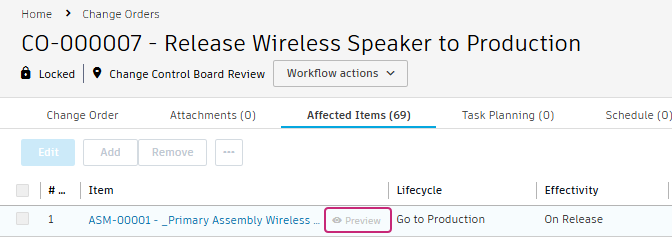
Open the Affected Items tab.
Place your pointer over the Wireless Speaker item, then click Preview.
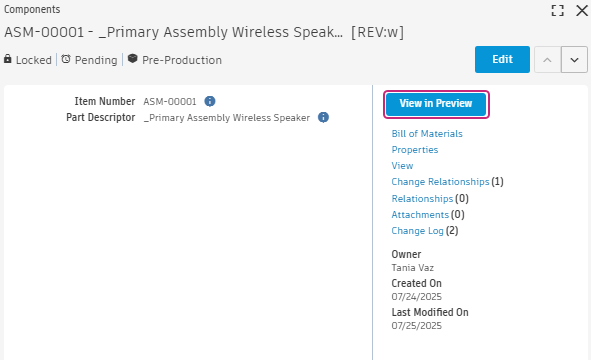
In the item dialog, click View in Preview.
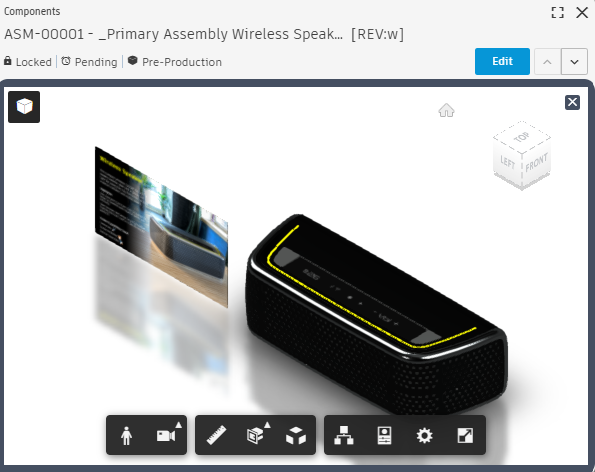
Use the tools to examine the model, then close the preview window.
Repeat the same steps to preview the drawing.
View the change order workflow and approve the CO.
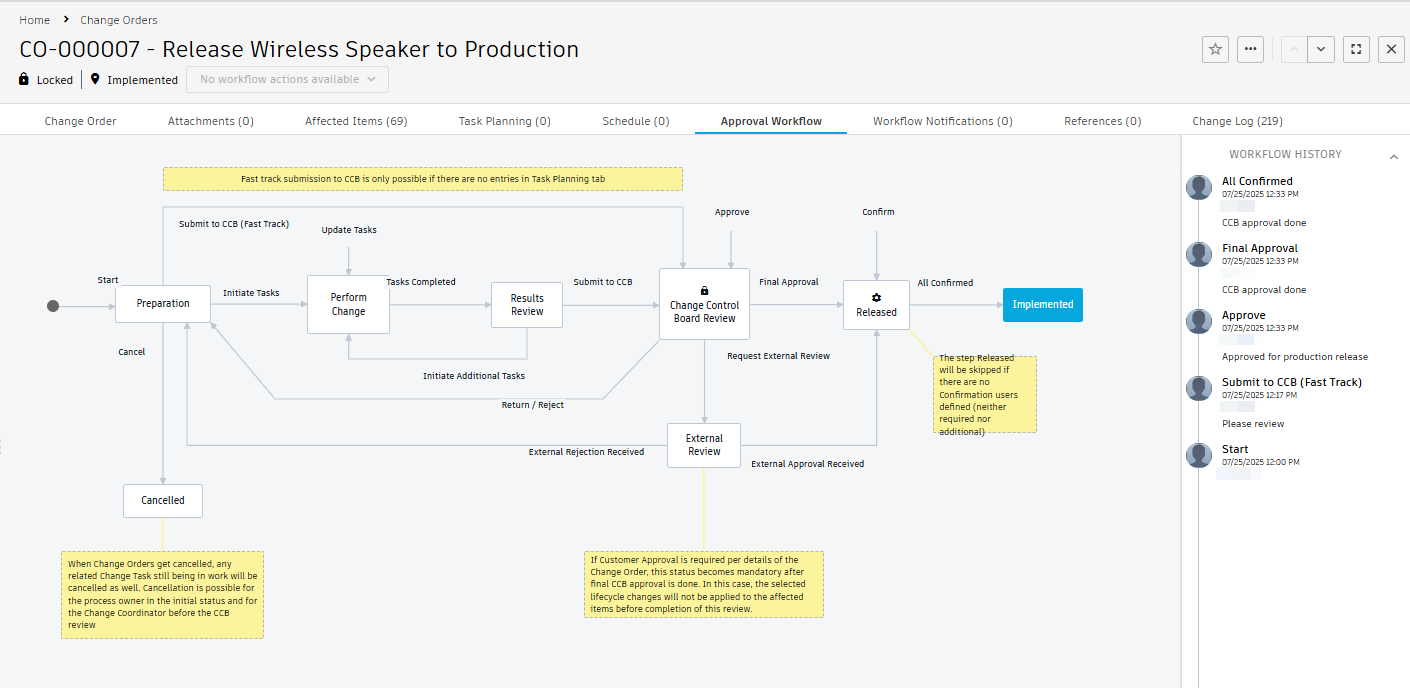
Open the Approval Workflow tab. Notice that it is still in the Change Control Board Review state. If you had added others to the Additional Approvers field in the Approvals and Confirmation section, they would also have to approve the CO before it could move on.
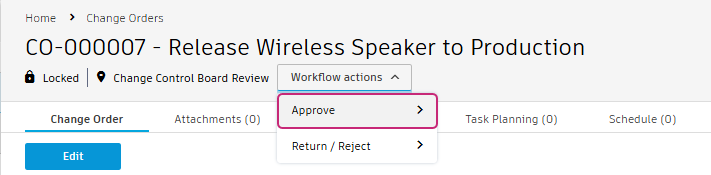
From the Workflow Actions drop-down, click Approve.
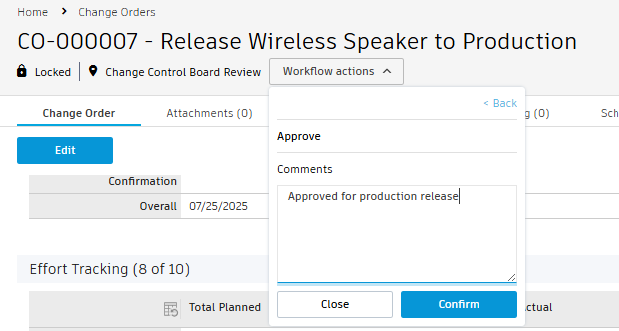
Enter your comments, then click Submit.
The change order is now approved, and the items have been released to production. The change order is now in the Implemented state. In the Approval Workflow tab, click Workflow History to view all actions and comments that were added as the workflow progressed.
Activity 2 summary
In this activity, you reviewed and approved a change order in the way a non-Fusion user would do so.