Activity 1: Send an assembly and accompanying drawing to a change order
Fusion Manage requires a separate license and can be used with Fusion or independently. Learn more.
In this activity, you'll send the Wireless Speaker and its accompanying drawing to a change order (CO) to release it to production.
- It is assumed that you are performing these tutorials in your production environment. Therefore, we recommend that you read through the relevant help pages and activities so that you know what the result will be before creating or modifying anything.
- A change template is mandatory when creating a change request and change order. Therefore, in order for you to complete this and other tutorials, you must either be given access to create your own change template or use one that someone else has created. The specified change coordinator in the change template must then assist you in completing your tutorials. Speak to your team and administrator to determine the best approach to complete these tutorials.
- The activities in this tutorial assume the chosen change template matches the one created in Admin Tutorial 4.
Prerequisites
Before you can complete this activity, you must:
- Complete the previous tutorial to release the model and drawing to pre-production.
- For the purposes of this tutorial, your administrator should ensure it is possible for you to approve your own change order. If this is not possible, you'll need to work with someone who can approve change orders.
Steps
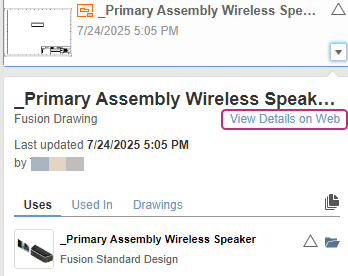
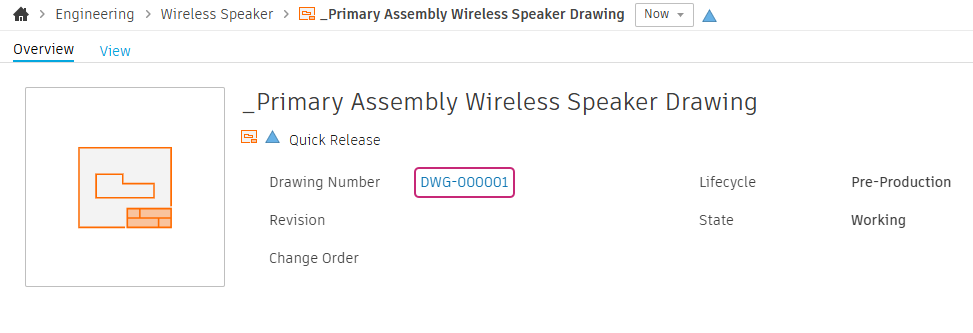
Take note of the Wireless Speaker drawing's item number.
From the Data Panel, locate the drawing and click View Details on Web.
In the Overview tab, take note of the drawing item number.
Send the Wireless Speaker and all of its components to a change order.
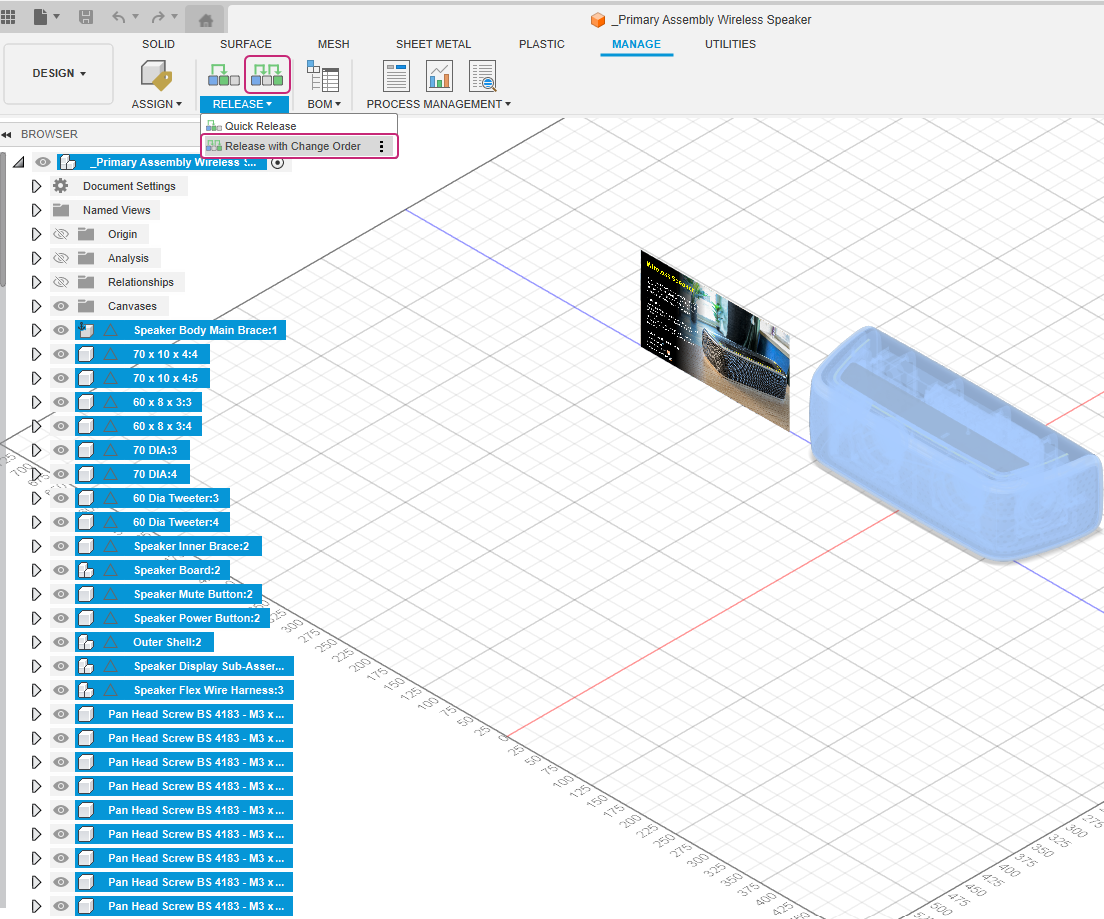
In the Fusion desktop client, open the Wireless Speaker.
In the Browser, highlight all components.
From the Manage tab, click Release with Change Order.
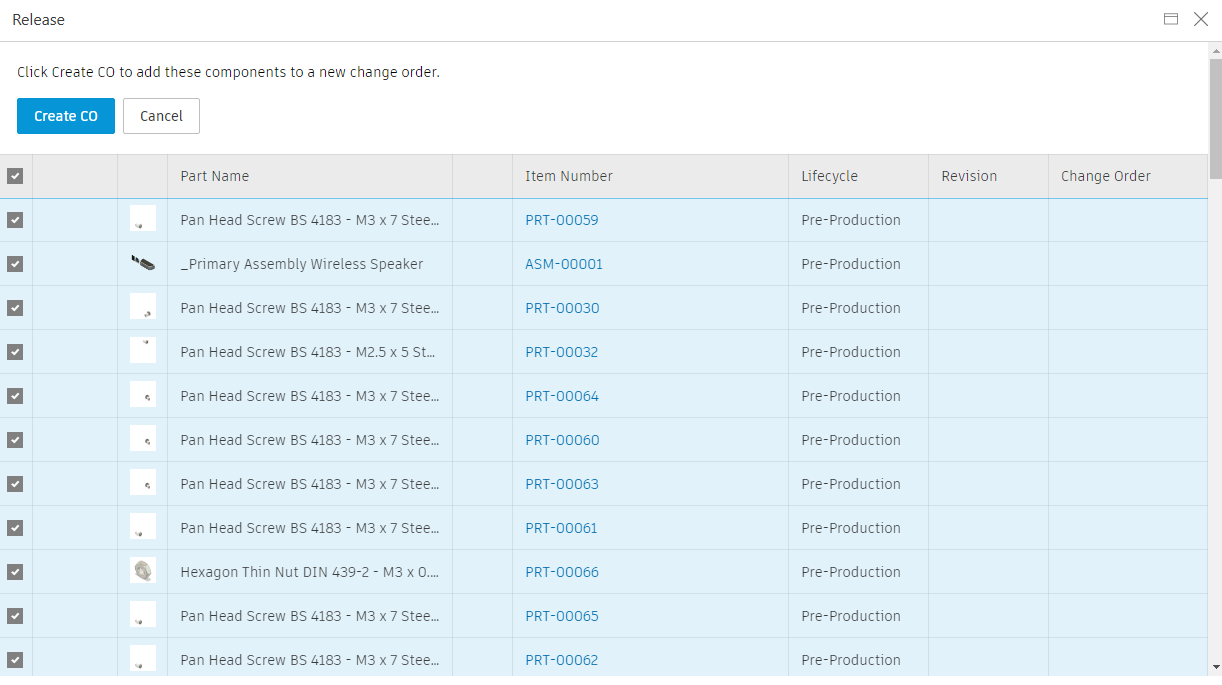
Ensure the Wireless Speaker and all of its components are selected, then click Create CO.
Configure summary details for the CO.
Enter a value for the Title, for example
Release Wireless Speaker to Production.In the Description field, enter more information regarding the CO, for example
Release Wireless Speaker to Production.From the Change Template drop-down, select an appropriate change template.
If one does not exist, you might be able to create one if you have the correct permissions. Click the
 symbol to create one. See Tutorial 4: Change templates for steps on how to create a change template that is used for these tutorial examples.
Optionally set the Priority as Medium.
Optionally, enter text in the Change Reason field, for example Release of Wireless Speaker to Production.
Optionally, click the Change Reason Code drop-down list and select Initial Release.
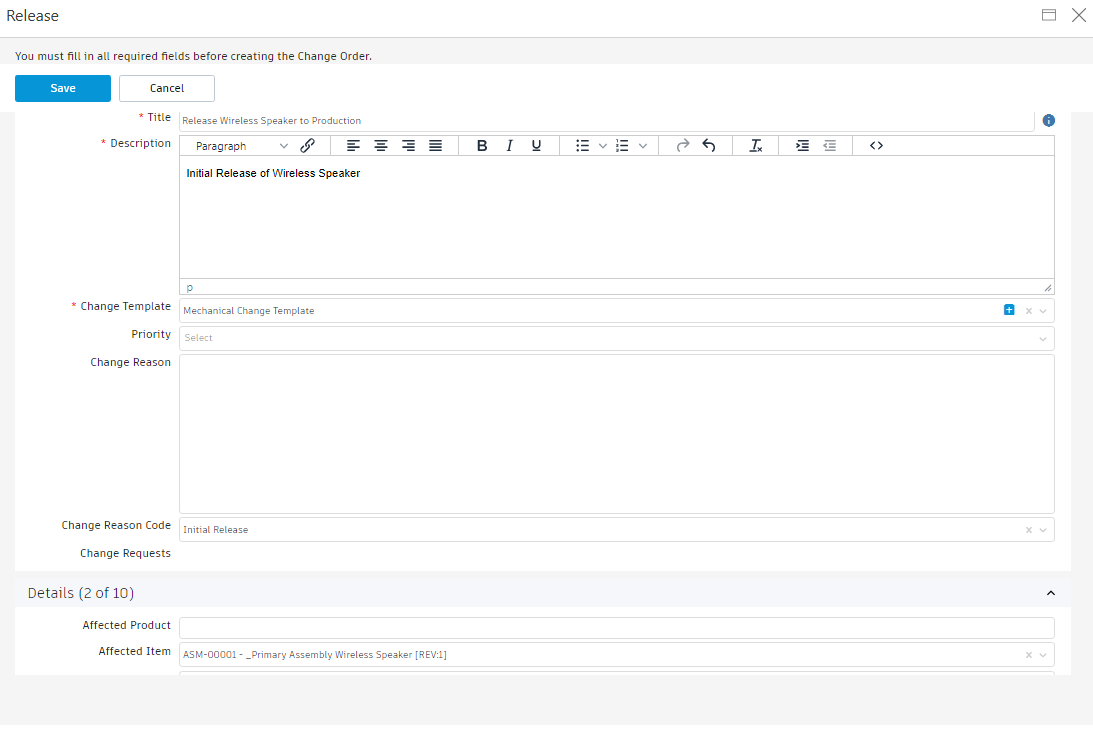
Click Save.
Note: Expand the Stakeholders section. Notice that the Coordinator field has been populated with the CO Coordinator value that was set in the change template. In the Approvals & Confirmation section, notice that the Required CCB Approvers has been populated with the CO Approvers value that was set in the change template.
Add the drawing to the CO.
From the Affected Items tab, click Add.
From the workspace selector, select Drawings.
In the Filter box, begin typing the drawing number.
Select the drawing that accompanies the model and click Add.
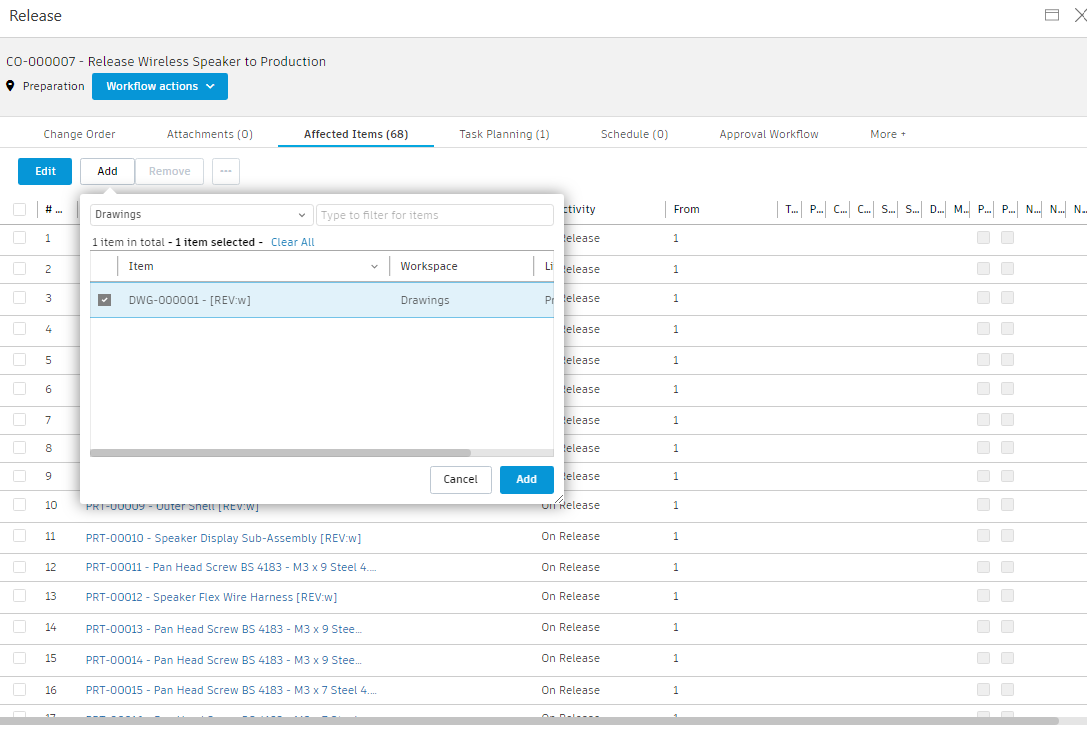
Set the lifecycle to Production for all components and the drawing.
In the Affected Items tab, click Edit.
Click Bulk Lifecycle Change.
From the Lifecycle Transition drop-down, select Go to Production.
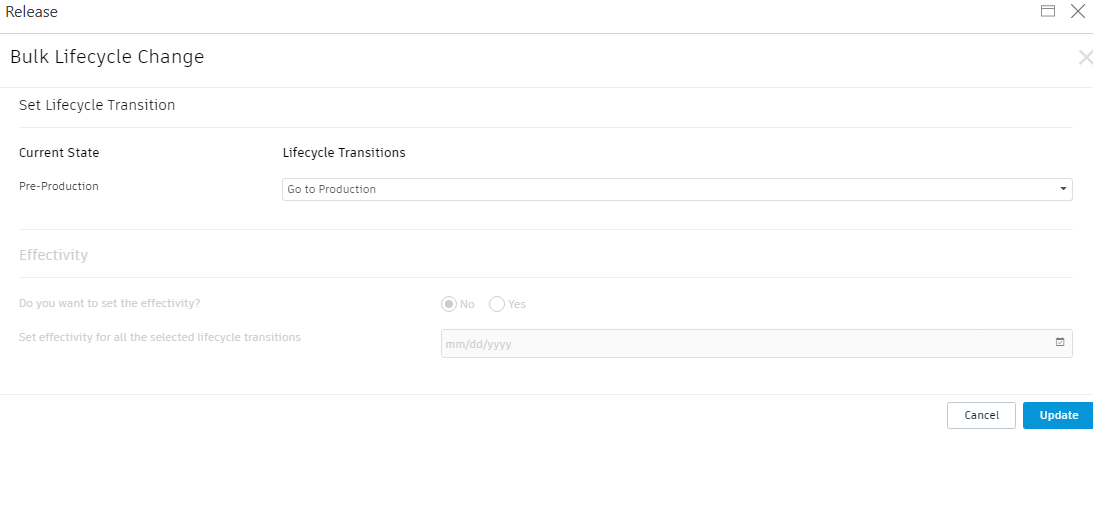
Click Update.
Click Save.
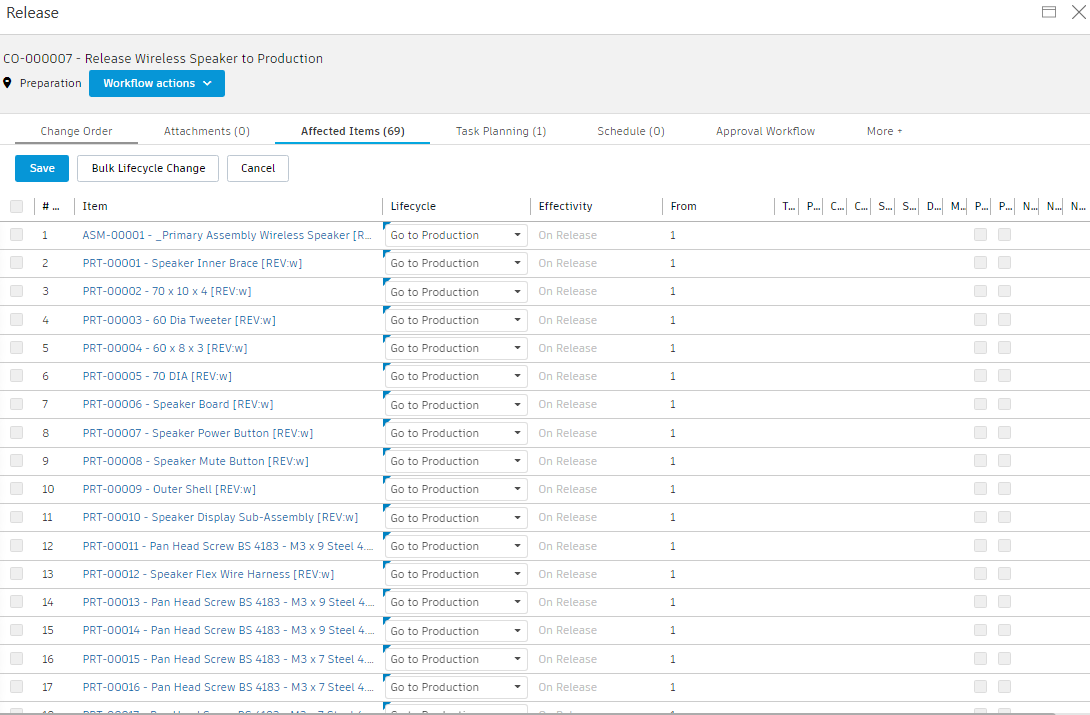 Note: At this point, if you chose a change template that contains tasks that were copied into this CO, you must remove them before you can submit the CO for review. Locate tasks in the Task Planning tab, select each one, then click Remove.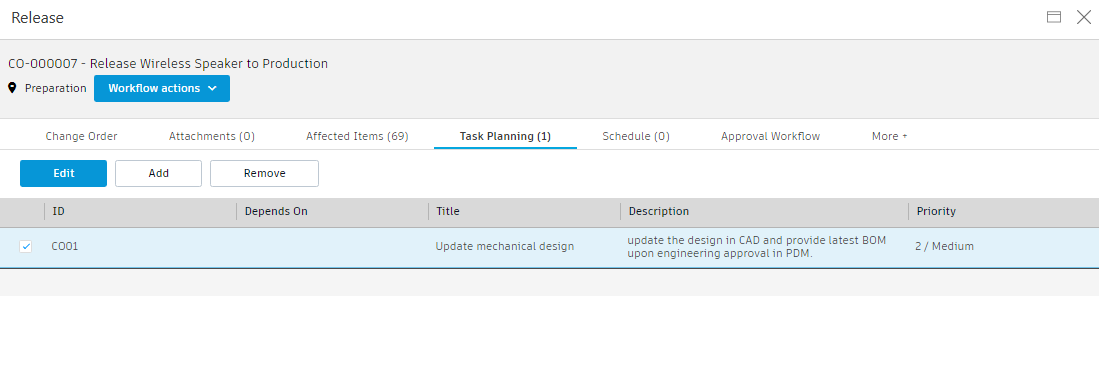
Send the CO for review by the change control board (CCB).
Open the Approval Workflow tab and note the change order workflow.
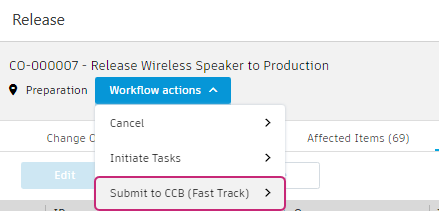
Click the Submit to CCB (Fast Track) transition. Alternatively, from the Workflow Actions drop-down menu, select Submit to CCB (Fast Track).
Optionally enter a comment, then click Submit.
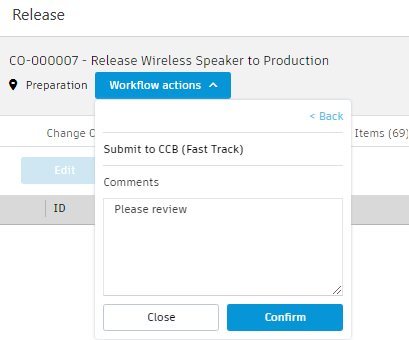
The CO is now at the Change Control Board Review state.
Close the Change Order window.
Activity 1 summary
In this activity, you sent an assembly and its accompanying drawing to a change order and submitted it for review. In the next activity, you will review the change order in the Fusion Manage site.