Activity 3: Complete the change order and release items to production
Fusion Manage requires a separate license and can be used with Fusion or independently. Learn more.
In this activity, you'll complete the change order (CO) which will send the Wireless Speaker to production again at the next revision level. You'll play the part of an approver on the change control board who determines if the items in the CO are ready for release.
- It is assumed that you are performing these tutorials in your production environment. Therefore, we recommend that you read through the relevant help pages and activities so that you know what the result will be before creating or modifying anything.
- A change template is mandatory when creating a change request and change order. Therefore, in order for you to complete this and subsequent tutorials, you must either be given access to create your own change template or use one that someone else has created. The change coordinator must then assist you in completing your tutorials. Speak to your team and administrator to determine the best approach for you.
- The activities in this tutorial assume the chosen change template matches the one created in Admin Tutorial 4.
Prerequisites
Before you can complete this activity, you must:
- Complete Activity 2.
- Ensure your administrator has assigned you (or the specified CO coordinator) the Editor [Change Orders] role so that you can review and approve the change order.
Steps
Review the design changes.
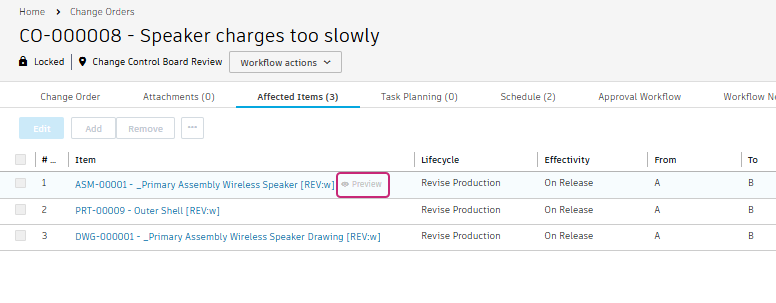
From the change order, open the Affected Items tab.
Place your pointer over the first item in the list and click Preview.
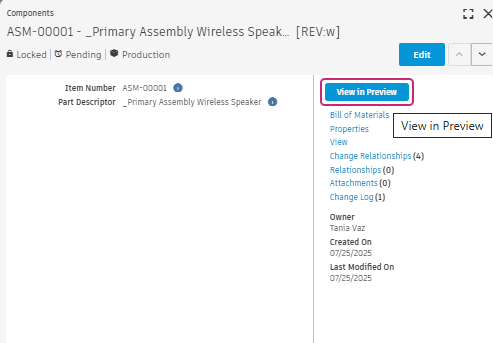
In the window that opens, click View in Preview.
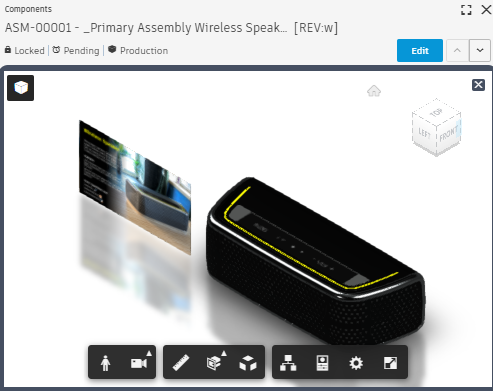
This enables you to view the design without the need for the Fusion desktop client.
Repeat the above steps for the other items in the CO.
Approve the CO.
Option 1: From the Approval Workflow tab, click the Approve transition. Enter your comments and click Submit.
Option 2: From the Workflow Actions drop-down, select Approve.
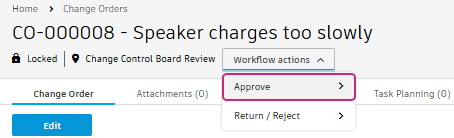
Enter your comments and click Submit.
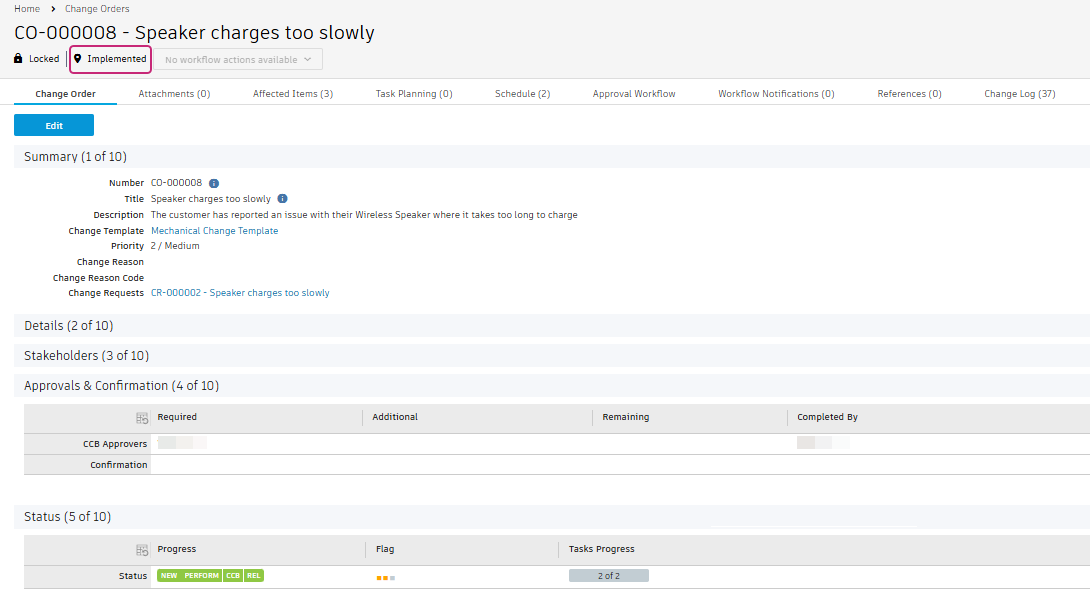
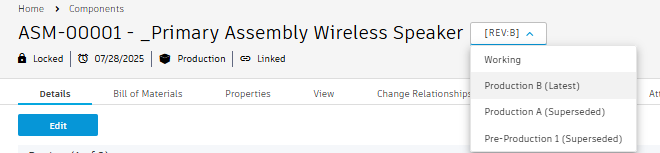
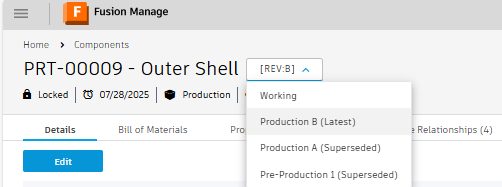
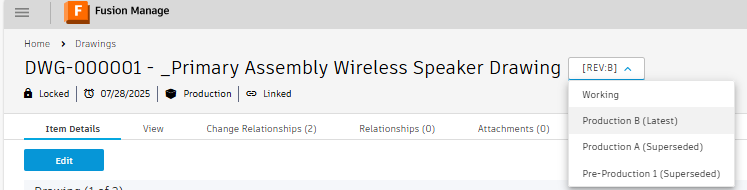
The change order moves to the Implemented state and the affected items are release to production once more. Notice that the revision level has changed from A to B. Previous revisions are set to Superseded.
 Note: If one or more team members were added to the Confirmation fields in the Approvals & Confirmation section, then the workflow would first progress to the Released state and await final confirmation before releasing the items.
Activity 3 summary
In this activity, you reviewed the affected items and approved the change order to release the items to production a second time.