Create a user package
A user package is an editable package that you own. You must have a user package before you can create and save your own graphs. The public packages (Base, System, Design, Manufacture) are read-only.
There are two ways to create a user package.
Method 1: From the Create graph dialog
Use this method when you want to create the package and its first graph in one step.
Do one of the following:
- On the Welcome screen, click Create graph.
- On the graph canvas, click File menu
 and select Create graph.
In the Name box, enter a name for the first graph.
From the Package drop-down list, select + New package.
Additional options appear below the drop-down list.
In Package name, enter a name for the package. This name appears in the Library panel and in dialogs.
Leave Host product set to Fusion unless instructed otherwise.
Expand Package details to review or edit the Package ID. The package ID is the internal reference used inside graph files and shown in the Details panel. It's generated automatically from the package name (letters and numbers only). Change it only if you need a specific identifier.
Optionally add a Package description.
Click Create.
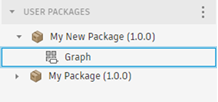
The new package appears under User packages in the Library panel and the first graph opens in the editor, ready to build.
Method 2: From the User packages menu
Use this method to create a package without creating a graph at the same time. The host product defaults to Fusion and can't be changed in this dialog.
In the Library panel, click More
 next to User packages.
Select Create package.
The Create package dialog opens.
In the dialog, enter a Package name. The Package ID is generated automatically (letters and numbers only). Edit it if you need a specific identifier.
Optionally add a Description.
Click Create.
The package appears under User packages in the Library panel, ready to receive graphs.
Package name and Package ID
- Package name: Shown in the Library panel, dialogs, and the Details panel header. Choose a descriptive name that reflects the purpose of the package.
- Package ID: The internal reference written into graph files. It's auto-generated from the package name. Once graphs exist that reference the package by ID, changing the ID will break those references.
Result
The package becomes the current package, shown in the top-right corner of the editor. New graphs you create are placed in the current package by default.