Search and filter the canvas
Use canvas search to find and highlight specific nodes in a graph. This is useful in large graphs where you want to locate a node by name, or to see all nodes of a particular type at a glance.
Click Search
 at the bottom of the canvas, or press Ctrl+F (Windows) / Command+F (macOS).
The search box and filter controls appear in the Navigation Bar.
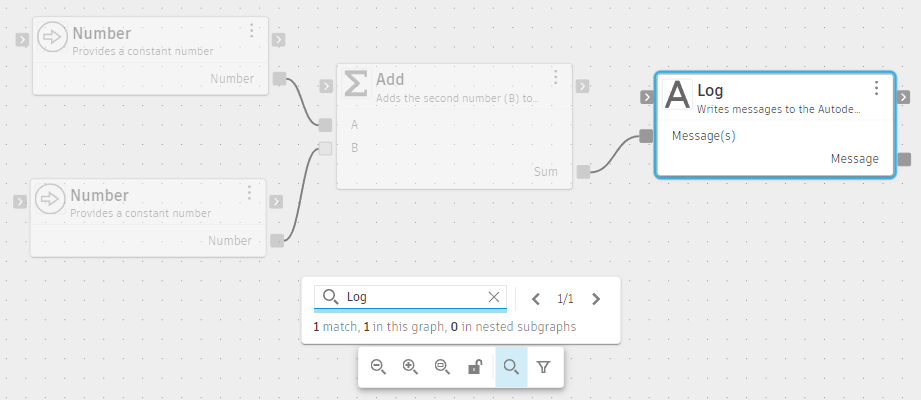
Type a node name in the search box.
Matching nodes are highlighted on the canvas. Non-matching nodes remain visible at reduced opacity so you can see context. The result count shows how many nodes matched.
(Optional) Click Filter
 in the Navigation Bar to narrow results by node type:
- Entry/exit points: Nodes that mark the start or end of a graph execution path
- Boundary nodes: Nodes that define the inputs and outputs of the current graph or subgraph
- Unconnected nodes: Nodes with no connections on any port
- Subgraphs: Nodes that contain a nested graph
Filters work independently of the search box. You can apply a filter without typing a search term to see all nodes of that type.
(Optional) Use the navigation arrows to move between matching nodes one at a time. The canvas centers on each node as you step through the results.
Note: Navigation can move into subgraphs if a matching node is inside one.To exit search mode, click × in the search box or press Escape.
The canvas returns to its default state.