Check Scene Settings
The Check Scene Settings Tool lets you check (before or during a Golaem Simulation), that all the required elements in the Maya settings and in the Simulation are correctly set.
Creation
- Golaem Shelf:

- Crowd Render Menu: Check Scene Settings
- MEL command: glmCheckSceneSettingsCmd;
Tool Settings
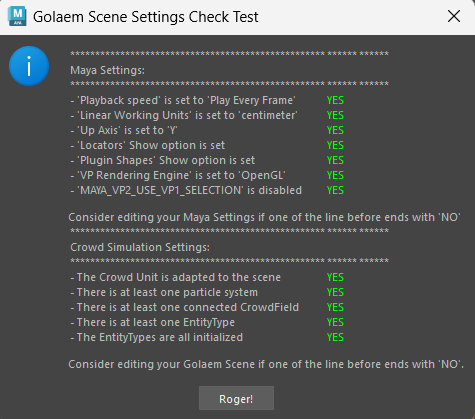
If a checker line ends with "NO", review the reported setting and correct it before using the affected feature. Each "NO" line comes with a Help link to guidance for fixing the issue:

The checker groups its results into three categories:
- Maya Settings: always checked.
- Bifrost Settings: checked only when Maya's
bifrostGraphplug-in is loaded. - Crowd Simulation Settings: checked only when the scene contains a Crowd Manager Node. Otherwise, the checker reports that there is no Golaem simulation in the scene.
Maya Settings
These checks verify the Maya scene and viewport settings required by Golaem.
Playback speed is set to Play Every Frame
Maya needs to play every frame for Golaem to be able to simulate correctly
Check Setup at first launch
Linear working units is set to Centimeter
Maya intrinsics makes it mandatory for the scene to be in cm for the particles to correctly work. Golaem proposes a Crowd Unit settings if your scene is at another scale, but you must leave the Maya general unit setting to centimeter.
Check Setup at first launch
Up Axis is set to Y
Golaem needs the Up Axis to be set to Y to work correctly. You can make your character navigates in other dimension if needed using the UVPin Behavior / 3D mode of the Terrain Locator.
Check Setup at first launch
Locators Show option is set
Golaem is based on many locators, it will not work if they are hidden in your viewport.
Check Setup at first launch
Plug-in Shapes Show option is set
Same as locators, Golaem needs the Plug-in Shapes to be visible if your viewport to be able to work correctly.
Check Setup at first launch
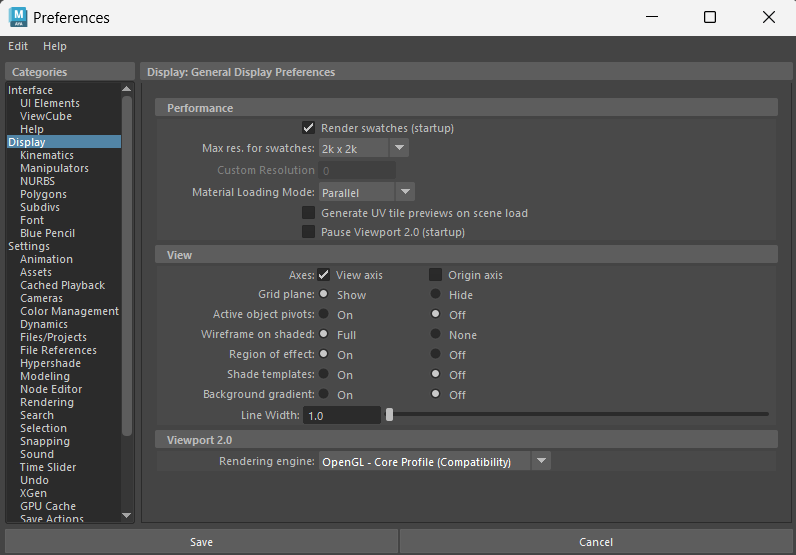
VP Rendering Engine is set to OpenGL
Golaem provides an optimized display for your crowds, but it only works in OpenGL. Check your Maya preferences / Display Section / Rendering Engine
MAYA_VP2_USE_VP1_SELECTION is disabled
This is an old environment variable which was introduced during the transition from Maya Viewport 1.0 to 2.0. Golaem is no more compatible with VP1, and this variable will make the viewport selection unusable if it is set. If you do not know how it is set, contact your Pipeline / IT admin.
Bifrost Settings
This section appears only when Maya's bifrostGraph plug-in is loaded.
If you intend to use Golaem for Bifrost
and the section is absent, load bifrostGraph in Maya's Plug-in Manager,
then run Check Scene Settings again.
Golaem Bifrost plugin is installed
The checker looks for a recognized Golaem Bifrost plugin version directory in
BIFROST_LIB_CONFIG_FILES. A YES means that a plugin registration was
detected; it does not verify that all plugin files exist or that the nodes
load successfully.
If the result is NO, the checker displays
No Golaem Bifrost plugin found in BIFROST_LIB_CONFIG_FILES. Check
that the Golaem module and Bifrost plugin are installed, and that the
environment variable includes the plugin's glmCrowdBifrostPackConfig.json
path under procedurals/bifrost/<version>/. For example, the directory
codes 211, 213, and 30 identify plugins for Bifrost 2.11, 2.13, and
3.0, respectively. Correct the module or environment configuration and
restart Maya if needed.
Bifrost version is supported
This check appears only when a Golaem Bifrost plugin is detected. It displays the loaded Bifrost version and the detected Golaem Bifrost plugin version.
The version check passes only when:
- The loaded Bifrost and the plugin have the same major version.
- The loaded Bifrost minor version is greater than or equal to the plugin's minor version.
Patch and build versions are not compared.
| Golaem Bifrost plugin | Loaded Bifrost | Result |
|---|---|---|
| 2.11 | 2.11 or 2.13 | YES |
| 2.11 | 2.10 | NO: the runtime minor version is too old. |
| 2.11 | 3.0 | NO: the major versions differ. |
| 3.0 | 3.0 | YES |
If the result is NO, the checker also displays the required major version and minimum minor version. Install or load a compatible Bifrost version, or configure a matching Golaem Bifrost plugin supplied with your Golaem installation, then run the checker again.
The Help links for both Bifrost checks open the Bifrost support section.
Crowd Simulation Settings
These checks verify the Golaem simulation setup. They appear only when the scene contains a Crowd Manager Node.
The Crowd Unit is adapted to the scene
A NO here means that from settings on your Golaem objects we detected you may not have set the Golaem Crowd Unit correctly
See What's the Crowd Unit? How do I set it?
There is at least one particle system
There is not particle system in your scene, hence no character to be simulated. Did you forget to click the "Create" button at the bottom of your PopulationTool Attribute Editor?
There is at least one connected CrowdField
To simulate characters, Golaem need a CrowdField to be connected on the created particle systems. It is automatically created/connected by the PopulationTool when clicking on its Create button.
You may try connecting it manually or recreating your particles with the PopulationTool (and by the way the CrowdField needs not to be hidden and its enabled attribute to be checked)
There is at least one Entity Type
One of the first step of creating a Golaem scene is to create an EntityType describing the characters to be simulated.
Check the Quickstart
The EntityTypes are all initialized
All EntityTypes need to be linked to a valid gcha (Golaem Character) file.
Check your EntityTypes / Character File fields and ensure they are not empty and point to a valid character file path.
A TerrainLocator with a navmesh is required and set
If you are going to use Navigation/Goto behaviors, you need a Golaem Terrain.
Maybe you have one in your scene, but your CrowdManagerNode or CrowdField nodes do not reference it in their Environment attributes. Check these.
Otherwise, if you do not know how to create a TerrainLocator, check the Quickstart
License status
Shows whether the Golaem license has been validated. Not checked yet means that the license status has not been checked yet. If the result is NO, the checker displays the license status message.
Check License Setup