To highlight features and change highlight color
To highlight features
Click Manage
 Model
Model  (Model Explorer) in the Toolbar to open the Model Explorer panel.
Click
 for the feature class or subset to highlight.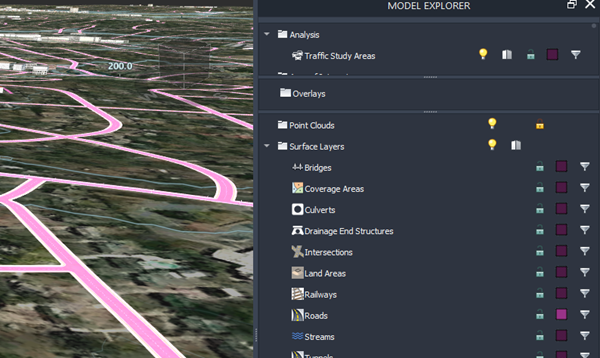
By default, the Activate Highlighting icon turns a light purple color when activated, and members of that feature class or subset are highlighted that color in the model.
Note: Highlighting does not select features.
To change the highlight color
On the Model Explorer, right-click any feature type to open the context menu.
Click Set Highlighting Color.
Select a color and click OK.
The Activate Highlighting icon color changes to the color you specified: a dark version when highlighting is off, and a bright version when highlighting is active.