To specify a rule style
Use the Rule Style property to specify a default style for imported data, or map one property from the original data source to the Rule Style model property and create Style Rules for each individual value of the data source property.
Double-click the new data source in the Data Sources panel to open the Data Configuration dialog box.
Configure the imported data Type and navigate to the Common tab.
Choose one of the following options:
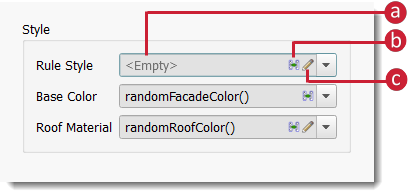
a. Click to expand the drop-down list, and select a data source property to specify that property as a rule style.
Note: If you specify a data source property as a Rule Style, you can also define style rules to map individual values of that property to individual styles. See below for an example.b. Click to create an expression to filter the Rule Style property you specify.
c. Click to open the Style Chooser and select a default style to apply to all the feature(s) in the feature class. You can create Style Rules to override the default Rule Style using another model property field such as Manual Style.
Example of defining Style Rules for a Rule Style property
Perform Steps #1-4a from the section above. For example, if you imported buildings data and your data has a Building_ID property, you could specify that property as the Rule Style and then assign different styles to individual values of the Building__ID property using Style Rules.
Note: Alternatively, for this example you could directly map the Building_ID data source property to the Building_Complex_ID model property using the Table tab of the Data Source Configuration dialog box.Click Manage
 Display
  to open the Style Rules panel.
Click the tab for the desired feature class. In this example, choose the Buildings tab.
Click
 in the Style Rules panel to add a new style rule. Type a name for the new style rule and press OK.
Double-click the new style rule in the Style Rules panel to open the Rules Editor.
Click
 in the Expression field to open the Expression Editor, and enter the desired filter expression. For example, input BUILDING_ID = Downtown Hospital Complex OR BUILDING_ID = Uptown Hospital Complex to select the Downtown OR Uptown Hospital Complex if your original data source contains those values for the BUILDING_ID property. Press OK.
Click
In the Styles section of the Rule Editor to assign a style (such as "Facade/Concrete & Glass/Elodie") to the features specified by the expression.Repeat steps 6 and 7 until you have defined style rules for all individual values of the Rule Style property. Press OK in the Rules Editor.
Click Run Rules in the Style Rules panel to apply the changes to your model.