To set the selection mode
Click Manage
 Model
Model  (Model Explorer) in the Toolbar to display the Model Explorer.
Unlock any features that you wish to make selectable.
Note: See To select features for more about making features selectable.Click
 to display the drop-down menu of Selection tools.
Click the selection mode to use.
Select
Click an individual feature (left) to select it (right). Hold down the Ctrl key to make multiple selections.
This is the default selection mode.
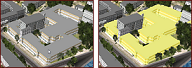
 Window Select
Drag a window over a region of the model (left). Any selectable feature that is touching the edge of the window is selected (right).
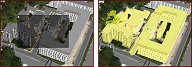
 Rectangular Select
Specify a box based on three points. Click to place the first point, then click to place a second point to define an edge. Finally, drag perpendicular to place the last point by double-clicking (left).
Only selectable features that are inside the box are selected (rright).
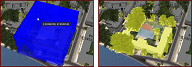
 Polygon Select \
Specify an enclosed region based on three or more points. Click to place points and then double-click to place the last (left).
Any selectable feature that crosses the edge of the polygon is selected (right).
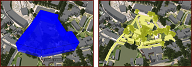
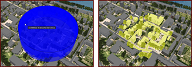
 Radius Select
Specify the center point for a circular region. Click to place the center point, drag the cursor, and then double-click the desired radius (left).
Any selectable feature inside the region is selected (right).
 Filter Select
Use the Expression Editor to select features or subsets using custom expressions you build.
 elect Visible
Select all features that are visible in your current viewport.