Playblasting shots in the Sequencer editor creates movie clips from shot cameras or from the entire sequence.
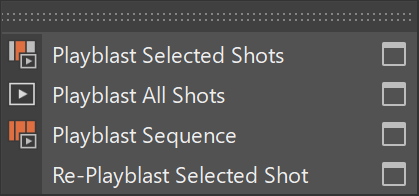
By default, playblasted movies are saved to the Movie project location. If multiple directories are specified, Maya uses the first listed location. You can change the output directory in the Project Window or in the relevant Playblast options.
Playblast Selected Shots
To playblast one or more selected shots:
- Select one or more shots in the Sequencer editor.
- Open the Playblast menu.
- Select Playblast Selected Shots.
To configure settings before playblasting, open the options box next to Playblast Selected Shots.
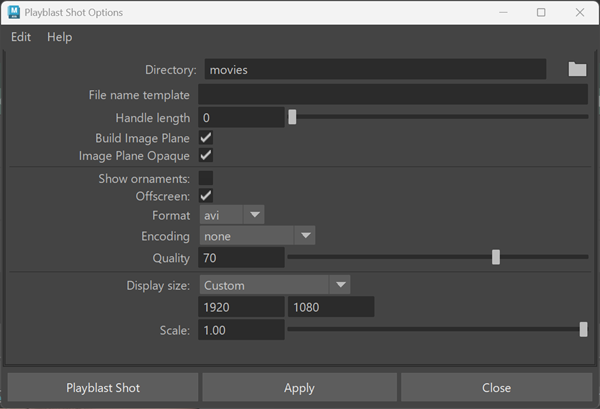
The Playblast Shot Options dialog includes a Display Size section for controlling output resolution.
The Display Size setting includes the following options:
- From Window
- From Render Settings
- Custom
- From Image Attributes
When Custom is selected, you can specify:
- Width
- Height
The Scale control adjusts the output resolution using a numeric value and slider. The default scale is 1.0 (100%).
The final playblast resolution is determined by the selected Display Size and Scale settings.
Note: The default Display Size setting is From Image Attributes.
Each selected shot is rendered to a movie clip. A movie clip indicator appears beneath each shot.
Playblast All Shots
To playblast all shots on a track:
- Right-click the track.
- Select Playblast All Shots, or select the options box next to Playblast All Shots to adjust settings before playblasting.
Each shot on the track is rendered to a movie clip.
Playblast Sequence
To playblast the entire sequence into a single movie:
- Select Playblast > Playblast Sequence, or
- Open the options box next to Playblast Sequence to adjust settings before playblasting.
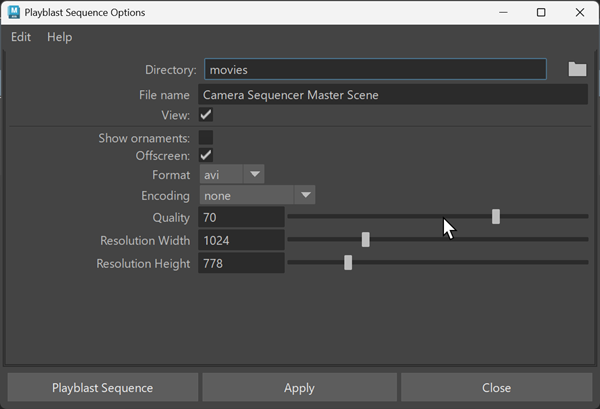
All shots are rendered into a single movie. Which shots contribute depends on how shots overlap in the sequence.
The output movie is not associated with individual shots and is not attached to any camera image plane.
Re-Playblast Selected Shot
To regenerate a previously playblasted shot:
- Select a shot.
- Open the Playblast menu.
- Select Re-Playblast Selected Shot.
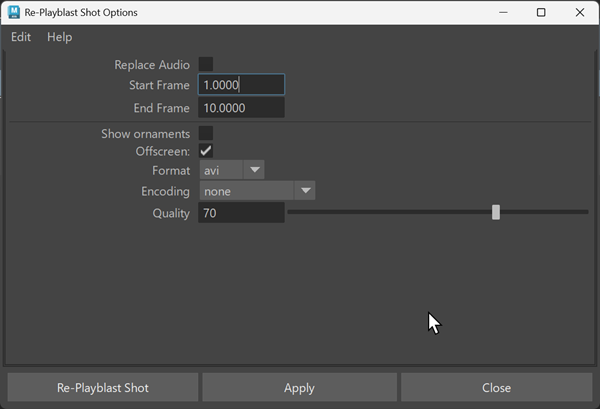
Use the options box next to Re-Playblast Selected Shot to adjust settings before regenerating the clip.
Notes on image plane connections
When querying image planes created by playblasting, include the -shapes flag so that the imagePlaneShape node appears in the results.
string $fps[] =
`listConnections -shapes 1 ($shot + ".clip")`;