Adjusting folder permissions on PIX for macOS
With the proper access to a project, you can alter the folder permissions in the Files section of your project. If you are not able to adjust folder permissions, contact your project's Gatekeeper.
You can alter permissions of both folders and files, however, we strongly recommend that you do not edit the permissions at the file level. Doing so can prevent permission changes to a file's enclosing folder from being applied to the file itself, and may lead to users not having the desired access to a file.
Open the Permissions Tab
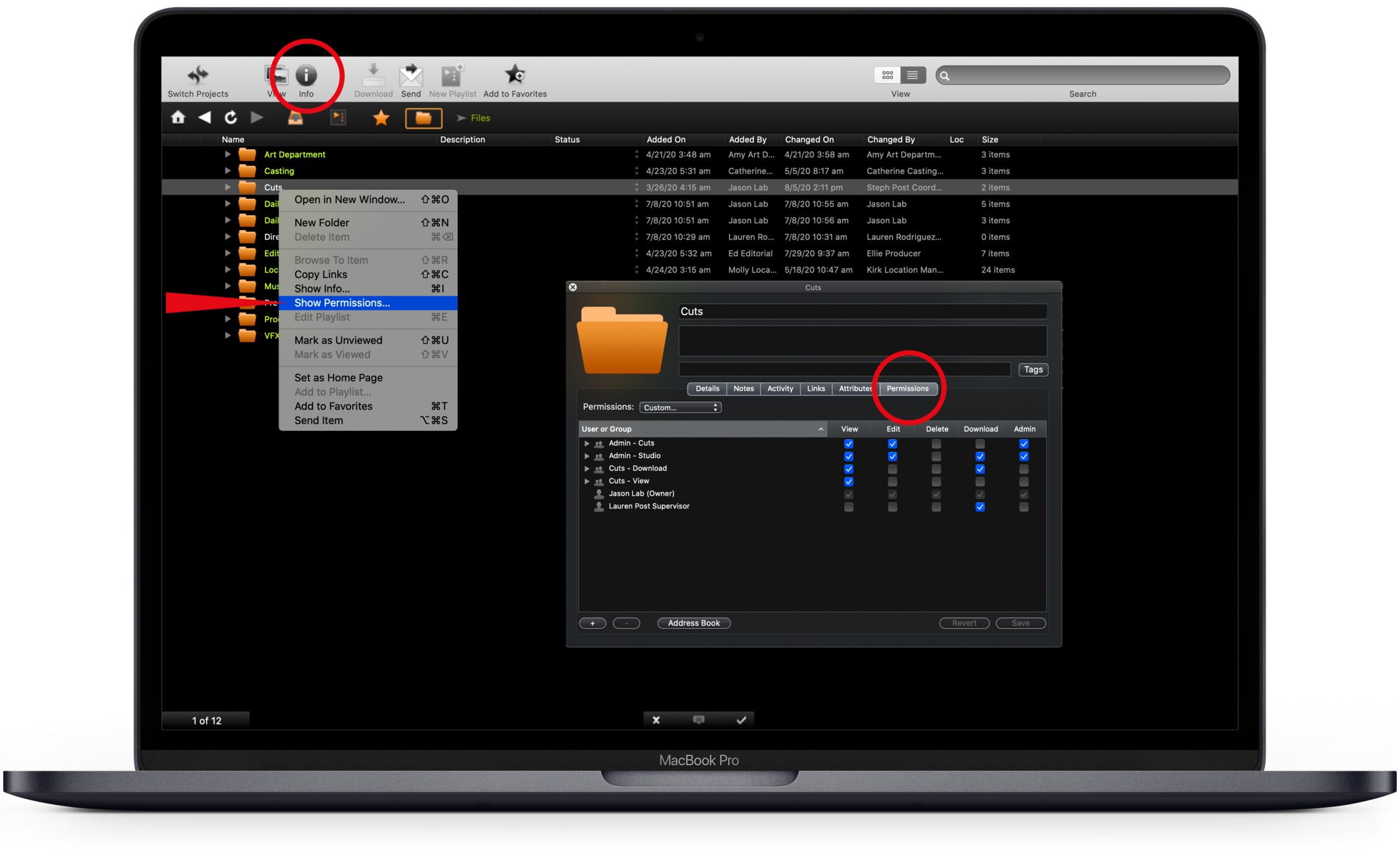
To view and edit permissions on a folder, navigate to the Files section and select a folder. Click the Info button in the top menu bar, and select the Permissions tab.
You can also right-click on the folder > Show Permissions or use the keyboard shortcut Cmd+I to open the information panel for the folder.
In the Permissions tab, you can add, edit, or remove permissions on the folder for users and groups.
Types of Folder Permission Settings
Folders can be set to Same as Folder, Private, or Custom.
- Same as Folder: A subfolder’s permissions are based on or inherited from its enclosing or “Parent” folder. This is the default setting for all subfolders.
- In the case of a top-level folder, the permission is usually set to Private by default. *
- If you are creating top-level folders always be sure to check your Permissions tab to adjust as needed.
- Private: Only the owner (creator) of the folder has access to the folder.
- Custom: The folder has a custom set of permissions that are not being inherited from the enclosing “Parent” folder.
*The ability to create top-level folders on projects is limited to PIX Support. If you require the ability to create top-level folders, please contact your Gatekeeper or PIX Support to discuss.
Adjusting folder Permissions
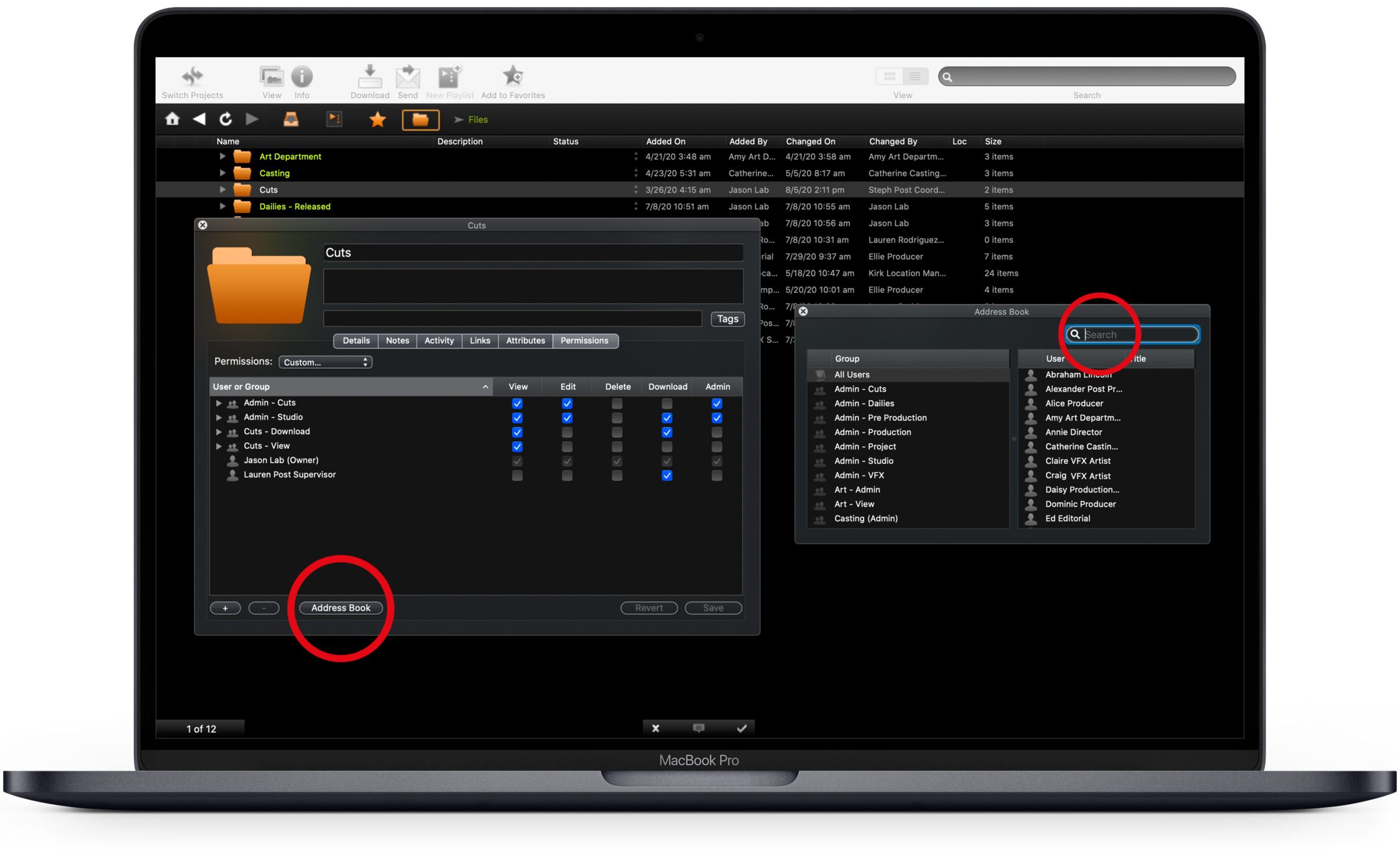
Add a user or a group to a folder
- Click the +/- button in the bottom left corner of the permissions window.
- Start typing the group or user name in the field under the User or Group column.
You can also open the Address book and add users from there by double-clicking a user or group's name. As you click through the groups on the left, you will be able to see the users in each group populate on the right.
Groups are an easy way to grant access to multiple users at once, and aid in the tracking of access on your project.
Groups are created and populated by PIX Support per the Gatekeeper's instructions. Most access groups will have abbreviations for the access level included in the group's name so that you know which permissions should be assigned to that group.
- For example, a permissions group that needs to grant view access to a Cuts folder would look like this: Cuts (V) or Cuts - View
You cannot change the membership of groups via this window, only users with access to the User Admin Tool or PIX Support can adjust group membership. If you need access to this tool, contact your project Gatekeeper.
Remove a User or a Group
To remove a user or group's access to a folder, select the user/group with one click and click the minus button at the bottom of the permissions window, or you can select the user/group and hit the Delete key on your keyboard. If you remove a group by mistake, simply re-add using the steps above.
Save or Revert your changes
Once you have finished adjusting, adding, or removing groups, click Save to save your changes, or Revert to discard the changes and continue editing.
Types of User Permission (Access) levels
To the right of the group/user name, you will see 5 columns: View, Edit, Delete, Download, and Admin. Determine what permissions a particular group /user will have to the folder by checking the respective permission checkbox.
Below is a breakdown of permissions:
- View (V): Allows an individual/group to open/view an item, and make notes on that item. Users do not need view access to a folder to be able to view items sent to their PIX inbox from the folder.
- Edit (U): Allows an individual/group to change information about the item. When the item is a folder, Edit allows a user to create subfolders, and upload items to the folder.
- Admin (A): Allows an individual/group to see and change permissions on the item. When the item is a folder, Admin also allows the individual/group to move items out of the folder. Admin access requires also having Edit access in order to function.
- Delete (X): Allows the individual/group to remove the item from PIX. This access requires Edit access to function.
- Download (DL): Allows individuals/groups to download the item to their local device.
- The ability to save files for secure offline viewing is a separate permission that is not included here.
- In addition to the Download box being checked on a folder, a user's account will need to also be enabled for project-level download access by PIX Support before content can be downloaded.