Generate and complete change tasks
For users with Fusion connected sites, references to the 'Items' workspace should be the 'Components' workspace.
Use the Task Planning tab to define a list of activities to be completed before the change request is submitted to the change control board. When you transition the change request to the Perform Tasks state, the system automatically generates the corresponding change task processes. Once all tasks are complete, the request transitions back to the Review & Impact Analysis status.
You may adjust the tasks in the Task Planning tab — add or remove tasks, or update values such as dependencies, IDs, titles, descriptions, priority, assignee, and target start dates. Start with a standard set of tasks as copied from the template, then tailor them to fit the specific change request.
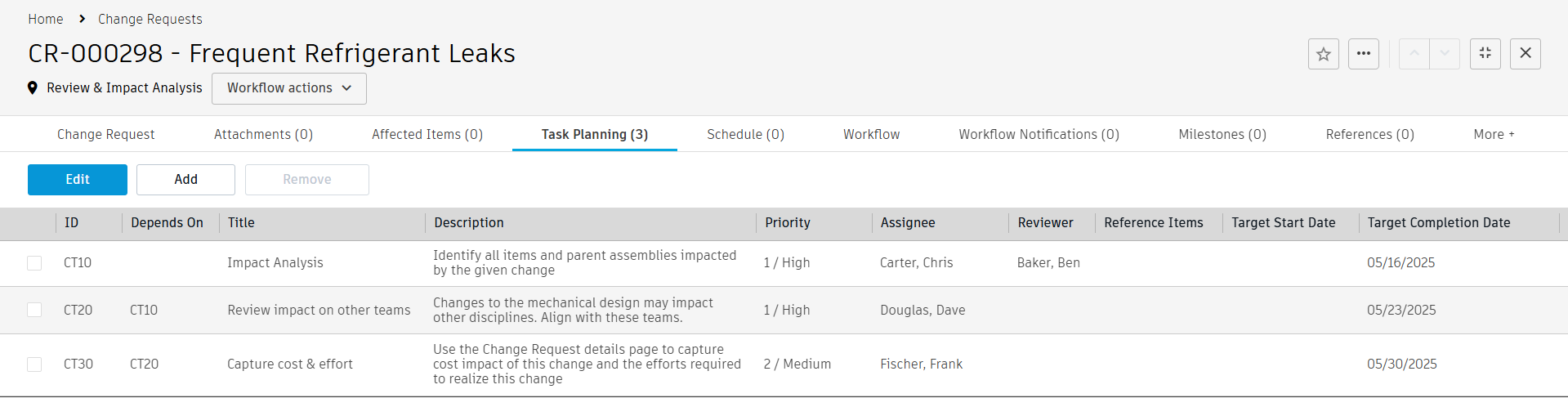
Each entry must have an alphanumeric ID, an assigned person, and a Target Completion Date. If you define a Reviewer, the system notifies that person when the task results are ready for review and approval. If you do not define a Target Start Date, the system uses the current date.
Initiate tasks
Initiate the tasks using the Initiate Tasks workflow action.
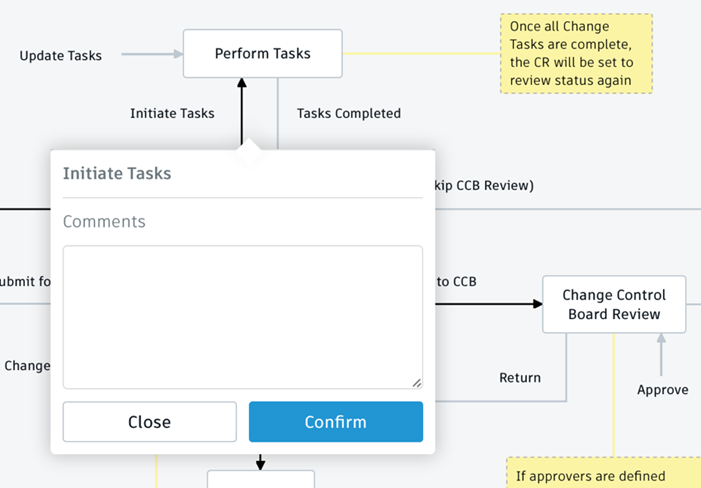
When you complete the transition, the system does the following:
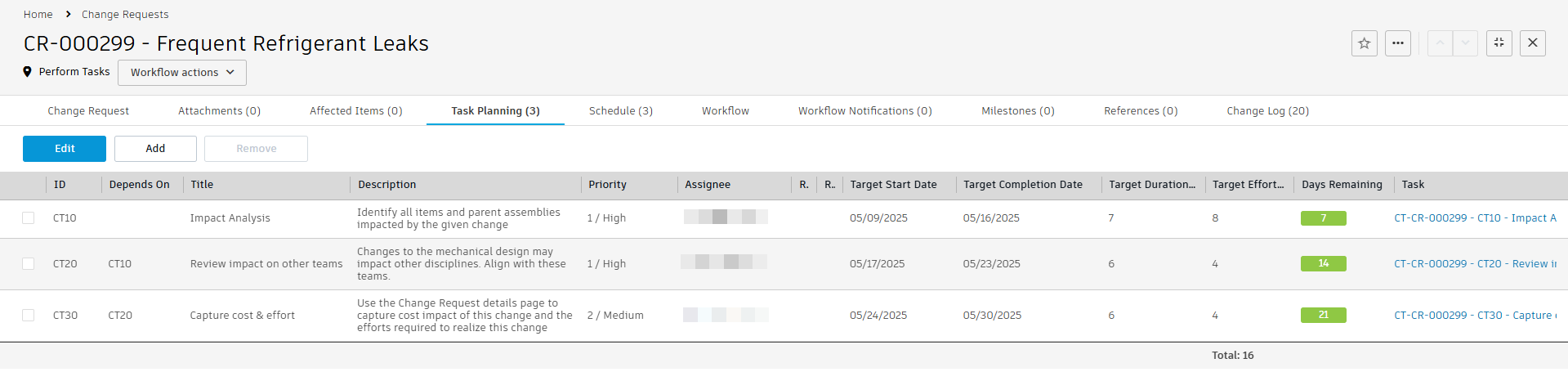
- Calculates Target Start Dates based on the Target Completion Date and any dependencies specified in the Depends On column. This also determines the values in the Target Duration and Days Remaining columns.
- Creates change tasks for each entry in the Task Planning tab and places them in the Change Tasks workspace. Each task receives a number in the format
<CT> - <CR number> - <ID> – <Title>, making them easy to identify. - Shows links to these tasks in the Task column at the far right of the Task Planning tab.
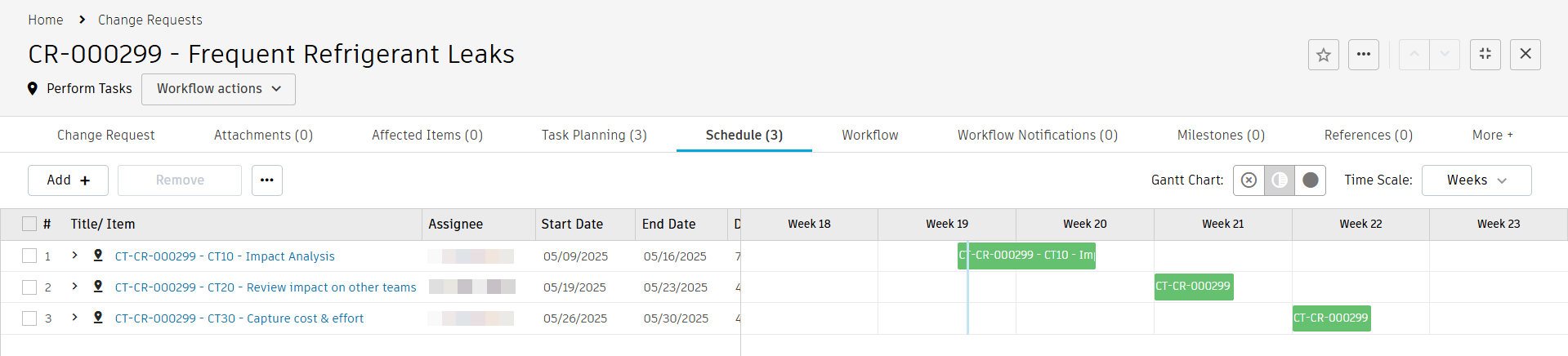
- Adds tasks to the Schedule tab according to their Target Start and Completion Dates.
Manage tasks
You can only adjust the list and details of tasks in the Task Planning tab. After making changes, use the Update Tasks workflow action to update the change tasks and notify assignees. You cannot remove tasks using Update Tasks; instead, archive the task to remove it from the Task Planning grid.
To simplify task management, the system removes completed change tasks from the Task Planning tab. This tab only lists tasks that are still due, helping you focus on outstanding activities.
The system also adds related change tasks to the Schedule tab so you can track their schedule.
See Change Tasks for details about managing change tasks.
Complete and monitor tasks
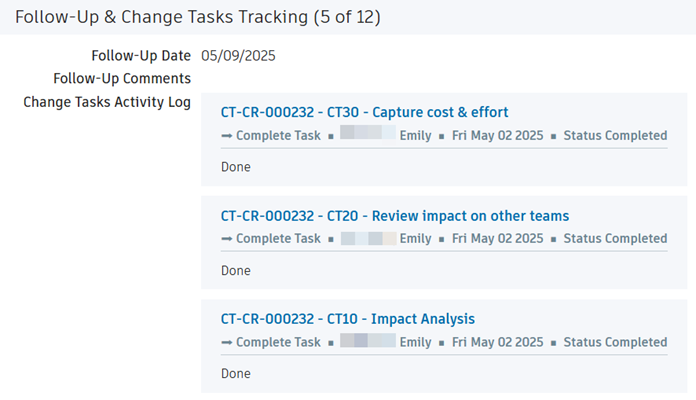
When someone acknowledges or completes a task, or adds comments in the Follow-Up & Status Updates section, the system records the task name and number, status, person, date, and comment in the Change Tasks Activity Log field of the Follow-Up & Change Tasks Tracking section of the main Change Request tab. Each task has its own entry, but only the latest activity appears for each. This helps the change coordinator track the latest task activities and monitor overall progress.
You can easily track completion of related change tasks using the Tasks Progress field in the Status section, which counts the number of completed tasks:

If a change task contains items in the Affected Items tab, these are automatically copied to the Affected Items tab of the CR or CO upon completion of the task if they do not exist there already. This is so that the change coordinator can monitor all affected items throughout the change process.
Cancel the change request
If you determine during this phase that the request is no longer valid, you can cancel it to prevent further actions. The system also cancels any tasks that have been created. The Cancellation Details section captures the following:
- Cancelled In Status – The last status before cancellation
- Cancelled By – The person who canceled the change request
- Cancellation Comments – Comments added when canceling the change request