Manage an activity's lifecycle
For users with Fusion connected sites, references to the 'Items' workspace should be the 'Components' workspace.
Every engineering project activity comes with the following default workflow. It is found in the Workflow tab of the activity. The workflow is the same for both milestones and activities.

Request work begins on the activity
At the beginning of a project, all milestones and activities are in the Planning state. To begin working on an activity, you must submit it as part of its parent milestone activity. You cannot submit individual activities.
A milestone and its activities may be moved to the Requested state in one of several ways:
- If the milestone is set to Auto Start, then activities are moved to Requested when the project is started.
- From the Gantt chart of the engineering project, open a preview of the milestone or activity, and select Submit to team.
- From the Workflow tab of the milestone activity, click the Submit to team transition.
The milestone and its activities are moved to the Requested state. An email is sent to all members of the team chosen to work on that milestone. The activities also appear in their My Outstanding Work section of their dashboard.
From here there are three options:
- Click the Set on hold transition to move the activity to the On Hold state. This indicates to the project manager that the activity cannot be started yet, whether this is because the activity hasn’t been fully defined, there aren’t enough resources to complete it, or any other reason. From here, the activity may be returned to the Requested state or put to In Work.
- Click the Submit for Review transition to move the activity to the Review state. You might do this if someone must review the activity before it can be started or finished. From here, the activity may be moved to the Requested state or In Work state.
- Click the Accept transition to move the activity to the In Work state and claim the activity. This means your name is added to the Assignee field and it is removed from all other team members’ main dashboards.
Claim an activity
When an activity is assigned to a team, everyone in that team is notified when the activity is requested and it appears on each team member's dashboard. However, only one person can claim the activity.
To claim an activity, click the Accept transition to move the activity to the In Work state. This means your name is added to the Assignee field and it is removed from all other team members’ main dashboards.
Work on an activity
As you’re completing an activity, you should update the activity to indicate the progress you've made.
Update the progress of the activity
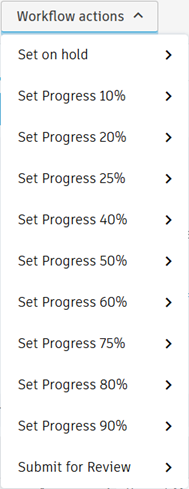
Now that the activity is in the In Work state, you may select from a number of percentage values to represent the completion level of the activity. This can be helpful for the project manager to ensure progress is being made on the project overall.
To update the progress of the activity:
- Open the activity.
- From the Workflow actions drop-down list, select the percentage level that you feel accurately describes the completion level of the activity.
- Optionally, enter a comment, then click Confirm.
For the activity as shown on the Gantt chart, part of the bar representing the activity length is darker to visually indicate how much progress has been made on the activity. The progress bar on the activity is also updated with the value that you chose.
Activity effort
As you work on the activity, you should log the number of hours you have spent on it in the Effort tab.
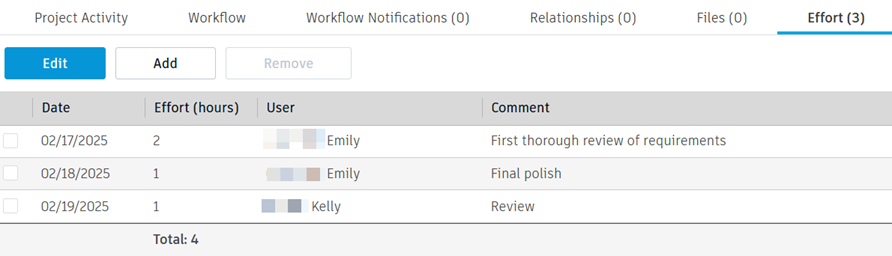
This total number of hours for the activity is rolled up and is shown in the Others section in the Project Activity tab of the activity once the activity has been completed. The total effort across all activities in the project is shown on the engineering project in the KPIs section in the Engineering Project tab on the engineering project.
From here, there are three options:
- Click the Set on hold transition to move the activity to the On Hold state. You might do this if you need to pause work on the activity.
- Click the Submit for Review transition to move the activity to the Review state. You might do this if the activity needs reviewing to confirm it has been finished correctly.
- Click the Finish transition to move the activity to the Completed state and close the activity.
Complete an activity
An activity may be completed from the Requested, In Work, and Review states. This is to enable flexibility in how and when you mark an activity as complete.
From the Workflow tab, click the relevant Finish transition to complete the activity.