Manage Your Notifications
Manage your workflow action alerts and workspace event notifications through the Manage Electronic Notifications tab in your Fusion Manage profile.
Click your profile picture, then click My Account.
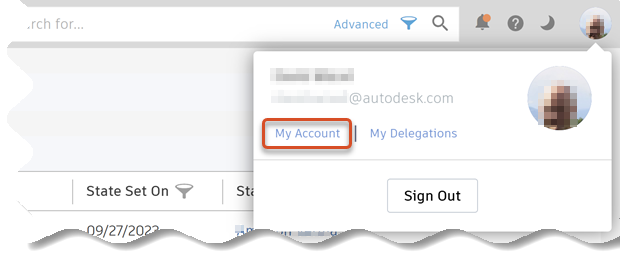
The My Profile page opens.
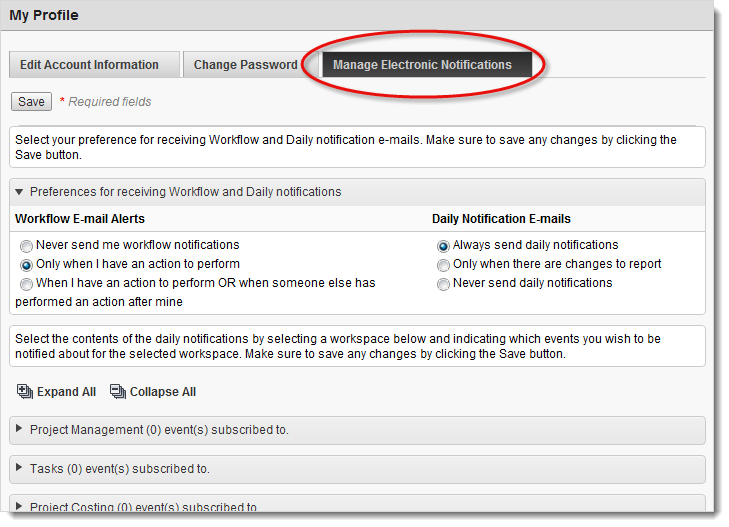
On the My Profile page, click the Manage Electronic Notifications tab.
Configure Workflow Action Email Alerts
Configure these options to be notified when you have items with pending workflow actions that require your attention or anytime someone else performs an action on one of your workflow items (see Workflow Actions).
Under Workflow Email Alerts, select when you want to be notified.
Never send me workflow notifications
Select this option if you do not want to receive any email alerts about workflow actions performed on items, even if you are one of the persons required to perform a pending workflow action on an item.
Only when I have an action to perform
Select this option if you want to receive an email alert whenever, and only when, you are one of the persons required to perform a pending workflow action on an item.
When I have an action to perform OR when someone else has performed an action after mine
Select this option if you want to choose option 2 but also want to receive an email alert when another user performs any workflow action on an item after you perform an action on that item. This option is useful if you want to follow your workflow items as they move through the steps in the workflow.
Configure Workspace Event Daily Notification Emails
Configure these options to be notified daily of changes made to workspaces that you want to track.
Under Daily Notification Emails, specify how you want daily notifications to occur.
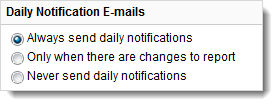
Always send daily notifications
Select this option if you want to receive an email notification every day, even if events you subscribe to do NOT occur. If no events occur, the email message is the same as the one sent the previous day.
Only when there are changes to report
Select this option if you want to receive an email notification only if one or more events you subscribe to do occur. If no events you subscribe to occur, you do not receive a message.
Never send daily notifications
Select this option if you do not want to receive any email notifications, even when an event you subscribe to does occur.
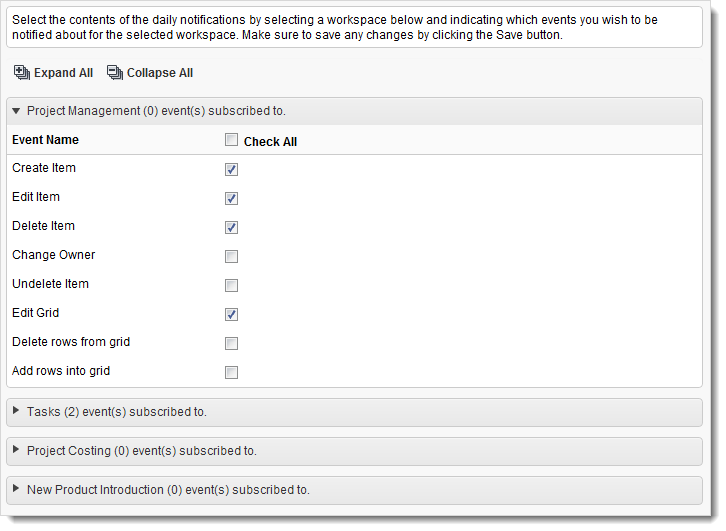
Subscribe to the workspace events you want to include in your daily notification email. Expand the list of events for each workspace you want to track, then select the individual events.