Running Scripts
Scripts in Fusion Manage are triggered in several ways.
- Perform a workflow transition
- Escalate a workflow
- Workspace behavior
- Script importing
Perform Workflow Transition
Description - Connect a script to a workflow transition to trigger the script when the transition is performed
Supported types - Condition, Validation, Action
To connect the script to the transition
On the Administration menu, click Workspace Manager.
In the Workspace Manager, expand the workspace's panel and click Workflow Editor.
On the workflow mapping grid, double-click the transition's connector.
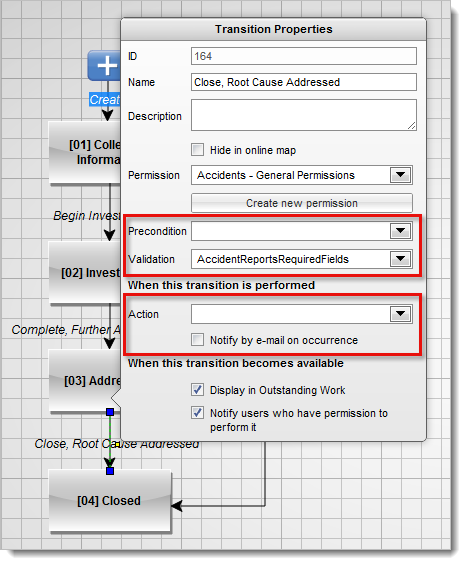
In the Transition Properties flyout, select the script name in the drop-down list for the type of script you are connecting to the transition.
For example, to connect an Action script, select the script name in the Action drop-down list.
On the tool bar, click Save, and then close the editor.
For help on creating and mapping workflows, see Create a Workflow Map.
Escalate a Workflow
Description - Set up an escalation for a workflow state that triggers a script after a transition from the state remains pending for more than a set number of days.
Supported types - Action
For help on setting up a Run Script escalation for a workflow state, see Set Up Workflow Escalations.
Workspace Behavior
Description - Configure a behavior in a workspace to run a script when a workspace event occurs such as creation of a new item, when item details are modified, or when the user clicks Run.
Supported types - Action
For help on configuring a workspace behavior, see Configure Workspace Behaviors.
Script Importing
Description - Import a script into another script and call the function as needed.
Supported types - Action
For help on importing a Library script into another script, see Importing Library Scripts.