Before you run a simulation, model the physical situation of the flow:
For open boundary nodes, apply boundary conditions
Boundary condition information that you specify in the Revit project is automatically read into React Fluids. You can modify this information to account for changes in boundary conditions resulting from the changes in the state of boundary nodes.
- In the Browser or Model Pane, select a boundary node.
- In the Properties Panel, expand the list and select one of the following: Pressure, Flow Rate, Velocity, and Reynolds number.
- Specify a value and temperature. For Flow Rate, Velocity, and Reynolds number, select inlet or outlet as a type.
- Click
Apply.
Note: In the Properties Panel, to apply modified settings, click Apply or move the mouse cursor off the Properties Panel.
For equipment items, select a definition type and specify performance data
In React Fluids, you can define equipment such as pumps, fans, valves, and dampers.
From the Browser or Model Pane, select an equipment item. Next, from the Properties Panel, select a definition type for it.
- For fans and pumps, select Performance curve or Constant flow.
- For valves, select one of the following methods: K factor, Performance curve, Kv, or Cv.
- For dampers, select K factor or Performance curve.
Depending on the equipment and definition type, enter the performance curve data, or a value of the constant flow, or one of the factors: K Factor, Kv, or Cv.
If needed, you can also change the operating fluid in the system or the state of boundary nodes
To view and edit the operating fluid in a system
- In the Browser, expand a system or network and click
System settings.
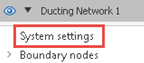
- In Properties Panel, from the Operating fluid list, select a fluid.
- Click Apply.
To change the state of boundary nodes
- In the Browser or Model Pane, select a boundary node.
- In Properties Panel, for State, select Open or Closed.
- Click Apply.