The Properties Pane displays information about the elements selected in the Browser or in the Model Pane.
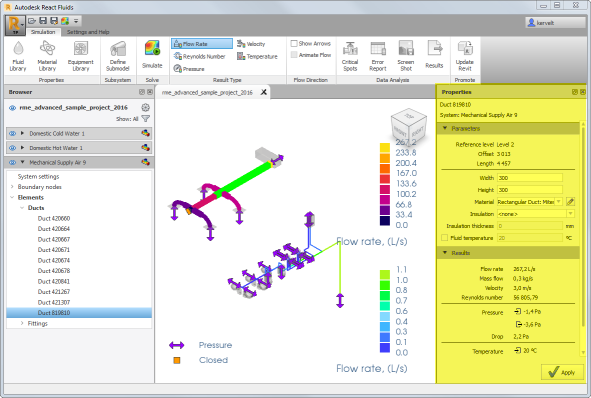
By default the Properties Pane is located on the right of the Model Pane.
Display Options
To display the Properties pane click
Settings and Help  Visibility Properties, or right-click anywhere in the ribbon and then click
Properties.
Visibility Properties, or right-click anywhere in the ribbon and then click
Properties.
Drag the Properties Pane by its title bar to dock it above, below, or on either side of the Model Pane.
Using the Properties Pane
Use the properties panel to display or modify the parameters of an element or of a set of elements. For example you can change the parameters of one boundary node in the system, or you can modify them all at once.
The table below shows the list of parameters that you can edit after clicking an element in the Browser or in the Model Pane.
| Items | Parameters |
|---|---|
| System settings |
|
| Boundary nodes |
|
| Elements |
Pipes
Fittings
|