Use Attributes Manager to access lists of all attribute labels and to manage them.
Access
- On the Model tab
 Attributes panel, select a tool, such as Supports or Sections.
- In the bottom right corner of the contextual ribbon panel, click the arrow icon.
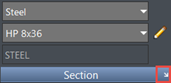
The image illustrates the location of the arrow icon for sections.
Dialog Elements
- Attribute type
- Use it to filter the list of attributes. By default, the active attribute is selected.
- Table with a list of labels
- It contains the following columns:
-
Name. It lists labels for the selected attribute.
To reverse the order or attributes on the list, click
 .
.
- Info. This column is available for some attributes. For sections, it displays information about the material type.
-
In Use. It contains information if an attribute with a given label is used in a project. If it is, the
 icon displays in the label row.
-
Name. It lists labels for the selected attribute.
- New, Edit, Delete buttons
- Use the buttons to manage the labels.
- Click New or Edit to open dialog for adding and editing a selected type of attributes.
- Click Delete to delete a selected attribute.