Handling Resolution Mismatch for Partial Panorama Images (E57)
ReCap Pro now provides enhanced support for importing E57 files with partial panoramic images. This improvement allows users to manage resolution mismatches between scan data and image data, helping ensure a clean and consistent RealView experience.
What is a Resolution Mismatch?
A resolution mismatch occurs when the scan resolution (point cloud data: rows × columns) is greater than the panoramic image resolution (image width × height). This can result in black areas in RealView, where scan points lie outside the image coverage. A new dropdown called "RealView Resolution" is provided to handle resolution mismatches. The UI and placement of this dropdown vary depending on the structure of the E57 file, as explained below.
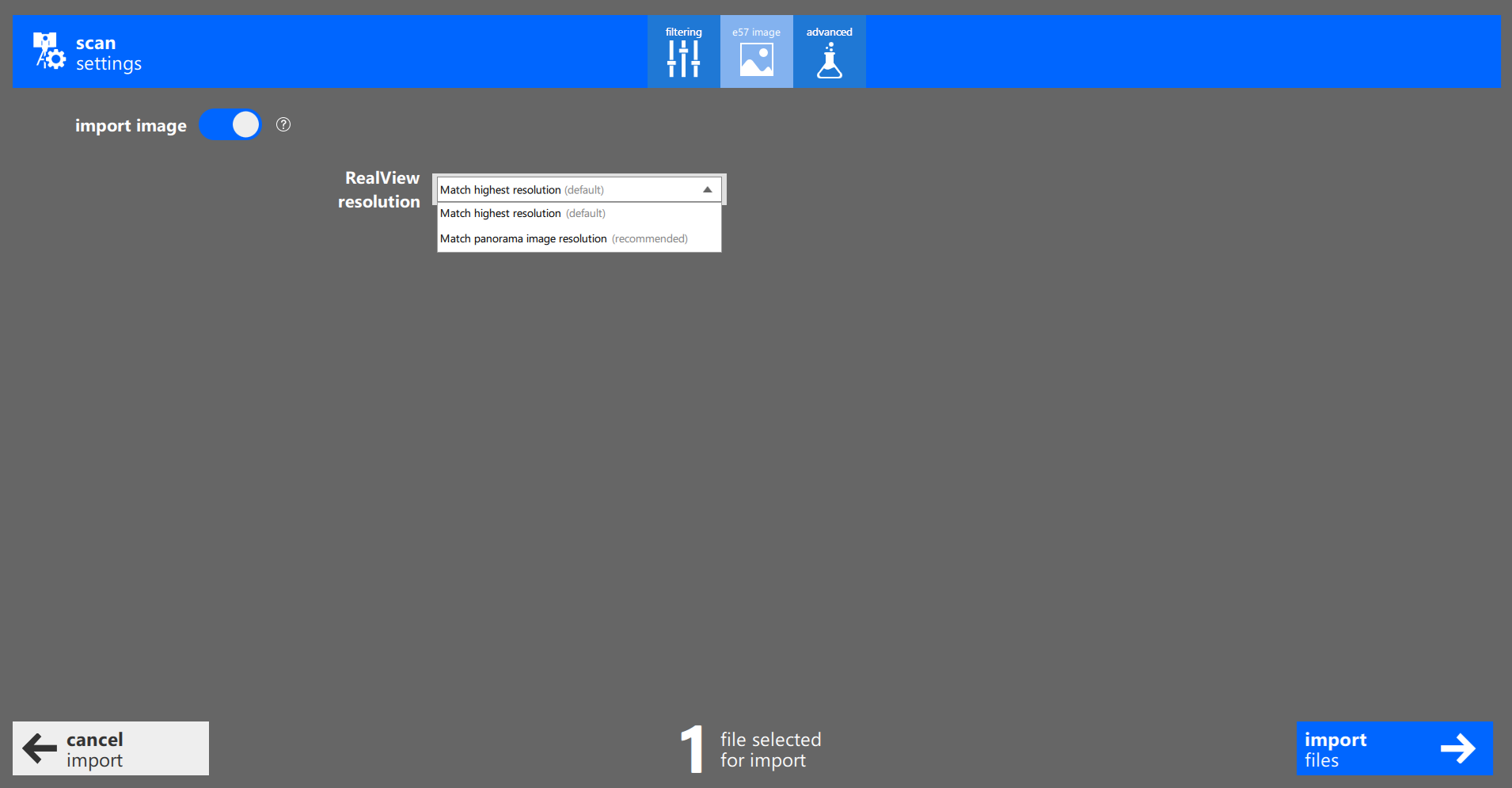
Scenario 1: One Scan with a Single Panoramic Image (Resolution Mismatch)
When importing an E57 file that contains one scan and one panoramic image with a resolution mismatch, the RealView Resolution dropdown appears in: Scan Settings → e57 Image tab
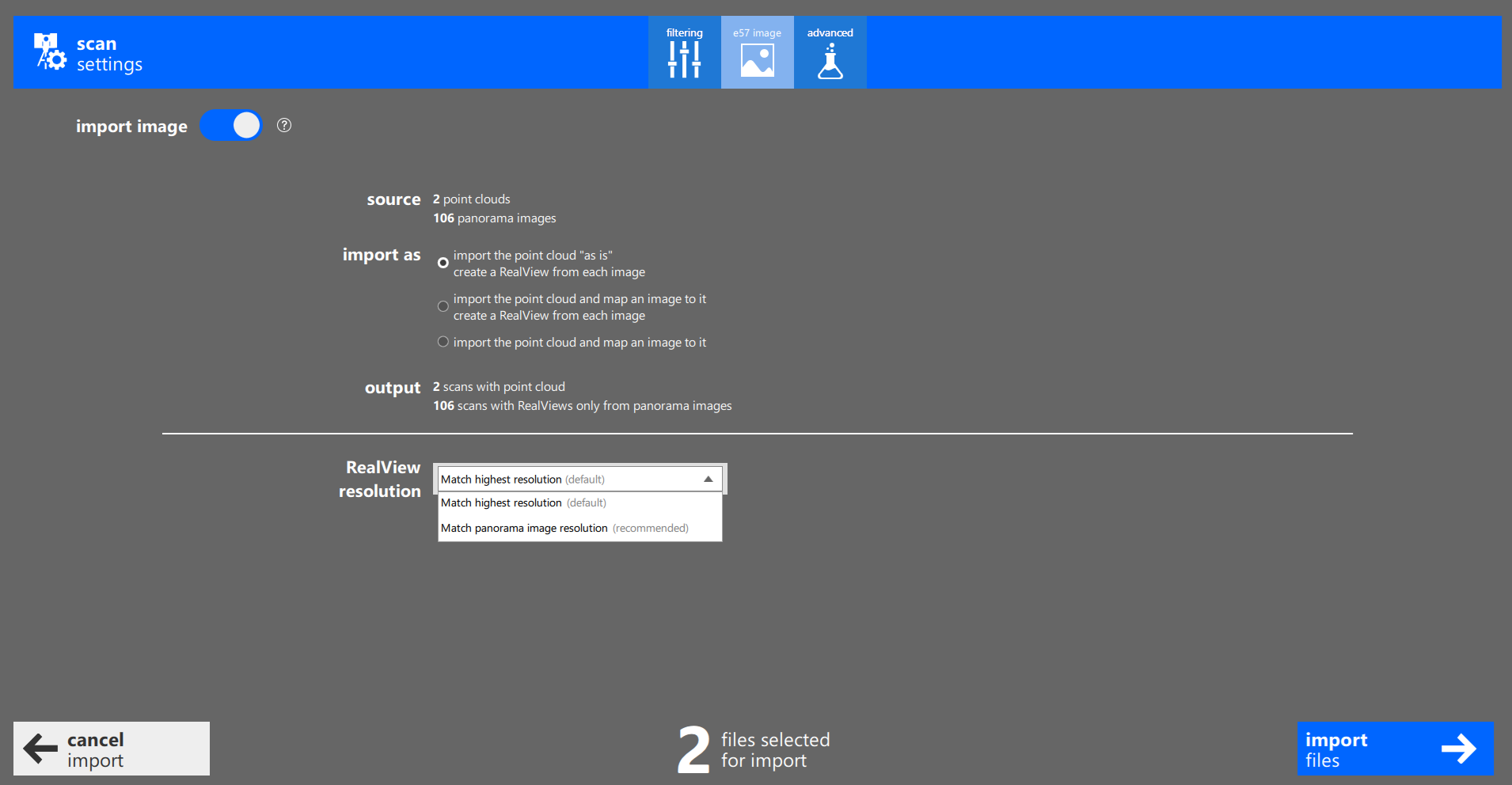
Scenario 2: One Scan with Multiple Panoramic Images (Resolution Mismatch)
When the E57 file includes one scan but multiple partial panoramic images, and a resolution mismatch is detected, the Below UI is displayed. In this interface, you will still see the RealView Resolution dropdown, allowing the same configuration options.
RealView Resolution Options
The dropdown provides two choices to control how the scan and image data are aligned:
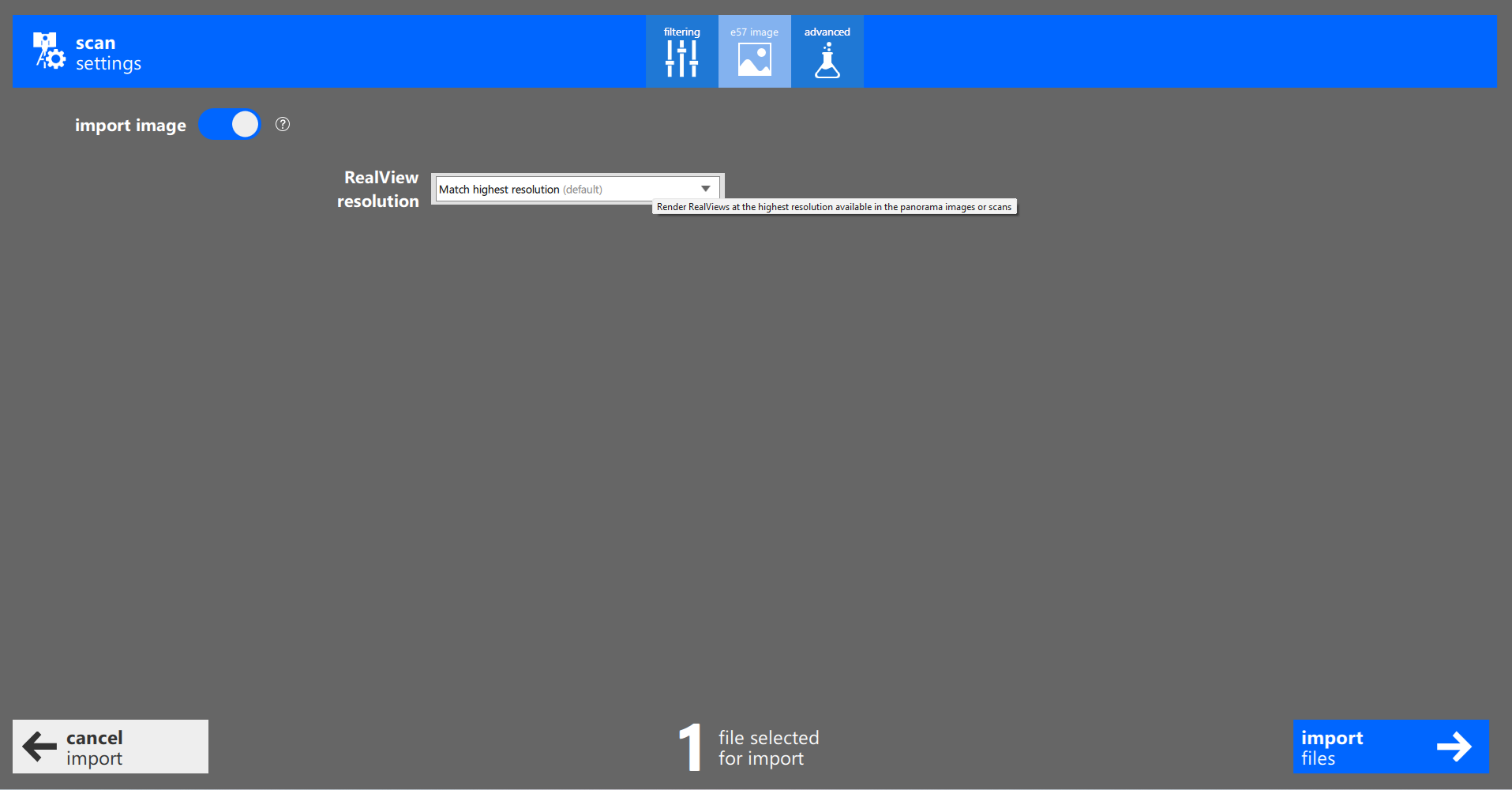
- Match Highest Resolution (Default)
- Retains full scan resolution.
- Displays black pixels in RealView where no image coverage exists.
- It is best if you want to preserve all scan data.
- Match Panorama Image Resolution
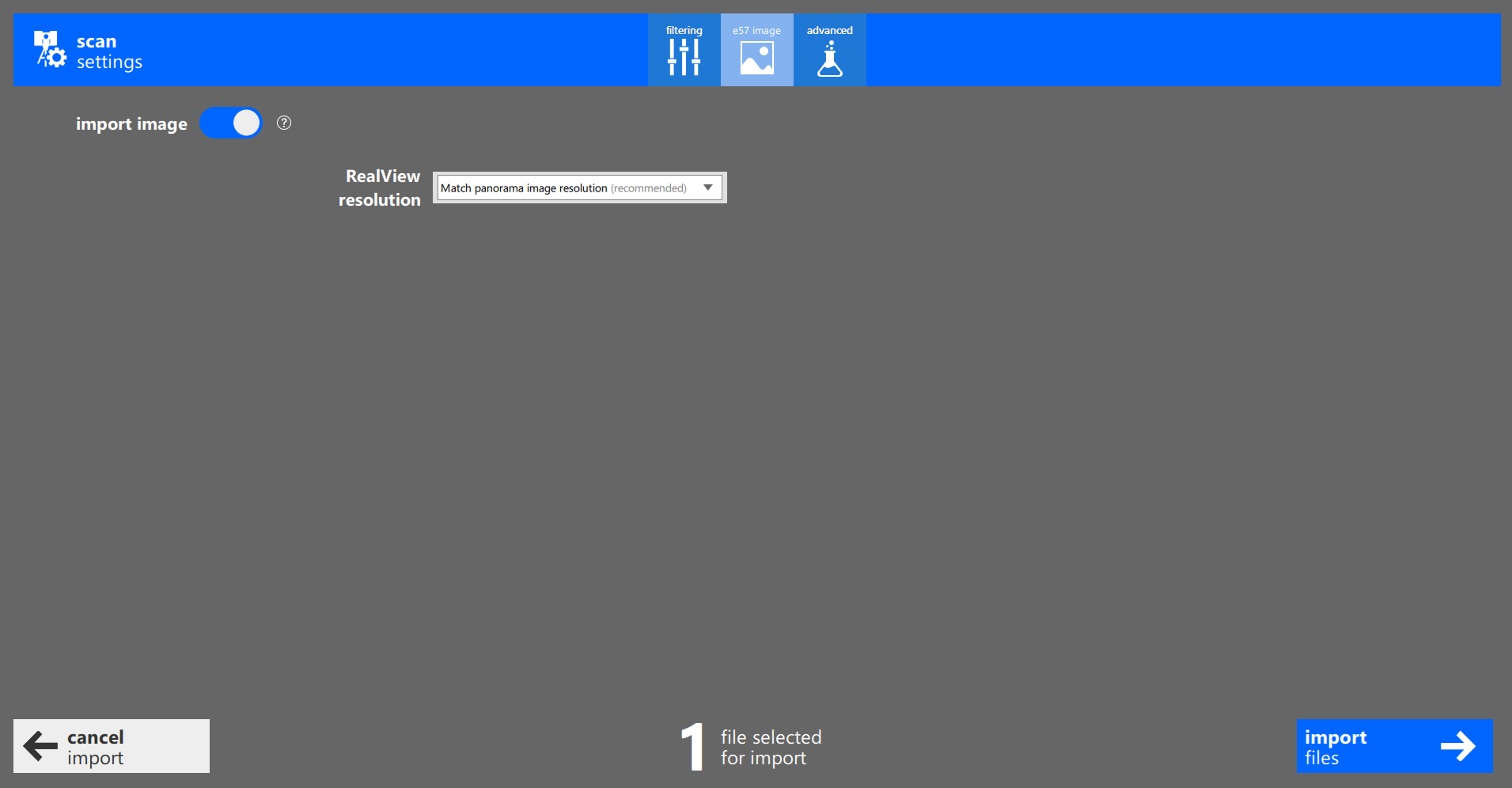
- Adjusts scan resolution to match the image size.
- Provides a clean RealView with no black artifacts.
- May result in trimming scan points outside the image bounds.
DeCap Command-Line Tool
A new decap command line option that corresponds to the recommended option introduced in the UI has been added:
- --e57MatchImageResolution – Enables ReCap to use “Match panorama image resolution” option during import of E57 files.
Notes
- The RealView Resolution option is available only when a resolution mismatch is detected in E57 files with partial panoramas.
- For multi-panoramic scenarios, the UI layout may differ, but the resolution handling behavior is identical.