Adding Survey Points to Scan Projects
The use of survey points can help improve the accuracy of your scan and correct problem areas.
Survey points are added to RealViews in the registration tab screen while registering scans, or after scans have been registered, by going back to the registration tab.
Some practical uses of survey points are as follows:
- Add specific x, y, z coordinates to your model so it appears in a specific location in space in relation to an existing CAD or BIM model.
- Set coordinates to 0, 0, 0 on a point that you want to appear in the corner of your screen.
- Add real world coordinates taken from a professional survey station.
If you used targets in your scanning process, you can identify these to get target reporting information and enhance registration quality.
Once three points are placed in each scan, the registration process automatically runs again. If registration completes correctly, the scan automatically merges into the main scan group.
Otherwise, you are given feedback on scan accuracy and asked to either refine or accept the results.

Refining generally fixes issues with registration. If results are still poor, you may need to attempt the registration again by selecting new points.
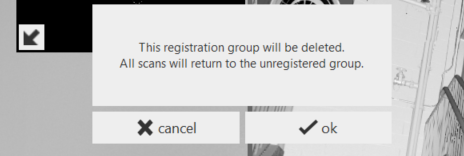
If you wish to ignore or delete/permanently exclude a single, problematic scan, or a scan at the top of the vertical group during Manual Registration, you may notice the absence of an "X" to delete the scan. You can disband the group, sending the scans into the Unregistered group, where you can then delete the scan(s). You can also start a new group from the scans within the Unregistered group.
Scan groups can be created and used to merge sets of scans together. Groups can be edited and accessed through flyout menus at the top of each scan list.
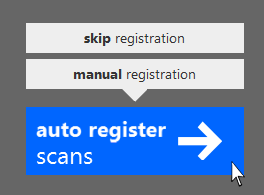
If your scans have been previously registered, you can either attempt re-register through Auto-Registration, retain data and refine through Manual Registration, or skip registration altogether and go straight to indexing. This can be done from the Import screen, where the popup appears as you hover over the Register Scans button with a subsequent warning prompt, or, if you chose to manually register and want to back out, go through the scan settings icon at the top right of the screen and hover over the Register Scans button on the next screen. The popup in either instance is the same; click "Skip registration".
To Specify a Survey Point
- Select or verify the desired mode (single point, checkerboard target, or sphere target).
- Locate the desired point and click on it. This will place a marker in the scene at the clicked point (or, at the center of the target for checkerboard or sphere targets). For target modes, a box will appear in which you can enter the point info.
- In single point mode, click the ‘pin’ icon below the marker. A box will appear in which you can enter the point info.
- Click ‘Make Survey Point’ to enable Survey Point options.
- Select the Survey Point’s name from the drop down box, or enter a new name. See below for instructions on importing known point names and positions.
- Confirm or enter the final coordinates for the point in the lower boxes. Note: coordinates must be specified in meters.
- Click ‘save’ to set the point.
Survey Alignment
ReCap 360 Ultimate provides a simple tool for applying such a system to a registration project. The process works by identifying single points, checkerboard targets, or sphere targets for which you know the final coordinates. These identified points are referred to as ‘Survey Points’. A Survey Point can be specified in a registered scan at any time during registration.
To specify a Survey Point
- Select or verify the desired mode (single point, checkerboard target, or sphere target).
- Locate the desired point and click on it. This will place a marker in the scene at the clicked point (or, at the center of the target for checkerboard or sphere targets). For target modes, a box will appear in which you can enter the point info.
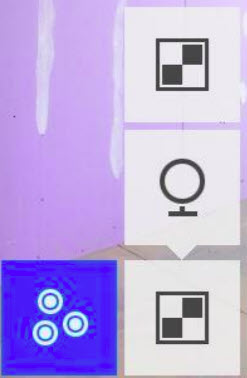
- In single point mode, click the ‘pin’ icon below the marker. A box will appear in which you
- can enter the point info.
- Click ‘Make Survey Point’ to enable Survey Point options.
- Select the Survey Point’s name from the drop down box, or enter a new name. See below
- for instructions on importing known point names and positions.
- Confirm or enter the final coordinates for the point in the lower boxes.
- Click ‘save’ to set the point.
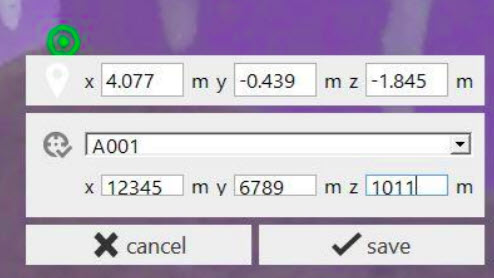
You can also import a list of known marker names and coordinates by selecting one of the ‘upload survey points’ options from the drop-down box. ReCap will provide a dialog from which you can select a TXT file on your disk. This TXT file should contain a space-delimited list of points in either of the following formats:
< name> < x position >  < y position > < z position >

< name> < north position > < east position > < elevation position>
You can select the desired column format (XYZ or NEE) from the drop-down list. Once the file is read, the imported Survey Point names will appear in the drop-down list.
Once three or more points are added, ReCap will compute a best-fit alignment from the registration group to the final coordinates provided. The quality of this alignment is shown via an RMS value. This value can be inspected in two ways:
- Click on the placed Survey Point to view its coordinates and RMS value.
- Hover or click on the Report tile (clipboard icon) at the bottom of the screen.