Cache RealView
Cache RealView files
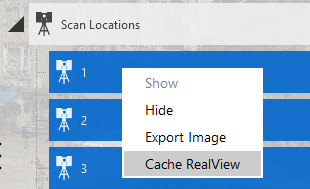
You can right click on scan locations and choose Cache RealView. This will cache the overview map and RealView files needed for optimized RealView viewing experience. You can also copy the overview maps (.png) and RealView cache files (.rch) found in Temporary Cache Files folder to Forma Data Management or Autodesk Drive for RealView viewing in web browser.
Copy Files for RealView Web Viewing
To manually copy or upload files needed for RealView web viewing in Forma Data Management or Autodesk Drive, please follow the following steps:
Step 1. Generate RealView Cache Files and Overview Maps
- In ReCap, select all scan locations of interest (use SHIFT and/or CTRL to select multiple scans)
- Right click and choose Cache RealView. This will generate overview maps (.png) and RealView cache files (.rch) which can be found in < project_name > Support\Temporary Cache Files.
Step 2. Upload the Files
If you have Desktop Connector installed and running, you can use Windows Explorer to copy the files. Alternatively, you can use web browser and upload the files to Forma Data Management or Autodesk Drive.
Create the following folder structure:
- Project folder: Copy < project_name >.rcp from project folder and overview maps (.png) from < project_name > Support\Temporary Cache Files
- < project_name > Support
- Temporary Cache Files: copy RealView cache files (*.rch) from < project_name > Support\Temporary Cache File. We only need < guid >.rch files. You do not need to copy < guid >-preview.rch files as they are not needed for RealView web viewing.
- < project_name > Support
In summary, the folder structure should look like this:
- project folder
- < project_name >.rcp
- .png
- < project_name > Support
- Temporary Cache Files .rch