Publish ReCap Pro Projects
Publish Point Clouds to Forma Data Management
ReCap Viewer is now supported in Forma Data Management. After the project has been published, wait until the files have been uploaded by Desktop Connector. Then you can view the project in a web browser and collaborate on 3D point cloud and RealViews.
If you have published your project using an earlier ReCap version (versions before 23.0), you can use Publish > Update to re-upload necessary files for Point Cloud Viewing.
Important. Single ReCap scan files (*.rcs) cannot be manually uploaded or viewed in the ReCap Viewer. Only ReCap project files (*.rcp) can be uploaded and viewed.
Publishing to Autodesk Drive
ReCap offers the ability for you publish your projects to Autodesk Drive and privately share them via email with whoever you wish. In Autodesk Drive, you can add people to the project so they can view or manipulate the file. Your scan/point cloud projects can be published at any point to Autodesk Drive through the ReCap Home menu.
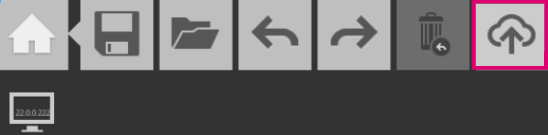
Once selected, you'll be given feedback on the necessary space required, options to name your project, define where the project will be stored, and the option to select a subset of scans if you desire.
If you are already working in a published project, you will be offered additional options when you publish.
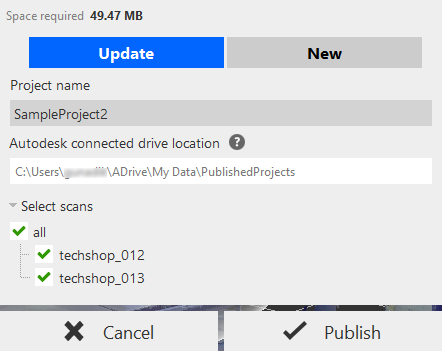
To Update a Published Project
- Click Home > Publish.
- Select Update.
- Choose which scan subsets to update.
To Publish a New Project from the Current Project
- Click Home > Publish.
- Select New.
- Change the project name.
- Specify a new Autodesk connected drive location (if necessary).
- Choose which scan subsets to update.
Click Publish in either case to send your files to Forma Data Management (formerly Autodesk Docs and BIM 360) or Autodesk Drive.
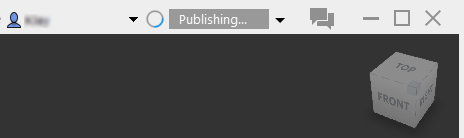
Feedback on upload progress is available in the title bar.
If a file has already been saved/copied/uploaded to the Forma Data Management or Autodesk Drive, the file will not be able to be published again.
Use Save to save all changes locally where Desktop Connector can automatically sync the changes to the cloud.
Forma Data Management Permissions
Forma Data Management has a number of permission levels for selected access.
| Action | Permission Level |
|---|---|
| Opening rcp file that is located in Forma Data Management | View+Download permission |
| Editing rcp file that is located in Forma Data Management | View+Download+Upload+Edit permission and files should not be locked |
| Publishing files into Forma Data Management | View+Download+Upload+Edit permission |