Migrating Flow Production Tracking to Autodesk User Accounts (for Admins)
 Contents
- Tutorial: Migrating Flow Production Tracking to Autodesk User Accounts
- Notable Changes to User Management
- Notable Changes to Authentication
- Overview of Phases in the Migration from Flow Production Tracking Authentication to Autodesk Account
- Overview of the Migration Process (chapters)
- Initiating the Authentication Migration
- Troubleshoot: Locked Account Migration
- Steps for Flow Production Tracking Sites Without SSO
- Steps for SSO Flow Production Tracking Sites
Tutorial: Migrating Flow Production Tracking to Autodesk User Accounts
Flow Production Tracking now integrates with Autodesk Account for user authentication to our hosted service.
There is a transition period during which existing Flow Production Tracking customers will need to migrate from the old Flow Production Tracking authentication system to Autodesk Account. Any Flow Production Tracking site admin can perform the migration.
The migration deadline for sites vary. Clients paying monthly have 60 days to migrate from the date of the last credit card payment (for example, if a card was charged on May 7th, this Client would have until July 7th to migrate their site). For non-monthly paying Clients, the deadline is October 1, 2021. Failure to migrate will result in Flow Production Tracking sites becoming unavailable.
Flow Production Tracking uses the username to uniquely identify a user. Autodesk Identity uses the Autodesk Account email to uniquely identify a user. To minimize disruption during the migration process, make sure that you and your users use the email address associated to their Flow Production Tracking user when creating their Autodesk Account.
Notable Changes to User Management
Some changes to user management result from integration with Autodesk Account.
General Changes
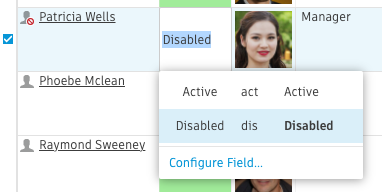
- A name and valid email must be provided when updating a user to
Active. - Setting a user status to
Activecan only be done by a user logged in with Autodesk Identity (i.e. have a valid session). See Initiating the Migration. - A user created as a linked entity will not be
Active.
Changes to Inviting Your Team
- Activating a user via the People page on your Flow Production Tracking site triggers the following actions:
- If the created or activated user does not have an Autodesk Identity Account associated with their email, an Autodesk Account invitation will be sent with a link to complete their account creation. Once completed, the user will be directed to their Flow Production Tracking site to log in.
- If the user already has an Autodesk Identity Account associated with their email, the user will get an invitation that directs them to the Flow Production Tracking site.
API Changes
- Creating and updating a user with the status set to
Activeis now a restricted operation with the API. Only users with a valid Personal Access Token may perform these operations. Additionally, these operations are no longer permitted while undersudo_as_login.
Notable Changes to Authentication
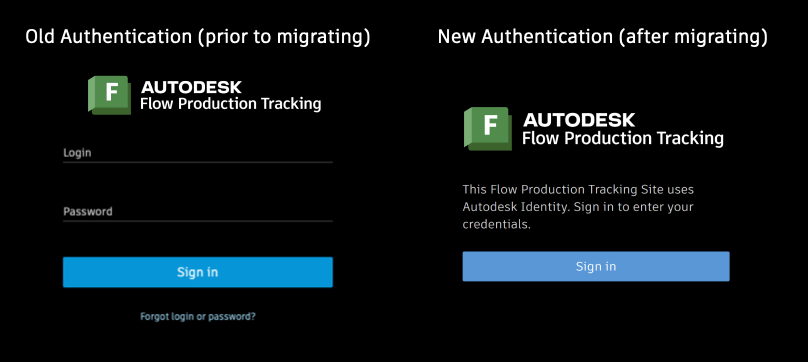
Once the migration to Autodesk Account is complete, Autodesk Identity will be the new authentication method. When you sign in Flow Production Tracking, your browser redirects you to Autodesk Identity, where you enter your credentials and your multi-factor authentication (optional) to complete your authentication.
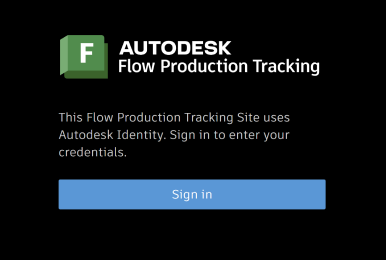
Once the migration is complete, Flow Production Tracking no longer authenticates you, and your Flow Production Tracking 2FA is no longer used.
If you used scripts that authenticate through the API with supplied username and password as parameters to the connection call, you need to setup a Personal Access Token (PAT) to continue using this form of authentication. This allows scripts to authenticate without user intervention. For more information, see Configure your Personal Access Token.
Overview of Phases in the Migration from Flow Production Tracking Authentication to Autodesk Account
Here is an overview of the process:
As a Site Admin of an existing shotgunstudio.com site, you are responsible for the process and timing of your site's migration, within the allowed transition period. This migration from Flow Production Tracking authentication to Autodesk Accounts happens in 3 stages (which will be covered in the sections following):
Stage 1: Flow Production Tracking authentication only.
This is the mode for your Flow Production Tracking site as of June 7th. In this mode, Flow Production Tracking processes all user authentication requests.
As the Site Admin, you will receive email and banner notifications with links to the Migrating to Autodesk page for your site.

Stage 2: Hybrid authentication mode: Flow Production Tracking or Autodesk Identity handle authentication.
To facilitate the transition to Autodesk Identity, Flow Production Tracking accepts users login in with their legacy username and password, but also accepts users who have transitioned to Autodesk Account. Your site can stay in this mode until all of your users have transitioned to Autodesk Account.
When authenticating with an Autodesk Identity, all of the constraints defined by the Flow Production Tracking admin after the migration phase will be enforced. This includes email domain allow-lists, enforcing the use of SSO, and enforcing the use of 2FA. Note that these constraints are not enforced when the user logs in with the legacy Flow Production Tracking authentication.
Stage 3: Autodesk Identity authentication only.
Once all your users have created their Autodesk Account and can log in to Flow Production Tracking using Autodesk Identity, you can turn off the old Flow Production Tracking authentication method. Autodesk Identity now processes all user authentication requests. In this phase, the account migration process is now considered complete.
Ensure your users have created Autodesk Identity Accounts and can log in without issues prior to finalizing the account migration. Learn more about this in the Site Provisioning for Admins topic.
Overview of the Migration Process (chapters)
- Initiating the Authentication Migration @ 9
- Review the optional user-access restrictions & Enable Autodesk Account Authentication @ 13
- Invite Your Users to Create Their Autodesk Account @ 23
- Invite Statuses @ 27
- Finalize the Account Migration @ 38
We'll cover in more detail in the following sections.
Initiating the Authentication Migration
To initiate the account migration you, the Site Admin, must be logged in with your Autodesk Identity. Your Autodesk Identity email address must match your Flow Production Tracking admin account email address. If you don't have Autodesk Identity, create one by following these instructions. Once logged as a Site Admin with your Autodesk Identity, you can initiate the migration process.
To initiate the migration process:
- Access the Migrating to Autodesk page by selecting Migrating to Autodesk in the global navigation on your Flow Production Tracking site.
- Selecting Migrating to Autodesk will initiate the process. The next steps depend on whether your Flow Production Tracking site uses SSO or not.
Troubleshoot: Locked Account Migration
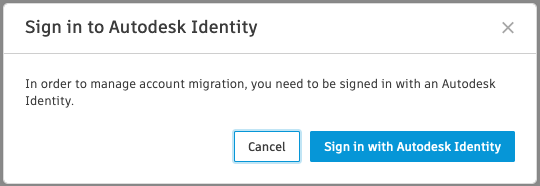
If Account Migration is locked, then you aren't logged in with your Autodesk Identity.

You can still select Account Migration, but you'll be asked to sign in with your Autodesk Identity first.
Steps for Flow Production Tracking Sites Without SSO
If your site uses doesn't use single sign-on (SSO), follow the steps below:
- Enable log in with Autodesk Identity for your Flow Production Tracking site.
- Invite Flow Production Tracking users to create their Autodesk Account.
- Turn off the Flow Production Tracking authentication once all users have migrated to Autodesk Account authentication.
If your site uses single sign-on, see Steps for SSO Flow Production Tracking Sites.
Enable Autodesk Account Authentication
Flow Production Tracking uses the Login (login) field to uniquely identify a user. Autodesk Identity uses the Autodesk Account email to uniquely identify a user. To minimize disruption during the migration process, make sure that you and your users use the email address associated to their Flow Production Tracking user to create their Autodesk Account.
Verify that you are logged in with the correct Autodesk Identity and then select the unlocked Migrating to Autodesk, and then select Continue.
Review the optional security settings for Autodesk Identity. You can enable the following restrictions:
- Require users to use two-factor authentication with their Autodesk Identity.
- Restrict users to a specific domain. Only users with the specified domain will be migrated.
- Require users to use SSO.
When ready, select Enable Dual Mode Login. Once selected, you enter a transition period during which Flow Production Tracking accepts user authentication with Autodesk Identity and with legacy Flow Production Tracking authentication. This transition lasts until you turn off Flow Production Tracking authentication.
The next step is to invite users to create their Autodesk Account and start using their Autodesk Identity to log in your Flow Production Tracking site.
Invite Your Flow Production Tracking Team to Create Their Autodesk Account
After enabling log in with an Autodesk Identity, you invite your team to create their Autodesk Accounts. Once their Autodesk Account created, they can start signing in your Flow Production Tracking site with their Autodesk Identity instead of their Flow Production Tracking account.
Inform your users of the upcoming changes and to expect an invite from Autodesk, so they don't discard the invite as spam.
- Not invited: Your Flow Production Tracking users not yet invited to migrate to an Autodesk Account.
- Pending invites: At the time the user was invited, they did not have an Autodesk Identity Account and they were sent an invitation to create one. The Pending (or Expired) column indicates that they have yet to login to the Flow Production Tracking site with their new or existing Autodesk Identity. Resend invites sends another invite to these users and prompts them to finish creating their Autodesk Identity account.
- Expired invites: Flow Production Tracking users whose invitations have expired. Resend invites sends a new invite to users with an expired invitation, prompting them to create an Autodesk account.
- Accounts created: Flow Production Tracking users with Autodesk Accounts.
While you're in the process of migrating to Autodesk Accounts, any new user you create or activate is still created with a Flow Production Tracking account. This means they will appear under the Not invited tab, and you must send them an invite to complete the migration.
To migrate users to Autodesk Accounts:
- Select the Not invited tab.
- Select Invite users. An email is sent on your behalf to the listed users, inviting them to create their Autodesk Account.
Migration timing is intended to be flexible and can take anywhere from a few minutes to a few weeks. Timing may depend on how many people you have on your Flow Production Tracking site. During this time, you can always revisit your migration page to monitor progress and invite people as needed.
To monitor the migration progress:
- Select Migrating to Autodesk in the global navigation.

- Display Pending invites and Accounts created to view the progress of the migration.
To move to the next step of the migration
- Select Migrating to Autodesk in the global navigation.
- Display Accounts created and select Continue.
About the Skip invites button
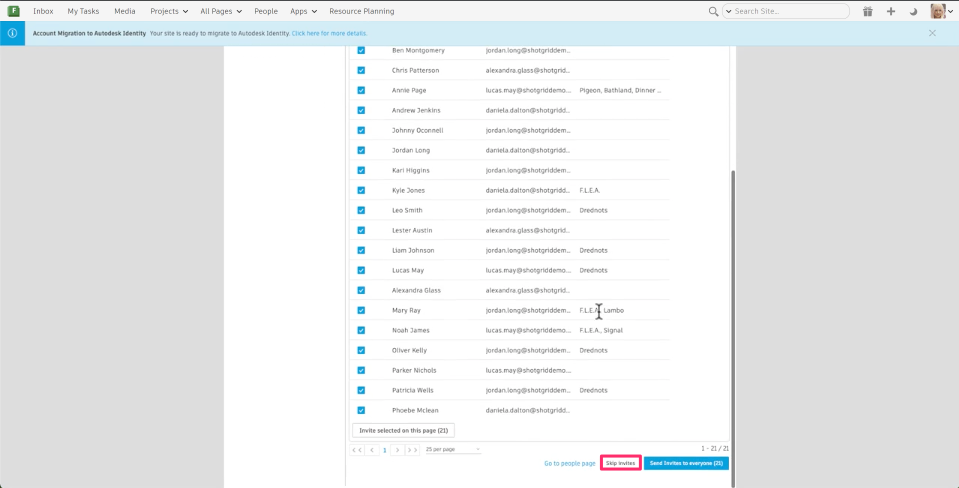
At any time during the account migration process, you can select Skip invites to move on to the next step. You can do this even if not all users have created an Autodesk account.
Skip invites does not deactivate these accounts. Users without an Autodesk account lose access to your Flow Production Tracking site only when you turn off Flow Production Tracking log in in the next step, not before. Until you select Turn off Flow Production Tracking log in, you can always go back to the Invite your team step and resend invites to your users.
Finalize the Account Migration by Turning Off Legacy Flow Production Tracking Authentication
The last step in the migration process is to turn off the legacy Flow Production Tracking authentication.
Once you turn off Flow Production Tracking log in you cannot turn back: all users use Autodesk Identity to log in. Users who have not completed the migration to Autodesk account become inactive. Once they create their account, you can make them active again via the People page on your Flow Production Tracking site.
To turn off Flow Production Tracking log in:
- Select Migrating to Autodesk in the global navigation.
- In the Finalize Account Migration step, confirm that:
- You've sent invites to your team to create Autodesk Identity accounts.
- Users who have completed the Autodesk Identity setup can log in without issues.
- For API Scripts that login with user credentials, make sure those users have set up a Personal Access Token.
To move forward, select Finalize Account Migration.
- Now, your migration to Autodesk accounts is complete. You and your team use Autodesk Identity to log in your Flow Production Tracking site moving forward. As a final step, check out the Site Provisioning topic next, specifically how to link your site to your subscription.
Selecting Turn off Flow Production Tracking log in also invalidates all existing sessions. Users will need to log in again.
Steps for SSO Flow Production Tracking Sites
Single Sign-On with Autodesk Autodesk Enterprise SSO requires a Premium subscription. Contact client services if you have been utilizing Flow Production Tracking Single Sign-On, but you do not see SSO as a configuration option in your SSO Admin portal.
Autodesk Enterprise single sign-on (SSO) supports integration with IdPs via the SAML2 protocol. To continue using Single Sign-On with Flow Production Tracking, Autodesk Enterprise SSO must be configured before converting your site to use Autodesk for authentication. Follow these instructions to configure SSO for your organization.
If your site uses SSO, follow the steps below:
- Initiate the Migration process.
- Configure SSO for your site.
- Set your site log in security preferences.
- Enable Dual Mode Login.
- Invite Your Team to Create an Autodesk Account.
- Finalize Account Migration.
Overview of the Migration Process for SSO
If your site doesn't use SSO, see Steps for Flow Production Tracking Sites Without SSO.
Overview of the Migration Process (chapters)
Initiate the Migration Process
To initiate the account migration you, the Site Admin, must be logged in with your Autodesk Identity. Your Autodesk Identity email address must match your Flow Production Tracking admin account email address. If you don't have Autodesk Identity, create one by following these instructions. Once logged as a Site Admin with your Autodesk Identity, you can initiate the migration process.
Flow Production Tracking uses the Login (login) field to uniquely identify a user. Autodesk Identity uses the Autodesk Account email to uniquely identify a user. To minimize disruption during the migration process, make sure that you and your users use the email address associated to their Flow Production Tracking user to create their Autodesk Account.
- If you are not signed in to Autodesk Identity, when you select Migrating to Autodesk, you will be prompted to log in to your Autodesk Identity Account.
- Verify that you are logged in with the correct Autodesk Identity, then select the unlocked Migrating to Autodesk to continue.
Configure Single Sign On for Your Site
- In this step, verify that:
- You are logged in with the right Autodesk Identity.
- Email domains your users are currently using. You might want to keep allowing those domains at the next stage of the SSO configuration.
- You have configured SSO for your site.
- When ready, select Continue.
Set Your Security Preferences
- In this step, you configure authentication requirements:
- Review how the Autodesk account portal SSO checks should be applied (optional user-access restrictions), by enabling either SSO or 2FA.
- Specify any additional restrictions (constrain access to specific domains).
- When ready select Continue. The next step is to invite your team to create their Autodesk account and start using their Autodesk Identity to log in your Flow Production Tracking site.
Enable Dual Mode Login
When ready, select Enable Dual Mode Login.
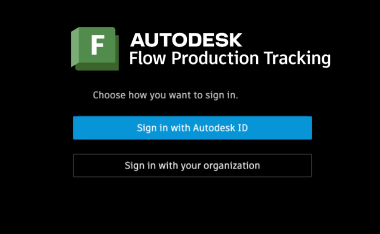
Once selected, you enter a transition period during which Flow Production Tracking accepts user authentication with Autodesk Identity and with legacy Flow Production Tracking SSO authentication. This transition lasts until you turn off Flow Production Tracking authentication.
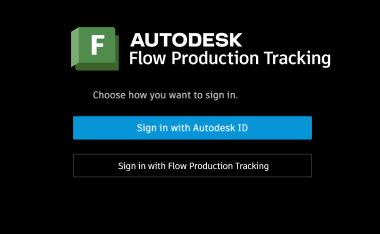
At this stage, your Flow Production Tracking site login page will display the folowing login options:
Invite Your Team to Create an Autodesk Account
Once you've configured the site's security preferences, you invite users to create their Autodesk Account. Once their Autodesk Account created, they can start logging in your Flow Production Tracking site using their Autodesk Identity instead of their Flow Production Tracking site account.
- Not invited: Your Flow Production Tracking users not yet invited to migrate to an Autodesk Account.
- Pending invites: At the time the user was invited, they did not have an Autodesk Identity Account and they were sent an invitation to create one. The Pending (or Expired) column indicates that they have yet to login to the Flow Production Tracking site with their new or existing Autodesk Identity. Resend invites sends another invite to these users and prompts them to finish creating their Autodesk Identity account.
- Expired invites: Flow Production Tracking users whose invitations have expired. Resend invites sends a new invite to users with an expired invitation, prompting them to create an Autodesk account.
- Accounts created: Flow Production Tracking users with Autodesk Accounts.
To migrate users to Autodesk Accounts:
- Select the Not invited tab.
- Select Invite users. An email is sent on your behalf to the listed users, inviting them to create their Autodesk Account.
Your migration should take from few days to few weeks depending on your Flow Production Tracking site size. During that time, you can always come back to this migration page to monitor your migration progress, and invite users as needed.
To monitor the migration progress:
- Select Migrating to Autodesk in the global navigation.
- Display Pending invites and Accounts created to view the progress of the migration.
Until you've selected Switch to Autodesk sign in (available in the next step), you're in a transition period during which Flow Production Tracking accepts user authentication with Autodesk Identity and with legacy Flow Production Tracking authentication. This transition lasts until you switch to Autodesk sign in.
Use the People page to view the status of the migration: the Autodesk Account Status field is queryable with values Pending, Expired, and Created.
While you're in the process of migrating to Autodesk Accounts, any new user you create or activate is still created with a Flow Production Tracking account. This means they will appear under the Not invited tab, and you must send them an invite to complete the migration.
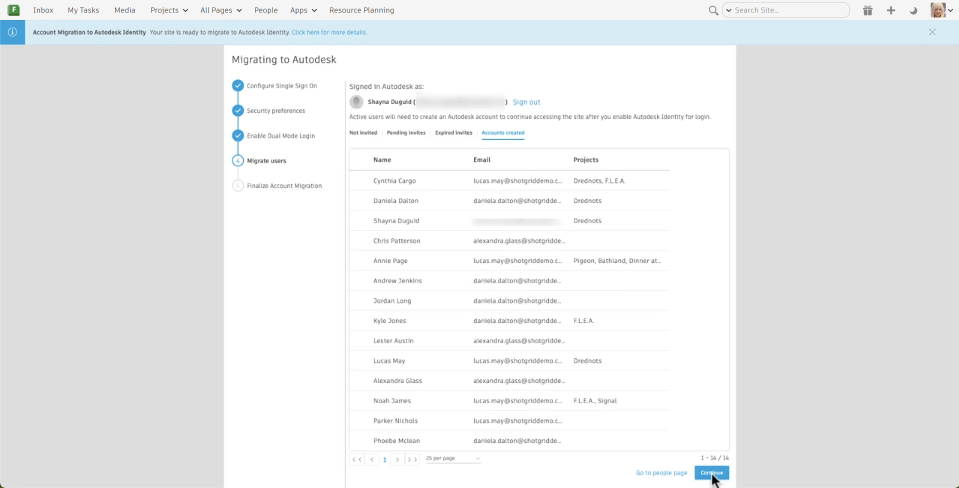
To move to the next step of the migration
- Select Migrating to Autodesk in the global navigation.
- Display Accounts created, and select Continue.
About the Skip invites button
At any time during the account migration process, you can select Skip invites to move on to the next step. You can do this even when not all users have created an Autodesk account.
Skip invites does not deactivate these accounts. Users without an Autodesk account lose access to your Flow Production Tracking site only when you turn off Flow Production Tracking log in in the next step, not before. Until you select Turn off Flow Production Tracking log in, you can always go back to the Invite your team step and resend invites to your users.
Finalize the Account Migration by Turning Off Legacy Authentication
One of the final steps in the migration process is to turn off the legacy Flow Production Tracking authentication.
Once you turn off Flow Production Tracking log in you cannot turn back: all users use Autodesk Identity to log in. Users who have not completed the migration to Autodesk account become inactive. You can activate these users after the migration, but you will want to ensure that your site is linked to your subscription and that you have seats available prior to activating them.
To turn off Flow Production Tracking log in:
- Select Migrating to Autodesk in the global navigation.
- In the Finalize Account Migration step, confirm that:
You understand that:
- If SSO has been configured for your teams' email addresses, users will be directed to their company sign in page.
- If SSO has not been configured for your teams' email addresses, users will be asked for their Autodesk Identity account password.
While turning off the legacy Flow Production Tracking authentication:
- You've sent invites to your team to create Autodesk Identity accounts.
- Users who have completed the Autodesk Identity setup can log in without issues.
- For API Scripts that login with user credentials, make sure those users have set up a Personal Access Token.
To move forward, select Finalize Account Migration.
- Now, your migration to Autodesk accounts is complete. You and your team can use either Autodesk Identity to log in your Flow Production Tracking site and/or SSO moving forward. Once you turn off Flow Production Tracking authentication, users will be enforced to use their Autodesk Identity to connect to their Flow Production Tracking site and legacy Flow Production Tracking SSO will no longer be available. As a final step, check out the Site Provisioning topic next, specifically how to link your site to your subscription.
Selecting Turn off Flow Production Tracking log in also invalidates all existing sessions. Users will need to log in again.
The last step in the migration process is to turn off the legacy Flow Production Tracking authentication.
Once you turn off Flow Production Tracking log in, you cannot turn back: you and your site users will have to use your Autodesk Identity to sign in.