Creative Review for site administrators
Creative Review is a web-based media review solution that consolidates the functionality of existing review tools. As a site administrator, you control the deployment, configuration, and ongoing management of Creative Review for your organization.
This guide covers the administrative aspects of Creative Review, including initial setup, user access management, site-wide configuration, and ongoing maintenance.
An admin can turn on Creative Review without turning on Live Review. Live Review lets users create attended review sessions, but it's optional.
To configure your site to use Creative Review, you must:
- Enable Creative Review, and optionally Live Review
- Select the roles that can use Creative Review and Live Review
You can also turn on and off Creative Review and Live Review from Site Preferences > Flow Production Tracking Review.
You can also configure the information available in Creative Review:
- Organize the Flow Production Tracking statuses in Creative Review
- Set the fields displayed in the Media Information tab
 Contents
- Enable Creative Review and Live Review
- Set the roles that can use Creative Review and Live Review
- Organize the Flow Production Tracking statuses available in Creative Review
- Set the fields displayed in the Media Information tab
- Troubleshooting common issues
Enable Creative Review and Live Review
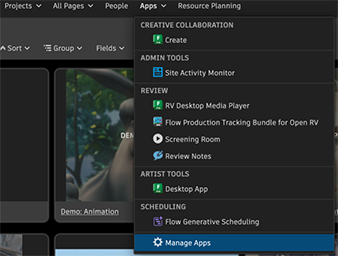
As an admin, open Apps > Manage Apps.
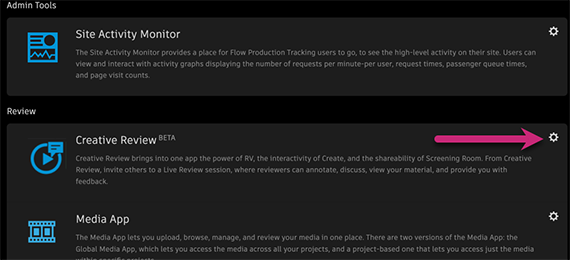
In the Manage Apps page, open the Creative Review configuration menu.
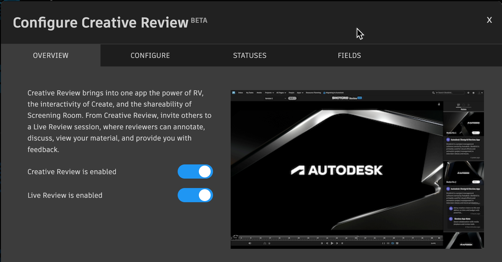
In the Overview tab, enable Creative Review. You can also enable Live Review to let users create shared review sessions.
Close the configuration menu to save the changes.
Set Creative Review as the default player
You can set Creative Review as the default player to view media in Flow Production Tracking, replacing the Overlay Player.
Set as the default player, Creative Review becomes accessible throughout Flow Production Tracking wherever you see a thumbnail with a play icon. Double-click the playable thumbnail to launch Creative Review.
As an admin, open Apps > Manage Apps.
In the Manage Apps page, open the Creative Review configuration menu.
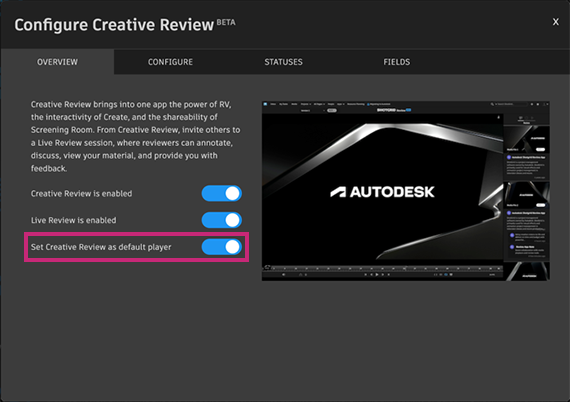
In the Overview tab, enable Set Creative Review as default player.
Close the configuration menu to save the changes.
Set the roles that can use Creative Review and Live Review
As an admin, open Apps > Manage Apps.
In the Manage Apps page, open the Creative Review configuration menu.
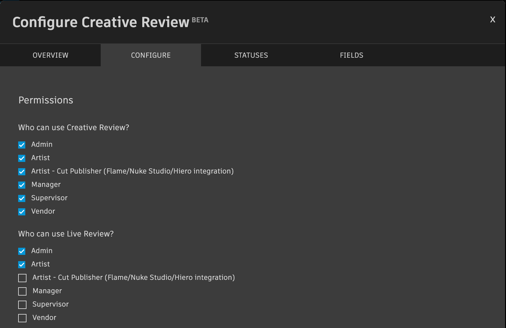
In the Configure tab, select the roles that can access Creative Review, and those that can create and access Live Review sessions.
 Note:
Note:The Live Review permissions define not only who can create Live Review sessions, but also who can access them.
Close the configuration menu to save the changes.
The selected roles can now use Creative Review to view media.
Organize the Flow Production Tracking statuses available in Creative Review
As an admin, open Apps > Manage Apps.
In the Manage Apps page, open the Creative Review configuration menu.
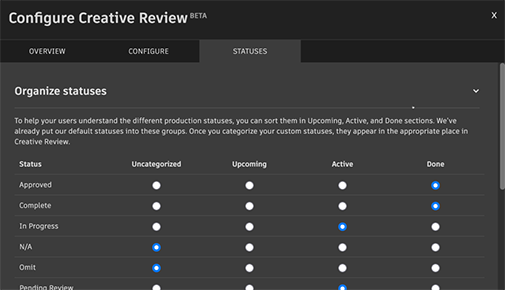
In the Statuses tab, organize the statuses. In Creative Review, they appear sorted in the Uncategorized, Upcoming, Active, and Done categories as you assign them here.
 Tip:
Tip:To manage your site statuses, open Admin menu > Status List.
Close the configuration menu to save the changes.
Set the fields displayed in the Media Information tab
As an admin, open Apps > Manage Apps.
In the Manage Apps page, open the Creative Review configuration menu.
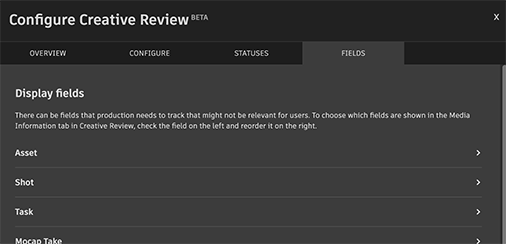
In the Fields tab, select and organize the fields that should appear in the Media Information tab in Creative Review.
Close the configuration menu to save the changes.
Troubleshooting common issues
Access and permissions
Issue: Users cannot access Creative Review.
Solutions:
- Verify user role has been granted Creative Review permissions.
- Check that Creative Review is enabled.
- Confirm user has active status and site access.
Issue: Users cannot create Live Review sessions.
Solutions:
- Verify Live Review is enabled in Creative Review configuration.
- Check user role has Live Review creation permissions.
Configuration problems
Issue: Statuses not appearing correctly in Creative Review.
Solutions:
- Review status categorization in Creative Review configuration.
- Verify statuses are active in Admin > Status List.
- Clear browser cache and refresh.
Issue: Media Information fields not displaying.
Solutions:
- Check field configuration in Creative Review settings.
- Verify field permissions allow visibility for user roles.
- Confirm fields contain data for the media being reviewed.
Performance issues
Issue: Slow loading or playback in Creative Review.
Solutions:
- Check network bandwidth and connectivity.
- Consider transcoding settings for optimal streaming.
- Verify browser compatibility and clear cache.
Getting help
Autodesk support
For technical issues:
- Community Forums - Beta feedback and community support
- Autodesk Support - Technical assistance