Filter tasks within pipeline steps
You can now filter tasks within a pipeline step on a Shots or Assets page. Instead of seeing all tasks in a step regardless of their status or other attributes, you can narrow the list to show only the work that's relevant at that moment like tasks that are in progress, or tasks assigned to a specific artist.
How to use task filters
To create a task filter for a pipeline step:
Right-click the pipeline step column header and select Create Task Filter.
In the Create Task Filter dialog that opens, give the filter a name and define your conditions.
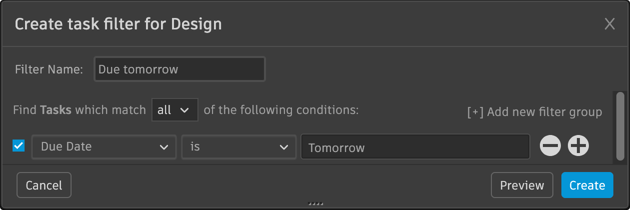
Click Create to apply the filter.
When a filter is active, a filter icon  and filter applied label appear in the pipeline step column header. Hover over the filter icon to see the active conditions and the number of visible versus total tasks.
Manage your task filter from the pipeline step right-click menu:
- Update Task Filter: Modify the existing filter conditions.
- <Task Filter Name>: The filter name appears with a checkmark when active. Select it to toggle the filter on or off.
- Apply Task Filter to all Steps: Applies the same filter to every pipeline step on the page.
To delete a task filter, select Update Task Filter and then click Delete from the dialog.
You can create only one filter for a pipeline step, but that filter can contain multiple conditions.
Summary rows recalculate to reflect only the tasks that are visible under the active filter. You can save the page with a task filter applied.
Documentation
For more information about working with pipeline steps and tasks, see Tasks and Pipeline Steps.
Release Information
Version:
8.87
Release Date:
July 2026